
This is the print version of this page. All content is copyright Indezine.com 2000-2026.
Thoughts and impressions of happenings in the world of PowerPoint and presentations, continuously updated since 2003.
See Also:
PowerPoint and Presenting Notes
PowerPoint and Presenting Glossary

Almost every day, someone is criticizing PowerPoint because they believe it makes people dumb. And that’s not even the larger problem. The larger problem is that it’s so easy to mention a problem without providing a solution!
It is not every day that someone actually does provide detailed solutions. Tom Taulli is a noted financial blogger, and he provides a wealth of knowledge on how you can create a better investor slide deck by creating something “that tells a story, clearly showing the company’s path to success”. Tom looks at the “framework every investor deck should include” on the BusinessWeek site. This is a must-read.
Filed Under:
Case Studies
Tagged as: Case Studies, Death by PowerPoint, Investor Decks, Pitch Decks, PowerPoint, Presentation Samples, Tom Taulli
iSpring Pro is a PowerPoint add-in that allows you to convert your PowerPoint presentations into Flash SWF movies with all the animations, slide transitions, audio and video clips, and inserted Flash SWF files intact. It works with all PowerPoint for Windows versions from 2000 to 2007.
iSpring Pro is from iSpring Solutions, Inc., a software development company based in Virginia, USA. You can learn more about iSpring Pro from their site. Apart from iSpring Pro, they also provide a considerably adequate free version of iSpring. This review however only explores the Pro version.

Read the Indezine review of iSpring Pro 3.5.
Filed Under:
Reviews
Tagged as: Add-in, PowerPoint Flash, Review
Comments Off on iSpring Pro 3.5: The Indezine Review
We already looked at Omnisio a few months ago—it’s a lot of fun, and you can mash up your media in creative ways. And now the news is out that Google has acquired Omnisio.
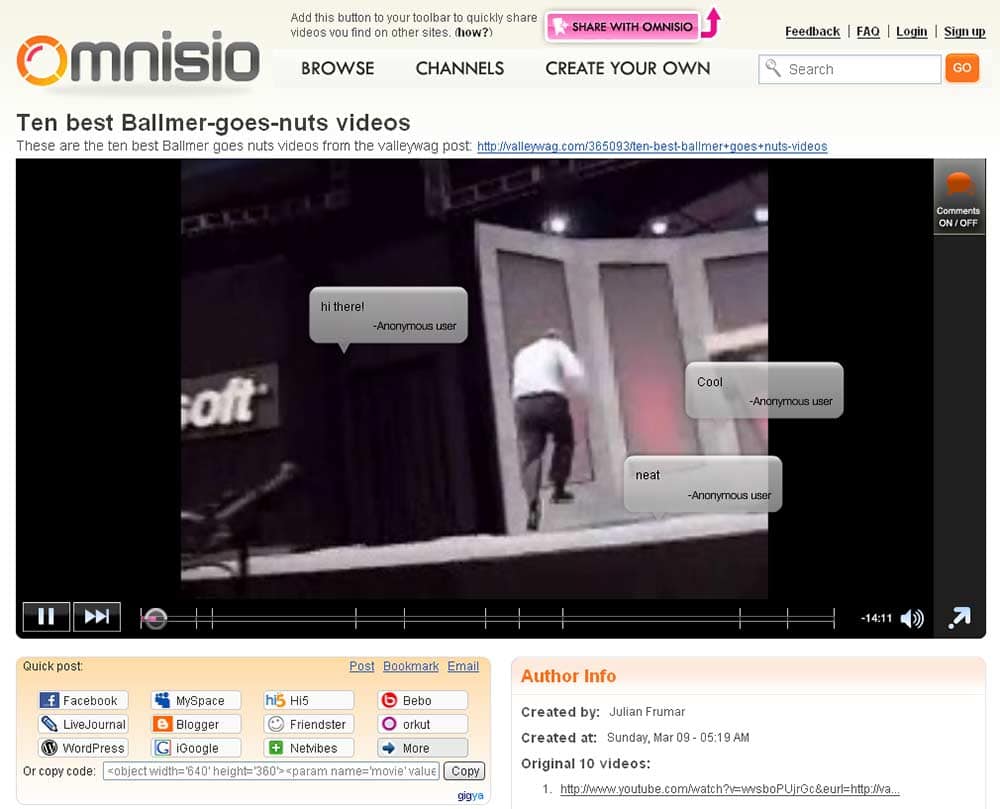
It’s still not clear how Google will use Omnisio technology, but it does seem like a natural synergy as far as using Omnisio and YouTube together is concerned.
Update: David Berlind from InformationWeek says Omnisio is sort of like Twitter or IRC meets Internet Video+PowerPoint with a dash of TiVo tossed in.
Filed Under:
Companion Programs
Tagged as: Companion Programs, Google, Movies, YouTube
Comments Off on Google Acquires Omnisio — To Add Spice To YouTube?

Jefferson West is a co-founder and the CEO of Studeous. Jeff is responsible for the marketing, public relations, and strategy at Studeous. Often traveling between schools and the company headquarters in Austin, Texas, Jeff is frequently in discussions with teachers, administrators, and students to get timely feedback from the people who use Studeous.
Geetesh: Tell us more about Studeous and how this evolved.
Jefferson: Currently, teachers and administrators would agree that many Learning Management Systems are behind the technology curve. These systems, though often poorly designed, are somehow extremely overpriced. Schools all over are having to dish out large sums of money in an attempt to keep up with technology and connect their schools on the internet. Unfortunately, these solutions are not working. They are too complicated and confusing for the teachers to effectively use and thus provide little academic benefit to the students.
Enter Studeous, a simple, easy-to-use, and most importantly, free way for teachers to organize their courses online. We make it so simple for teachers and students to stay connected long after the bell rings. Studeous is a hosted solution, so teachers don’t have to worry about buying their own servers, and there is no download. If a teacher wants great e-learning tools, he/she has them in a heartbeat. And, it requires no training.
This solves the teacher and students pain, but how does this “connect a school”? And why is this good for institutions? Administrators get free access to Studeous as well. We have three levels—Bronze, Silver, and Gold. Bronze is free and allows administrators to moderate the content in their school’s Studeous portal. They can edit bad content, suspend students from using Studeous, post announcements on the home page, etc. Administrators then have the option to upgrade to Silver or Gold for a small fraction of the cost of standard LMSes. With Silver and Gold, they can do even more useful things, like send out mass messages to all teachers or all students. They also have the option to brand their school’s portal to match the school colors.
The ease of use ensures that the average teacher will be able to use great e-learning tools, and the advanced administrator controls starting, at just $649 per school per year, ensure that virtually every school will be able to afford it. With this, we hope to make e-learning a commodity.
We have essentially created a web-based LMS that requires no training, no sales force, and minimal marketing–allowing us to put up to 100% of sales revenue back into the product itself, unlike the other enterprise e-learning companies. This allows us to continue to make Studeous better and better. Which is great for the teachers, administrators, and students of Studeous.
Geetesh: What types of files can teachers and students share with each other on Studeous? Also, is there anything I can do with PowerPoint files?
Jefferson: Teachers can share any files. We give teachers the ability to upload files to their class pages that can be downloaded by students. And we let students send teachers files by putting them in the Studeous “Dropbox.” PowerPoint files can be easily shared with Studeous. A great feature for students is our “Study Groups” feature that gives students a space to collaborate and exchange files so they are not emailing them back and forth all the time. This is a great time saver. They even get their own personal “Locker” (for students) and “Desk” (for teachers) that lets them upload personal files to store on Studeous. Say goodbye to the thumb drive! These files can be made private for personal use or public for sharing. Studeous is everything you need in one place.
Geetesh: What’s your revenue model? And will Studeous always be a free product?
Jefferson: Studeous makes money by selling administrator controls to school administrators, which allows them to moderate content and communicate with their teachers and students. This is our only source of revenue now, as we are more concerned with getting users on Studeous, than with making money. But, down the road, we have devised many unique and effective ways to monetize Studeous, without just advertising.
With that in mind, Studeous will always be free. Free for teachers, free for students, and free for administrators (with the option of upgrading for a cost).
The views and opinions expressed in this blog post or content are those of the authors or the interviewees and do not necessarily reflect the official policy or position of any other agency, organization, employer, or company.
Filed Under:
Interviews
Tagged as: Education, Interviews, PowerPoint
Comments Off on Studeous: Conversation with Jefferson West

Lee Potts has been blogging about visual communications and presentation-related issues since 2002. His current project, Breaking Murphy’s Law (tagline: because when you’re presenting, someone’s always watching), launched in June. He serves on the steering committee of InfoComm’s Presentations Council, and he was recently elected to the Health and Science Communications Association (HeSCA) Board of Directors.
Geetesh: Tell us more about yourself and how you created the Breaking Murphy’s Law blog.
Lee: Most of my career has involved, in one way or another, helping people to do presentations. As a graphic designer, an AV tech, or a tactical consultant I’ve worked on everything from basic one-on-one pitches to trade shows to large sales training meetings. Right now, I work for a major pharmaceutical company, helping research teams to present their findings at FDA Advisory Committee meetings. These meetings represent one of the final, critical milestones in the drug approval process, and they are very exciting to be part of because the stakes are so high.
When I started thinking about what would eventually become Breaking Murphy’s Law, I knew that although I really wanted to get back into blogging, I didn’t want to have another blog that was basically just a collection of annotated links to other websites.
It occurred to me that some of the most interesting moments in my career happened when things were going very wrong. Along the same lines, many of my best work memories involve hanging out during downtime with the other meeting and staging professionals, listening to their stories about when things went very wrong for them. I think that everyone would agree that there’s something fascinating about the subject. These stories can provide a certain level of vicarious knowledge. They are an entertaining way to gain some experience without actually screwing up yourself. A trick, tip, or technique learned while listening to these stories might be crucial to saving a meeting or even a career.
I created Breaking Murphy’s Law hoping it would eventually grow into an ongoing conversation, a large-scale sharing of stories about what can go wrong when you’re a presenter or when you’re supporting someone else’s presentation. A place where everyone, whether you’re an experienced professional or a newbie, can learn how to break Murphy’s Law before Murphy’s Law breaks you.
Geetesh: What are the favorite topics you have covered in the blog? Give us a few thoughts and links.
Lee: Well, in Jedi Knights With Frickin’ Laser Pointers, we covered presenters with poor pointer control. The world’s worst wet T-shirt contest deals with a last-minute beverage and business presentation collision. Sticky Situation tells about the time we had problems with the AV tech’s most basic of tools — gaffer tape. The hotel had just put down new carpets that had been heavily treated with stain repellent. Who knew it would also repel tape adhesive. None of the cables we taped down stayed down. Needless to say, some of the meeting attendees took an unplanned trip without ever leaving the venue.
I try to stay away from stories that are mainly about bad presentation and PowerPoint skills. There are so many other really good blogs already covering that. However, I am interested in stories from all the different areas of expertise that go into making a presentation possible, including administrative support, meeting planners, AV techs, venue staff, and of course, the presenters themselves. And in nod to blogging tradition, I try to publish a weekly list of things I stumbled across online that my readers might be interested in that they might have missed. The most recent example is here.
The views and opinions expressed in this blog are those of the authors and do not necessarily reflect the official policy or position of any other agency, organization, employer, or company.
Filed Under:
Interviews
Tagged as: Delivery, Education, Interviews, Lee Potts, PowerPoint
Comments Off on Breaking Murphy’s Law: Conversation with Lee Potts
Microsoft and the Office logo are trademarks or registered trademarks of Microsoft Corporation in the United States and/or other countries.