
This is the print version of this page. All content is copyright Indezine.com 2000-2026.
Thoughts and impressions of happenings in the world of PowerPoint and presentations, continuously updated since 2003.
See Also:
PowerPoint and Presenting Notes
PowerPoint and Presenting Glossary
Every presenter has those moments when they want to uplift their presentations. Maybe, an extra slide that shares their thought processes or something that will motivate the audience. As is normal though, there’s never too much time to add such slides, and there’s not much available that doesn’t look canned or is customizable.
PowerQUOTES from PresentationPro is a very simple product. In fact, it is a bunch of slides, but it is something that can make a difference if you want that one slide to make your presentation stand out. And it doesn’t look canned, and that’s because you can customize it as you want.

Read the Indezine review of PowerQUOTES.
Filed Under:
Reviews
Tagged as: PowerPoint, Review, Templates
Comments Off on PowerQUOTES from PresentationPro
How do Mac users work with Microsoft Office when they have to save in the Office Open XML file format? Office 2008 users have no problems, but everything doesn’t work too well for Office 204 users.

On the bMighty blog, Alan Zeichick explores the issues and shares his opinion.
Filed Under:
Microsoft Office
Tagged as: Office for Mac, OpenXML, PowerPoint
Comments Off on Open XML Converter for Mac Office 2004

Philip N. Morgan is a seven-year veteran of muvee and is its Chief Operating Officer. Before joining muvee, Philip spent over 25 years working in television production and operations with stints at the BBC, ITN, TV-am, TVS, Orbit, TVBS, and Sony Pictures Television. Philip is a keen photographer and videographer and enjoys cycling, jogging, traveling, and cooking. In this Indezine exclusive conversation, Philip discusses the cool, new features in muvee Reveal, and shwup, a new media sharing site from muvee.
Geetesh: Tell us more about how muvee’s products such as Reveal, differ from conventional movie editing programs.
Philip: muvee Reveal is our latest and greatest software product for the PC platform and is the direct replacement product to our award-winning muvee autoProducer range of products. It provides a completely automatic and intuitive approach to turning photos and home videos into emotionally engaging productions set to music, which users can then share with others.
Most traditional video-editing packages rely on users manipulating media with timelines and complex editing tools, having a good knowledge of the grammar of editing and how to use effects and transitions. Of course, this is great if you went to film school and also have a day to spare to edit a three-minute video of your child’s eighth birthday party to send over to granny. But if you are a busy parent, have never practiced video editing, and only have ten minutes, what do you do? Well, try muvee Reveal. Our PC software program prompts you to select your photos and videos, prompts you for a choice of music tracks, and lets you select one of the 8 pre-installed styles. muvee Reveal will then analyze your photos and video, fix any problems with the photos (e.g., red-eye effect from using flash), and then automatically put together a fully edited video made to whatever style that you have selected. And all this is done in just a few minutes. And the styles are pretty smart – you can tweak a few settings in each of the styles to get just the look you want for your video and you can also personalize your production by adding titles, credits, and captions. You can view your muvee instantly with a full-screen preview, burn a DVD, or share via upload to the internet or whatever. We have many types of output and sharing options.
muvee Reveal also includes our patented magicMoments technology which allows you to give a thumbs up to the video sections you want to include and a thumbs down to the bits of the video you want to exclude. This makes it really simple to get your video looking great without needing any fancy editing skills and hours of time to tackle the tedious part of conventional manual editing.
muvee Reveal can be purchased online, priced at $99.95. You can see how easy and simple muvee Reveal is by downloading a free trial from our site.
Geetesh: Can you tell us more about the improvements in muvee Reveal and about the new shwup site?
Philip: muvee Reveal brings High-Definition video support to our products for the first time, so you can enjoy muvees in High-Definition on your large-screen television. Choose between 1280×720 and 1920×1080 resolution. The product also supports instant full-screen preview in DVD quality.
This is pretty amazing as you can sit back and watch your muvee instantly and in great quality before you decide whether to save it or burn it to a DVD or whatever. We also provide one-touch transfer from your camcorder, phone, or camera, which makes it easy to import any pictures regardless of format and you can also save your muvee back to say your iTouch, iPhone, or PSP too as we realize that most users are really keen to share the muvees that they have created, and these devices are a great way of doing that.
Whilst I’m talking about sharing, I want to mention another key product that we have just launched. We’ve called it shwup, and you can go to shwup to find it. We’re pretty excited about it as it’s our brand new photo and video sharing site but centered around groups of people contributing and sharing their content in a more private environment than the other “sharing” sites that are out there. So, say you and a bunch of buddies all go on a weekend camping trip – you all have different digital cameras, camera phones, and video cameras but how do you gather together all of the materials that get shot when you all get back home? Someone says they’ll burn a DVD, another person says they’ll post the pictures on their Facebook page, someone else says they’ll email the best shots of the Saturday night party… But it’s all a bit clumsy and complicated and people often forget. With shwup, one person can start an album, invite the others by email and they can all then contribute by just replying to the invite and attaching their own photos and videos – all without the hassle of registration or sign-ups.
And the great thing about shwup is that each album is private to the individuals who are invited. This is very important because we realize that people don’t necessarily want their private gatherings or parties posted all over the internet for everyone else in the world to be able to see or download.
At shwup, we also provide an online muvee-making function so people can make their own muvees with the materials they have contributed, or which have been uploaded to an album by their friends. Plus, our PC product (muvee Reveal) can also upload muvees to a shwup album or download raw materials from a shwup album to make muvees from on the PC desktop. So, the experience is all pretty seamless and well-connected. I’m having a lot of fun myself using shwup and it’s great that it introduces newbie users to how easy it can be to make muvees that look terrific and that you’ll really want to share with others.
And by the way, the term shwup came up as the site is about sharing and “showing up” and so we thought shwup was a neat way of expressing that.
You can try shwup for yourself at shwup and it’s totally free.
You May Also Like: muvee on Indezine
The views and opinions expressed in this blog post or content are those of the authors or the interviewees and do not necessarily reflect the official policy or position of any other agency, organization, employer, or company.
Filed Under:
Interviews
Tagged as: Interviews, Movies, Video
Comments Off on muvee Reveal: Conversation with Philip Morgan
As yet another PowerPoint Live conference makes itself visible on the horizon, we think it’s a good idea to look ahead at what’s going to be visible on the slides at the conference this year—especially the new template design that will be provided to all speakers. Read the whole story here along with a conversation with Rick Altman, the host of the PowerPoint Live conference.

Meanwhile, take a look at these winning entries (and finalists) from the last few years:
PowerPoint Live 2008 Template
Other Finalists for 2008
PowerPoint Live 2007 Template
PowerPoint Live 2006 Template
PowerPoint Live 2005 Template
Filed Under:
Microsoft Office
Tagged as: Contest, Microsoft Office, PowerPoint, PowerPoint Live
Comments Off on PowerPoint Live Template Contest
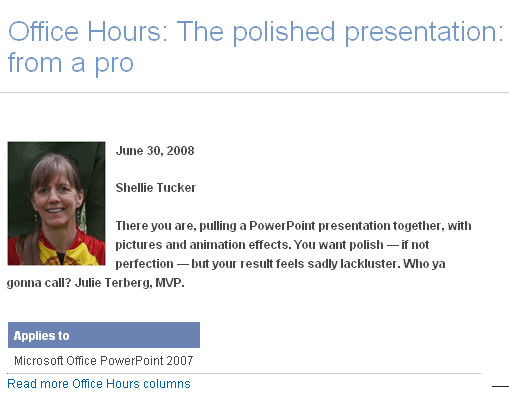
It’s easy to be biased towards something put together by two of my friends. Even if I were not biased, I’ll call this sort of content “amazing”. Shellie Tucker put up this article called The Polished Presentation. Julie Terberg was the designer who helped her with some great advice. Read the article on the Microsoft Office Online site. And while all the screenshots show PowerPoint 2007 for Windows, all those techniques will work on PowerPoint 2008 for Mac as well.
Learn how you can create a better flow with animation, a better look with picture effects, and a better layout with crop and align tools.
Julie Terberg is a PowerPoint MVP, and Shellie Tucker is part of an outstanding team at Microsoft that creates online content on PowerPoint.
Filed Under:
Thoughts
Tagged as: Julie Terberg, Office Online, PowerPoint, Techniques
Comments Off on The Polished Presentation: Shellie Tucker and Julie Terberg
Microsoft and the Office logo are trademarks or registered trademarks of Microsoft Corporation in the United States and/or other countries.