
This is the print version of this page. All content is copyright Indezine.com 2000-2026.
Thoughts and impressions of happenings in the world of PowerPoint and presentations, continuously updated since 2003.
See Also:
PowerPoint and Presenting Notes
PowerPoint and Presenting Glossary

Neuxpower creates NXPowerLite, a popular optimization program for Microsoft Office file formats, including PowerPoint. Andrew Molyneux leads Neuxpower’s in-house team of developers. In this Indezine exclusive conversation, Andrew gives us detailed responses on the evolution of NXPowerLite and more.
Geetesh: Tell us more about how NXPowerLite has evolved – all the new features you add, and the acceptance by users.
Andrew: The original idea for NXPowerLite came from a client for whom we had been doing some bespoke development work. He told us that he’d received a very large PowerPoint presentation which he needed to edit and pass on to several other people, but his organization’s outgoing email size limit meant that he couldn’t send it out without first reducing the size considerably. He spent hours painstakingly copying the images into Photoshop, scaling them down, and then inserting them back into the presentation. He asked us if this process could be automated, and the idea of NXPowerLite was born.
When we released Version 1 of NXPowerLite in late 2001, the response from users was overwhelmingly positive; they were astonished at the huge reduction in the size of their files, the speed with which it could be achieved, and the incredible simplicity of NXPowerLite.
Over the next few years, we gradually improved NXPowerLite’s performance, adding support for new versions of PowerPoint as they were released. The software was also translated into French and German at the request of our increasingly international customer base.
By 2005, we’d reached the limit of what we could accomplish by automating PowerPoint. Optimizing very large presentations could take a long time, and there was a limit to the size reduction that could be achieved using this method. Customers were also increasingly asking for a version of NXPowerLite that could run on servers, which wouldn’t have been practical with the automation approach. To address these problems, we obtained documentation on the PowerPoint file format from Microsoft and completely rewrote NXPowerLite’s optimization engine. The result was NXPowerLite Version 2, released in late 2005. This offered considerably better compression and was much faster than previous versions. Version 2 also saw the introduction of the Integrated Edition of NXPowerLite, which enabled the software to be easily launched from within PowerPoint itself or by right-clicking on a PowerPoint file in Windows Explorer.
By the time NXPowerLite 2 was released, we had a large and rapidly growing international user community, who gave us a constant supply of ideas for development. In a period of just over a year, in addition to improving the core optimization engine, we added several major features, including integration with Microsoft Outlook, batch processing, Spanish and Japanese translations, and a Server Edition, allowing NXPowerLite technology to be integrated with our customers’ server-based applications.
Customers had been telling us for some time that they would like to see NXPowerLite’s optimization technology applied to other file formats. This led to the release of NXPowerLite Version 3 in early 2007. This added support for Microsoft Word and Excel files. We also included Chinese and Italian translations and began packaging NXPowerLite using Microsoft’s Windows Installer (MSI) technology to improve manageability for our larger enterprise customers.
With the addition in version 3.5 of support for Microsoft’s new XML-based Office 2007 formats, the number of supported file formats has grown from the original one (PowerPoint 97-2003) to six (PowerPoint, Word, and Excel 97-2003 and PowerPoint, Word, and Excel 2007). We’ve also devoted considerable resources to improving NXPowerLite’s core optimization technology. Unique features of NXPowerLite’s optimization engine, developed as a result of sample files sent to us by our customers, can result in files that are over 25 times smaller than any of our competitors can achieve. These features can be found in NXPowerLite 3.6, released earlier this month as a free update for NXPowerLite 3 users.
Geetesh: What’s your favorite NXPowerLite feature that you believe is not too well known or under-utilized?
Andrew: That’s a tough question because we’ve carefully designed NXPowerLite to make it as simple as possible to use all of its features.
One feature that will be increasingly important, however, is the ability to optimize files specifically for mobile devices. This is already important for mobile workers using the current generation of Smartphones and PDAs based on Symbian, Windows Mobile, and other platforms, but will be even more valuable as the next generation of mobile devices evolves, such as the upcoming iPhone 3G.
The views and opinions expressed in this blog post or content are those of the authors or the interviewees and do not necessarily reflect the official policy or position of any other agency, organization, employer, or company.
Filed Under:
Interviews
Tagged as: Add-in, Andrew Molyneux, Interviews, Neuxpower, NXPowerlite, PowerPoint
By default, the iWork installation creates shortcuts for all the programs within the iWork suite such as Keynote, Pages, and Numbers within the Mac OS Dock. However, you may have deleted the shortcut, some ghost may have gobbled it, or it might not have been there in the first place! In this post, we’ll show you how you can recreate the shortcut.


To remove the shortcut from your Dock, just drag it off the Dock and let go!
Filed Under:
Keynote
Tagged as: Apple Mac OS X, Interface, iWork, Keynote
Comments Off on Create an Apple Keynote Shortcut on the Dock
 Wendy Russell is the About com Guide to Presentation Software. In her role as a software consultant and teacher, Wendy gives frequent presentations, coaching and offering advice to students, educators and business clientele on how to make the most of presentation software.
Filed Under:
Interviews
Tagged as: Interviews, PowerPoint, PowerPoint 2007
Comments Off on About com: The Wendy Russell Interview
We remember the first version of Keynote had a nice manual. Also, the second one, which came as part of iWork 05, had a substantial paper manual in the box. Then the box became smaller in iWork 06, and it is probably even smaller in iWork 08, the newest version.
iWork 08 still includes some sort of a manual, but it’s not exhaustive documentation for all Keynote options and features. However, if you have your iWork CD/DVD around, you’ll find it contains a PDF manual. And the same manual is also available online on Apple’s site.
To download a copy of the Keynote manual, go to:
While you are on that page, you’ll find a prominent link to the Keynote user manual, as you can see in Figure 1, below.
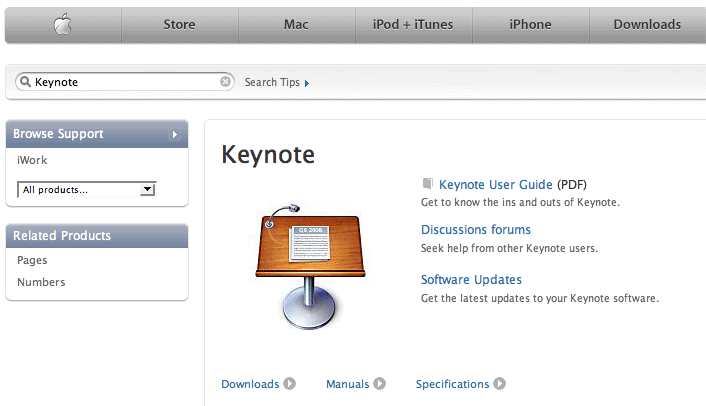
Figure 1: Download the Keynote manual
As you can see in Figure 1, above, this link provides a download for the manual of the latest version of Keynote. So what if you have an older version of Keynote and want a manual for that version? In that case, use this link.
As you can see in Figure 2, below, this page provides manuals for all Keynote versions except Keynote 1.
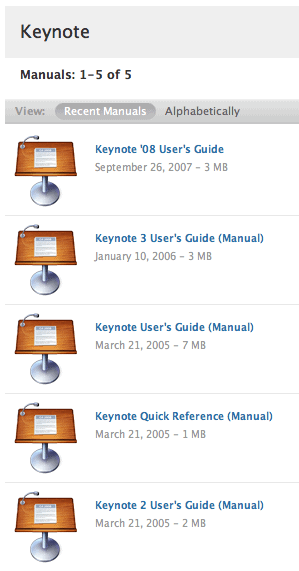
Figure 2: Manuals of previous Keynote versions
Filed Under:
Keynote
Tagged as: Apple Mac OS X, iWork, Keynote, Manuals
Comments Off on Where’s Your Apple Keynote Manual?
We already showed you the Slide Navigator and Outline views in Apple Keynote in an earlier post. Keynote provides two more views that we will explore within this post.
These two views are:
Both these views can be accessed by using the options found in the View menu, as shown in Figure 1, below. To view the Slide Only view, choose the View | Slide Only option.

Figure 1: View Slide Only (or Light Table)
You access the Light Table view in the same way by choosing the View | Light Table option.
The Slide Only view is almost the same as the Slide Navigator and Outline views, other than the fact that there are no Navigator or Outline panes on the left. So, all you get to see is the active slide, as shown in Figure 2, below. This is great if you want to save a little extra screen real estate to get a larger slide view.
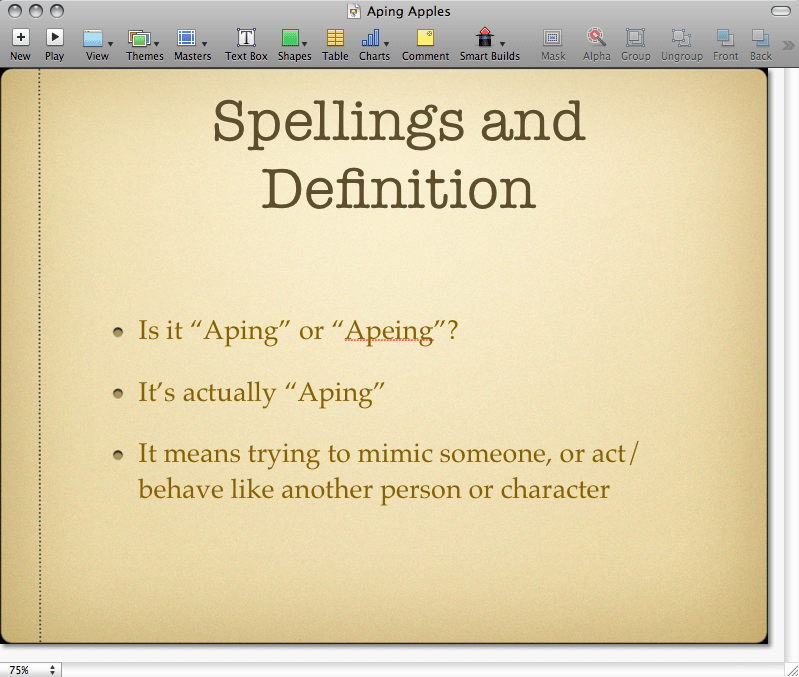
Figure 2: Slide Only view
Finally, the Light Table view shows you thumbnail-size previews of all slides in your presentation, much more than what the Slide Navigator can show you. Figure 3, below, shows you the Light Table view. PowerPoint users will immediately recognize this as the same as PowerPoint’s Slide Sorter view.
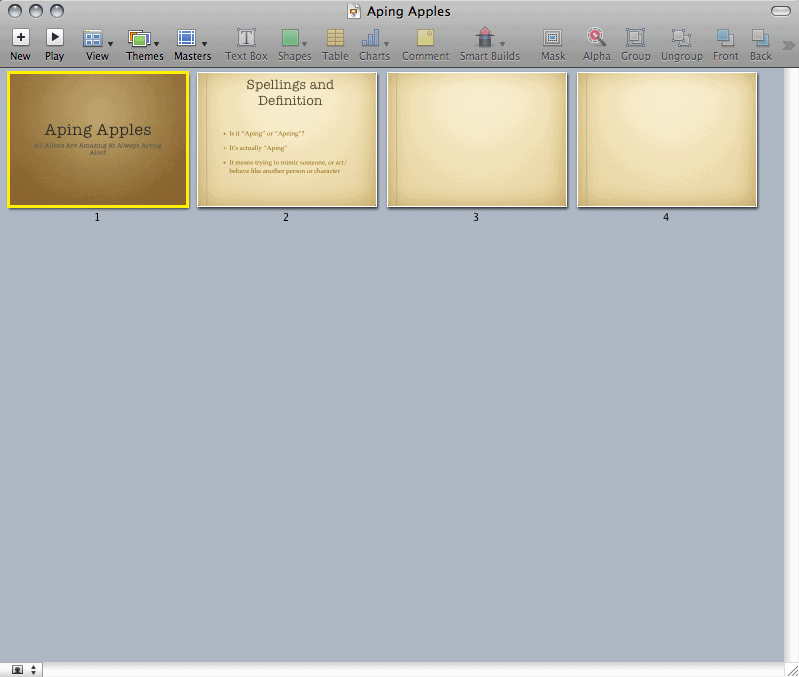
Figure 3: Light Table view
Since we are discussing views in Keynote, here’s a small trick. We already showed you that you can access these views through the options in the View menu. However, you can also get to these views by clicking the View button on the Toolbar; click the button and it shows you a small menu, as shown in Figure 4, below. Choose any view you want.

Figure 4: View options from the Toolbar
Filed Under:
Keynote
Tagged as: Apple Mac OS X, Interface, iWork, Keynote, View
Comments Off on Apple Keynote Views
Microsoft and the Office logo are trademarks or registered trademarks of Microsoft Corporation in the United States and/or other countries.