
This is the print version of this page. All content is copyright Indezine.com 2000-2026.
Thoughts and impressions of happenings in the world of PowerPoint and presentations, continuously updated since 2003.
See Also:
PowerPoint and Presenting Notes
PowerPoint and Presenting Glossary
 Joel Harband heads Tuval Software Industries, based in Israel. Their best-known product is Speech-Over Studio, a PowerPoint add-in that enables PowerPoint slides to incorporate narrations using automated voices.
Geetesh: Tell us more about the new features and improvements in Speech-Over 2.5.
Joel: Sure. First, I’d like to remind readers of Speech-Over’s mission: To use narration and animation in PowerPoint to achieve the impact of a live presentation. This boosts the effectivity of PowerPoint-based e-learning, training, and web presentations in an easy and economical way.
Speech-Over lets users build effective narrations from individual narration clips, combining general orientation topics, like introduction and summary, with specific content topics linked to screen objects. PowerPoint animations synchronized with the narration clips are added to illustrate and clarify the narration.
Speech-Over uses articulate text-to-speech (TTS) voices to add and maintain professional narration easily.
The new features in Speech-Over 2.5 are designed to raise efficiency when the software is used by teams of authors. The features include the ability to refresh all narration clips in the presentation after changes in preferences, including the slide notes generated in the notes pane, and an improved voice preview function in the narration clip editor that allows skipping sentences during the preview and stopping it in the middle.
Geetesh: Can you tell us more about the TTS voices, what they are, and how one can get more of them?
Joel: Text-to-speech (TTS) is the automated synthesis of speech from text. The heart of the system is the text-to-speech engine, a sophisticated piece of software that parses the text input, analyzes its grammar, sentence structure, punctuation, and capitalization, and activates voice simulations to produce a vocal rendering of the text.
The data for individual voices are provided in separate files called “voices”. The TTS engine can work with any of the voices interchangeably.
Advances in TTS technology have replaced the old robotic computer voices with new, amazingly realistic ones.
Synthesized from real voices, these remarkable TTS voices can read books aloud beautifully without a mistake, guided only by grammar, sentence structure, and punctuation. People use them to learn and review while driving.
The exciting news is that these articulate TTS voices have been harnessed by Speech-Over to empower users to add professional narration in presentations easily.
Speech-Over, which has an embedded text-to-speech engine, accepts user narration text and launches TTS voices from within PowerPoint to record professional narrations from the text alone.
Change the narration text as often as you need and these tireless voices record new versions quickly and faithfully without complaint.
TTS voices are separate computer applications which, once installed, are recognized by Speech-Over. They are available in male and female genders, in all major languages, and in various regional dialects.
Basic quality Microsoft voices Mike and Mary are included free. For much better results, premium TTS voices are available from voice vendors such as AT&T and NeoSpeech at affordable prices. Speech-Over uses SAPI 5 standard TTS voices.
The views and opinions expressed in this blog post or content are those of the authors or the interviewees and do not necessarily reflect the official policy or position of any other agency, organization, employer, or company.
Filed Under:
Interviews
Tagged as: Add-in, Interviews, Joel Harband, PowerPoint, Speech-Over
Comments Off on Speech-Over Studio 2.5: Conversation with Joel Harband
Flypaper is a cool, new presentation creation program that lets you create Flash presentations that you can instantly upload to sites like YouTube, MySpace, and Facebook. In its present beta incarnation, it has some rough edges and any comparison with PowerPoint would probably be like comparing apples and oranges since Flypaper seems to provide a very different concept altogether.
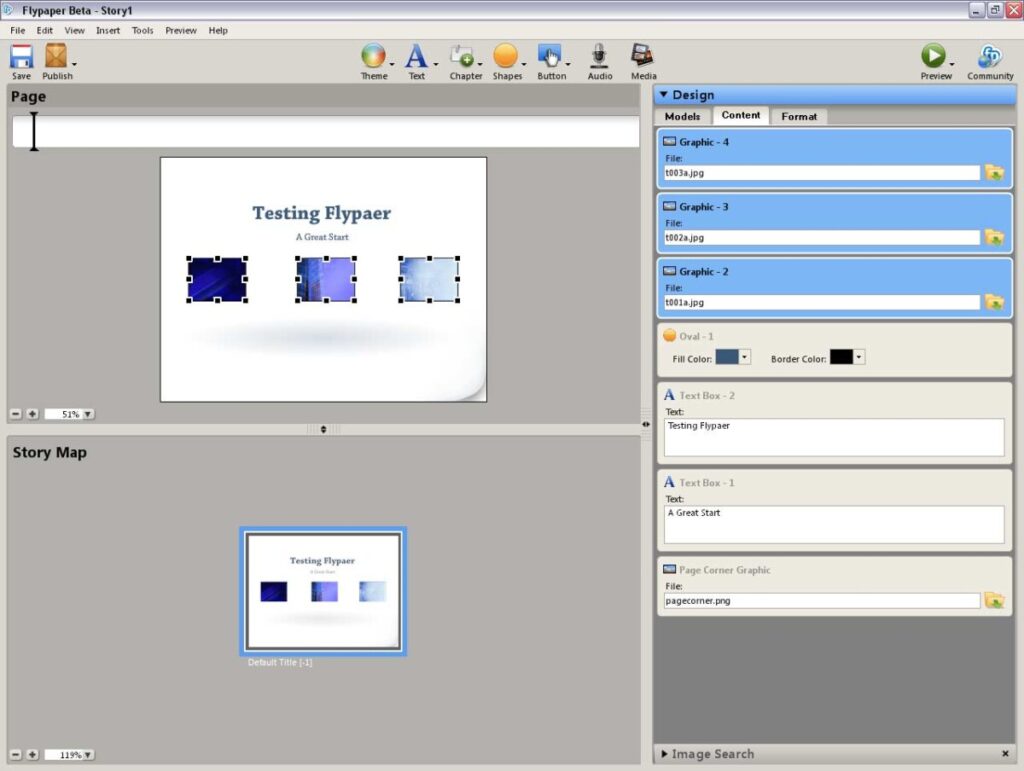
Flypaper is a free application that runs on Windows XP and Windows Vista only (no Mac yet) — it’s a large download at 89 mb whereabouts, but it’s fun to play with and may evolve into something very useful. The screenshot above shows the interface — click on the screenshot to see a larger preview.
Flypaper does get into new terminology though: slide layouts/designs are called ‘models’!
Filed Under:
Online Presentations
Tagged as: Flypaper, Online Presentations, YouTube
Comments Off on Online Presentations with Flypaper
Omnisio, a new startup allows you to mix and mash videos from several online video sites like YouTube, Google, and Blip.tv to create new videos. You can choose start and end points to trim the existing video clips, combine them in a sequence you want, and create a new online video clip that you can share.
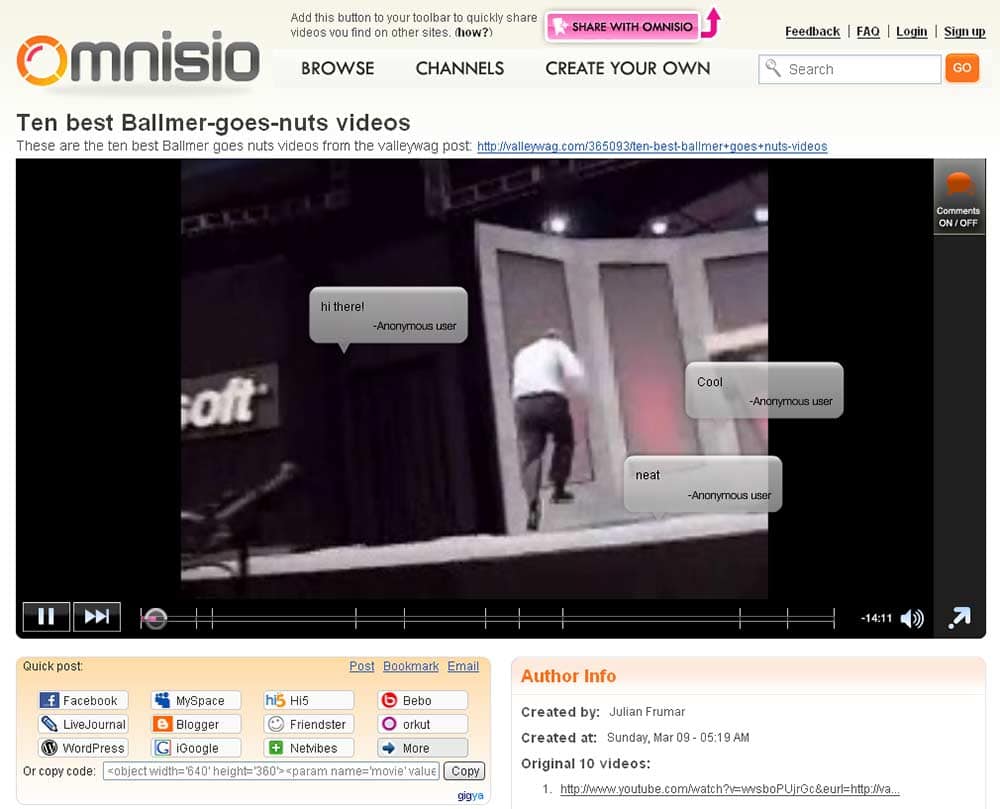
These shared clips are entirely embeddable — and you can have comments that actually hover over the video on these shared clips (see screenshot above). Many users find this distracting, so it’s nice that you can turn them off.
More importantly, Omnisio is about to introduce new features soon that will allow you to synchronize PowerPoint slides with video. This feature will take Omnisio to the professional league.
Membership is free and very quick — and you don’t even need to be a member to view some sample clips. The clips are great — and can allow you to get hours of fun.
Learn more at the Omnisio site.
Filed Under:
Companion Programs
Tagged as: Companion Programs, Movies, Online Presentations, PowerPoint, YouTube
Comments Off on Mix and Mash Online Video Clips with Omnisio
By Daniel Park
The other day, I got a solid lesson in good screencasting from a most unexpected place.
Most Americans, at some point in their academic careers (could be high school, college, or in my case, both), have an English composition class foisted upon them by the local administration. This is done with the supposed motivation of churning out graduates who can express themselves succinctly and coherently in written form. Persons armed with this knowledge will be able to master business reports, research studies, doctoral dissertations, you name it.
Or, at the very least, have the most eloquently written McDonald’s employment application on the block.
One text that’s basically regarded as standard issue in these courses is The Elements of Style by William Strunk and E.B. White, and has been thus since its initial publication in 1959. I bought my first copy back in 1989, when the book was a mere pup at the tender age of 30. In its nearly 50 years on the shelves, this tiny grey paperback has prevented millions of grammatical foibles the world over, defusing everything from awkward sentence structure to the careless use of non-words like irregardless.
I recently pulled my dog-eared copy of the shelf in an attempt to decide the correctness between “None of us were there” and “None of us was there” (it’s the latter, by the way), when I came across an essay at the back that I hadn’t remembered. It was called “An Approach to Style,” and moved away from the specific prescriptivist “grammar police” ruleset that comprised most of the book, and instead just offered up a list of basic guidelines to bear in mind when communicating with words.
I was astounded by how many of these suggestions were readily applicable to narrated visual media as well, despite the fact that it was written a good 45 years before Jon Udell ever coined the term “screencast.” I wanted to share a few of these with you.
Place yourself in the background. “Write in a way that draws the reader’s attention to the sense and substance of the writing, rather than the mood and temper of the author.”
This is a particularly sticky one for marketing screencasters. When crafting a video advertisement or marketing spot, it’s vitally important to focus on your audience. Their lives, their problems. With luck, you can be there to offer the solution. There are instances (such as this newsletter), where it’s appropriate for the author to be more “present” within the content. But you can’t ever lose sight of your users and the benefit to their lives that you’re attempting to bring to the table. More on this next month.
Do not overwrite. And this goes hand-in-hand with two other basic tenets of theirs, Write in a way that comes naturally and Avoid fancy words. “Rich, ornate prose is hard to digest, generally unwholesome, and sometimes nauseating.”
As you write your narration script, you must take care to avoid the kind of thick, jumbled wordiness that makes your video impossible to penetrate without a dictionary in hand. Most people won’t bother, so don’t use a 75-cent word when a 10-cent one will do. This goes doubly for industry terms and other technical jargon. Only use a technical term when no other more common replacement exists, and when you’re certain that at least 95% of your audience will understand it. Take a second in your narration to clarify the term if you’re not sure.
Do not explain too much. “It is seldom advisable to tell all.”
Amen, brothers. Amateur screencasters often make the classic rookie mistake of explaining every field and button. Even a comprehensive tutorial should exist to show completion of a given task or set of tasks. Clarify only those features and aspects of the application that are directly involved in getting the user from point A to point B. In screencasting, the hackneyed slang phrase “Too much information!” really does apply, so don’t inundate your audience with a lot of extraneous info.
Revise and rewrite. “Revising is part of writing. Few writers are so expert that they can produce what they are after on the first try.”
Revision is a necessity in the screencast production process. If possible, try to segment your revision as much as possible. What does this mean? Well, take a quick look at my workflow, which generally goes something like this:
Write narration | Craft storyboard | Record footage | Edit silent cut | Record and clean up narration | Produce final output.
You should be giving the decision-makers (clients, managers, etc.) access to your work at nearly every point in this process. If there’s an unnecessary paragraph in your narration, it’s a lot easier to correct early on, when it’s just words on paper. If something’s destined to get the ax, you’re wasting valuable time by coming up with visuals, recording clips, and cutting them all together.
Don’t overstate. “When you overstate, readers will be instantly on guard, and everything that has preceded your overstatement as well as everything that follows will be suspect in their minds because they have lost confidence in your judgment or your poise.”
Overstatements are dangerous territory, particularly for marketing screencasts. Yes, you want to convey the benefit of your product or service, and yes, those benefits should be as compelling as possible. Just don’t promise them the moon. Or, promise them the moon, provided you’re ready to deliver on that promise and you can provide good testimonials and other proof that you’re not just full of hot air.
Good stuff. The advice of these two men from nearly a half-century ago is as relevant as ever to those of us who create content for a living.

This guest post is by Daniel Park, author of Camtasia Studio: The Definitive Guide. Daniel has just launched a new screencasting newsletter, and this is an excerpt from the first issue — make sure you subscribe to The Screencaster.
The views and opinions expressed in this blog post or content are those of the authors or the interviewees and do not necessarily reflect the official policy or position of any other agency, organization, employer, or company.
Filed Under:
Books
Tagged as: Books, Daniel Park, Delivery, Opinion
Comments Off on The Screencaster: Lessons to the aspiring screencaster from Strunk & White
SlideRocket gets more exposure each day—and the product gets better too. We have been working with this online presentation product for a long while now, and their implementation is awesome.
We do miss a few things. Surprisingly, we miss PowerPoint 2007’s tabbed Ribbon interface. And that’s because SlideRocket’s options do require many clicks. And we wish they built in some Flickr authorization so that we could access all our Flickr photos. As of now, we can only access public photos. And these minor rants may not be too fair, since this is still a beta product.
The screenshot below shows the SlideRocket interface.

SlideRocket is based on Adobe’s Flex technology, and Josh Catone provides a great intro to the underlying architecture of SlideRocket on his ReadWriteWeb blog.
Josh Lowensohn provides another walkthrough on the Webware site.
Filed Under:
Companion Programs
Tagged as: Companion Programs, Online Presentations, PowerPoint
Comments Off on More on SlideRocket
Microsoft and the Office logo are trademarks or registered trademarks of Microsoft Corporation in the United States and/or other countries.