
This is the print version of this page. All content is copyright Indezine.com 2000-2026.
Thoughts and impressions of happenings in the world of PowerPoint and presentations, continuously updated since 2003.
See Also:
PowerPoint and Presenting Notes
PowerPoint and Presenting Glossary
The Outline view in PowerPoint 365 for Windows provides access to your presentation’s text outline through the alternating Slides and Outline panes on the left side of the PowerPoint interface. The Outline view displays all the text contained within the title and text placeholders of your slides, and is one of the ten views in PowerPoint 365 for Windows.

Learn about the Outline view in PowerPoint 365 for Windows.
Filed Under:
PowerPoint 365
Tagged as: Microsoft Windows, Office 365, Outline View, PowerPoint 365, Tutorials, View
Comments Off on Outline View in PowerPoint 365 for Windows
The Outline view in PowerPoint 2019 for Windows provides access to your presentation’s text outline through the alternating Slides and Outline panes on the left side of the PowerPoint interface. The Outline view displays all the text contained within the title and text placeholders of your slides, and is one of the ten views in PowerPoint 2019 for Windows.

Learn about the Outline view in PowerPoint 2019 for Windows.
Filed Under:
PowerPoint 2019
Tagged as: Interface, Microsoft Windows, Office 2019, Outline View, PowerPoint 2019, Tutorials, View
Comments Off on Outline View in PowerPoint 2019 for Windows
This newsletter comes to you at the end of 2019, so first of all, wishing all of you subscribers a very happy and prosperous new year. And then we will look at creating timelines in PowerPoint 365 for Windows using SmartArt. We then bring back Jim Endicott’s post, “Are Your Key Takeaways a Needle in a Haystack?” that looks at creating simpler presentations that your audience can understand.
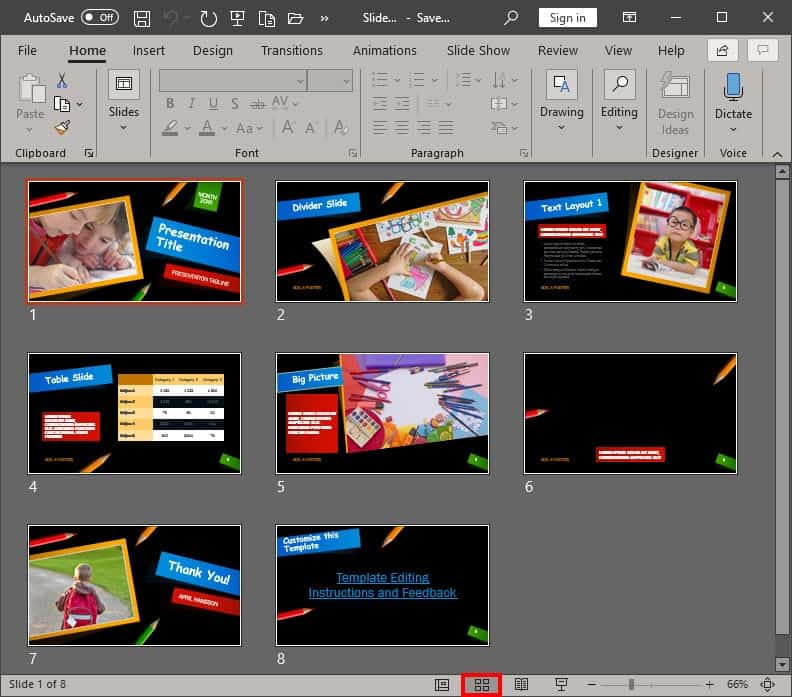
PowerPoint 365 for Mac users can explore keyboard sequences, which are similar to keyboard shortcuts but a little different. PowerPoint 2019 and 365 for Windows users can learn about Slide Sorter View. Also, make sure you do not miss the quotes, press releases, and templates featured in the last week.
Stay informed about updated tutorials and happenings related to PowerPoint and presenting.
Filed Under:
Ezine
Tagged as: Ezine, Indezine, News, PowerPoint
Comments Off on PowerPoint and Presenting News: December 31, 2019
Most of the time, you may work on a single slide in your PowerPoint presentation, but there are times when you want to copy, duplicate, reorder, or even delete a bunch of slides. It’s in scenarios like these that you will encounter PowerPoint 365’s Slide Sorter view. Among the various views available in PowerPoint 365 for Mac to play and edit your presentations, we have already covered both Normal view and Outline view. Although Slide Sorter view does not let you edit individual slide objects, it does let you work with whole slides. Any edits made will influence one or more slides, depending upon your selection.
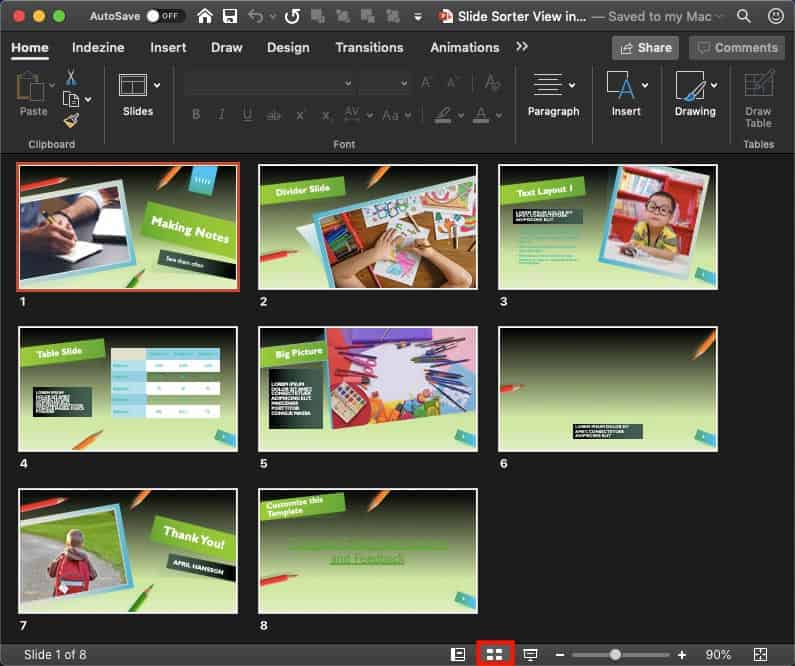
Learn about the Slide Sorter view in PowerPoint 365 for Mac.
Filed Under:
PowerPoint 365
Tagged as: Interface, Mac, Office 365, Office for Mac, PowerPoint 365, PowerPoint for Mac, Slide Sorter View, Tutorials, View
Comments Off on Slide Sorter View in PowerPoint 365 for Mac
Yes, you can create timelines in PowerPoint, by using shapes or via the SmartArt option, but what if you could create a timeline by doing nothing other than typing into a bulleted list, and then make PowerPoint change the content into a properly formatted timeline? Wouldn’t that be cool? In this tutorial, let us learn how you can achieve this trick in PowerPoint 365 for Windows.

Learn how you can quickly convert a bulleted list to a timeline in PowerPoint 365 for Windows.
Filed Under:
PowerPoint 365
Tagged as: Design Ideas, Microsoft Windows, Office 365, PowerPoint 365, PowerPoint Designer, Timeline, Tutorials
Comments Off on Creating Timelines with PowerPoint Designer in PowerPoint 365 for Windows
Microsoft and the Office logo are trademarks or registered trademarks of Microsoft Corporation in the United States and/or other countries.