
This is the print version of this page. All content is copyright Indezine.com 2000-2026.
Thoughts and impressions of happenings in the world of PowerPoint and presentations, continuously updated since 2003.
See Also:
PowerPoint and Presenting Notes
PowerPoint and Presenting Glossary
Notes Page view is one of ten views available in PowerPoint 365 for Windows. This view shows you how your printed notes pages will appear. First of all, the Notes page shows the speaker notes that you add to the Notes pane for each slide. Secondly, these speaker notes are visible in three distinct places within PowerPoint, depending on the view you choose.

Learn about Notes Page view in PowerPoint 365 for Windows.
Filed Under:
PowerPoint 365
Tagged as: Microsoft Windows, Notes Page, Office 365, PowerPoint 365, Tutorials, View
Comments Off on Notes Page View in PowerPoint 365 for Windows
We first explore an amazing new feature in PowerPoint that lets you export Animated GIFs from your presentations, with all animations intact. We also bring you a guest post by Puneet Gogia on how you can create a Gantt chart in PowerPoint.
PowerPoint 365 for Windows users can explore creating timelines with PowerPoint Designer. PowerPoint 365 for Mac users can find out about Slide Sorter View. PowerPoint 2019 and 365 for Windows users can learn about the lesser-known Outline view, and how this view can help you create structured presentations. Also, make sure you do not miss the quotes, press releases, and templates featured in the last week.

Stay informed about updated tutorials and happenings related to PowerPoint and presenting.
Filed Under:
Ezine
Tagged as: Ezine, Indezine, News, PowerPoint
Comments Off on PowerPoint and Presenting News: January 7, 2020
The Outline view in PowerPoint 365 for Mac provides access to your presentation’s text outline through the alternating Slides and Outline panes on the left side of the PowerPoint interface. The Outline view displays all the text contained within the title and text placeholders of your slides and is one of the ten views in PowerPoint 365 for Mac.
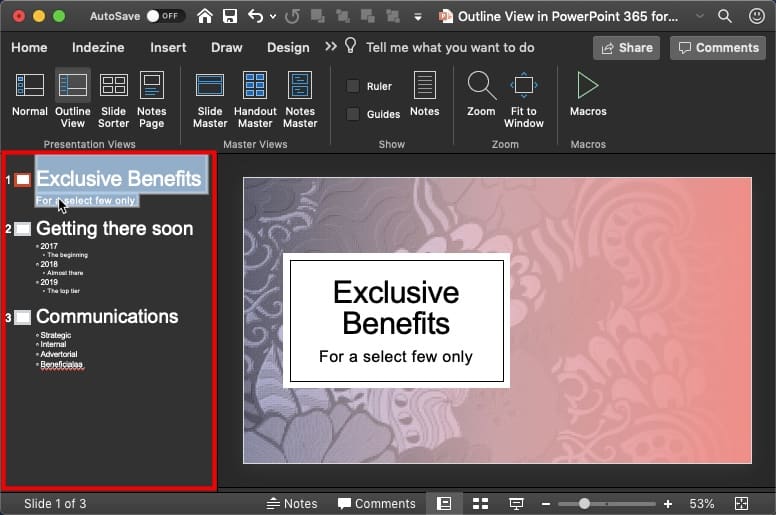
Learn about the Outline view in PowerPoint 365 for Mac.
Filed Under:
PowerPoint 365
Tagged as: Mac, Office 365, Office for Mac, Outline View, PowerPoint 365, PowerPoint for Mac, Tutorials, View
Comments Off on Outline View in PowerPoint 365 for Mac

Cliff Atkinson is an acclaimed writer, a popular keynote speaker, and an independent communications consultant to leading attorneys and Fortune 500 companies. He crafted the presentation that persuaded a jury to award a $253 million verdict to the plaintiff in the nation’s first Vioxx trial in 2005, which Fortune magazine called “frighteningly powerful.”
Cliff’s bestselling book, Beyond Bullet Points (published by Microsoft Press) was named a Best Book of 2007 by the editors of Amazon and has been published in four editions and translated into a dozen languages including Chinese, Korean, and Russian. Cliff’s work has been featured in The New York Times, Los Angeles Times, Wall Street Journal, and Fox News.
In this conversation, Cliff talks about the 4th edition of his book, Beyond Bullet Points.
Filed Under:
Interviews
Tagged as: Books, Cliff Atkinson, Interviews
Comments Off on Beyond Bullet Points 4th Edition: Conversation with Cliff Atkinson
Notes Page view is one of ten views available in PowerPoint 2019 for Windows. This view shows you how your printed notes pages will appear. First of all, the Notes page shows the speaker notes that you add to the Notes pane for each slide. Secondly, these speaker notes are visible in three distinct places within PowerPoint, depending on the view you choose.

Learn about Notes Page view in PowerPoint 2019 for Windows.
Filed Under:
PowerPoint 2019
Tagged as: Microsoft Windows, Notes Page, Office 2019, PowerPoint 2019, Tutorials, View
Comments Off on Notes Page View in PowerPoint 2019 for Windows
Microsoft and the Office logo are trademarks or registered trademarks of Microsoft Corporation in the United States and/or other countries.