
This is the print version of this page. All content is copyright Indezine.com 2000-2026.
Thoughts and impressions of happenings in the world of PowerPoint and presentations, continuously updated since 2003.
See Also:
PowerPoint and Presenting Notes
PowerPoint and Presenting Glossary
PowerPoint animation makes slide objects move. These slide objects can be anything you can select such as text, pictures, charts, SmartArt graphics, shapes, and even video clips. But did you know that you can combine multiple animations to happen at the same time for the same slide object, creating a custom animation effect? Imagine, an object fading and zooming at the same time! Although you can combine fade and zoom entrance animations, you really cannot combine a fade entrance with a zoom exit. PowerPoint has four types of animation, and you will learn what can be combined or not in this tutorial.

Apply multiple animations to one slide object, and make all animations play together.
Filed Under:
PowerPoint All Versions
Tagged as: Animation, Tutorials
Comments Off on Apply Two or More Animations to One Object at the Same Time in PowerPoint
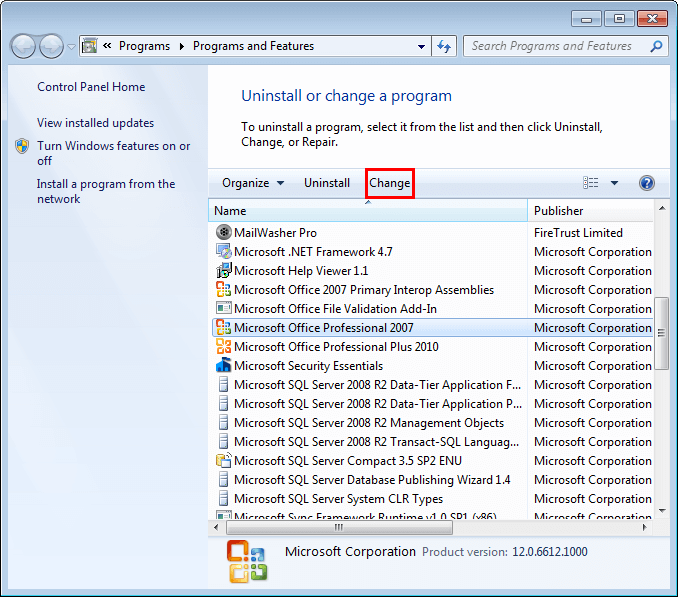
At times, you may want to change your default version of PowerPoint. This decision can be important for you if you have multiple versions of PowerPoint installed on your system. Typically the last version installed is the default version, but there are other ways to change the defaults, and all of them do not work all the time! Let us explore some options if you want to set PowerPoint 2007 as your default version.
Filed Under:
PowerPoint 2007
Tagged as: Microsoft Windows, Office 2007, PowerPoint 2007, Tutorials
Comments Off on Set PowerPoint 2007 for Windows as the Default Version
PowerPoint saves all Property fields as metadata. This metadata can be very useful in the cataloging and search of presentations and individual slides. In addition to editing or adding the Property content in Backstage view, you can also bring up more Properties with the Advanced Properties option.
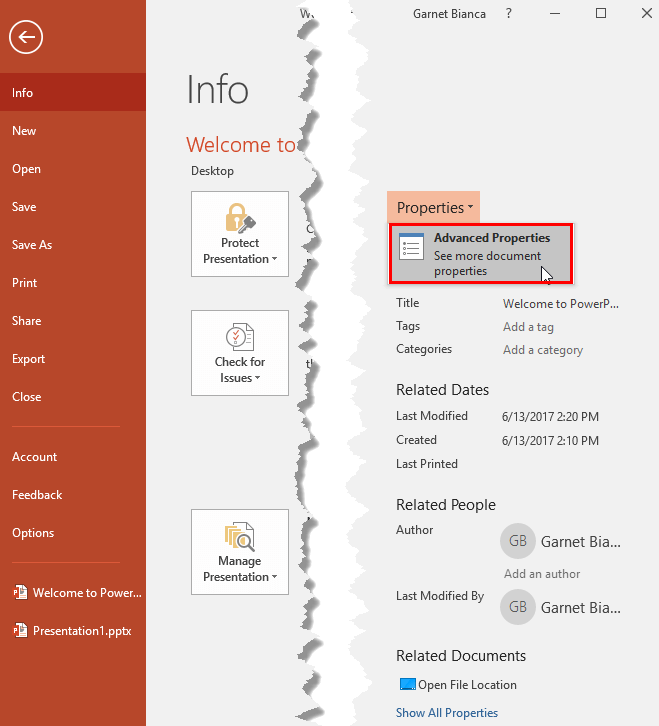
Learn how to view and edit advanced presentation properties in PowerPoint 2016 for Windows.
Filed Under:
PowerPoint 2016
Tagged as: Microsoft Windows, Office 2016, PowerPoint 2016, Properties, Tutorials
Comments Off on Advanced Presentation Properties in PowerPoint 2016 for Windows
Presentation properties are the details about a presentation such as title, author name, subject, and keywords that identify the document’s topic or contents etc. It’s important to specify relevant values for the presentation’s Property attributes, because they help to identify the presentation. Populating the fields for various Properties also helps you search for particular slides more efficiently later.

Learn how to view and edit current presentation properties in PowerPoint 2016 for Windows.
Filed Under:
PowerPoint 2016
Tagged as: Microsoft Windows, Office 2016, PowerPoint 2016, Properties, Tutorials
Comments Off on Properties of a Presentation in PowerPoint 2016 for Windows

Dr. Sue Mitchell is the Director of Aeona, an Approved Development Provider with the Institute of Leadership and Management (ILM) for Leadership and Coaching programs. Sue works with organizations, leaders, managers, business owners, and private clients to inspire them to achieve results, make a difference and change their world for the better. Clients come from organizations of all types and sizes from start-ups, sole practitioners, and SMEs to multinational corporates, the public sector, and the third sector.
In this conversation, Sue discusses her book, The Authority Guide to Engaging Your People.
Filed Under:
Interviews
Tagged as: Books, Interviews
Comments Off on The Authority Guide to Engaging Your People: Conversation with Dr. Sue Mitchell
Microsoft and the Office logo are trademarks or registered trademarks of Microsoft Corporation in the United States and/or other countries.