
This is the print version of this page. All content is copyright Indezine.com 2000-2026.
Thoughts and impressions of happenings in the world of PowerPoint and presentations, continuously updated since 2003.
See Also:
PowerPoint and Presenting Notes
PowerPoint and Presenting Glossary
You may wonder what happens behind the scenes when you run a spell check in PowerPoint or any other Microsoft Office program. This is what happens: PowerPoint looks at each word you have typed and matches those words with the entries listed within its dictionary. If it comes across any word that the dictionary does not contain, it goes ahead and marks that word as misspelled. Then it offers you suggestions for that supposedly misspelled word, so that you can replace that word with any other similar word found within its dictionary.

Learn how to load and use custom dictionaries in PowerPoint 2016 for Windows.
Filed Under:
PowerPoint 2016
Tagged as: Dictionaries, Microsoft Windows, Office 2016, PowerPoint 2016, Proofing, Spelling, Tutorials
Comments Off on Loading and Using Custom Dictionaries in PowerPoint 2016 for Windows
We learned in a previous post about how Microsoft provides updates for various Office 365 installations. But even if you know how the updates are provided, do note that these updates are provided to you, depending upon the license and version of the installed product.
So, we heard from people who don’t know what their license is! Some users don’t even know the version of the program they are using. And really, that is OK—sometimes, these things can get a little complicated. This post will help you find out your product license and version in a jiffy. But before we proceed, look at this video embed.
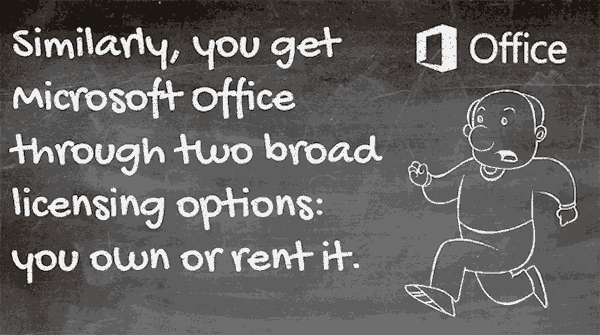
A license means how you acquired your Microsoft Office. Yes, we can make this complicated by talking about volume licensing, upgrades, and more stuff—but really speaking, life can be simple if we think simple. And we can continue with it being simple by placing all licenses under two umbrellas:
And either way, what is your version? Many times, when you are stuck with a problem, support staff will want to know which version of Office you are using. It might sound strange but many Office users don’t know which version of Office they are using. That is because, at least in a corporate environment, a system administrator is responsible for installing and updating programs.
Even if you cannot install Microsoft Office, you can still identify which version you are running. To do so, please click on any of the following links, depending upon your OS (operating system):
Identifying Version and License of Microsoft Office on Windows
Identifying Version and License of Microsoft Office on Mac
Thanks again to our friends at Microsoft, Dave Barnett and Anneliese Wirth, who patiently helped make sure that this post is accurate. Thank you so much to both of you, Dave and Anneliese!
Filed Under:
PowerPoint All Versions
Tagged as: Anneliese Wirth, License, Microsoft Office, Office 365, PowerPoint, Version
Comments Off on Version and License of Microsoft PowerPoint and Office
Formulating a winning presentation is no easy task, especially when your audience is in the healthcare business. Our guest this week is Margy Schaller who has written a book on this very subject. We also explore using cartoons in PowerPoint.
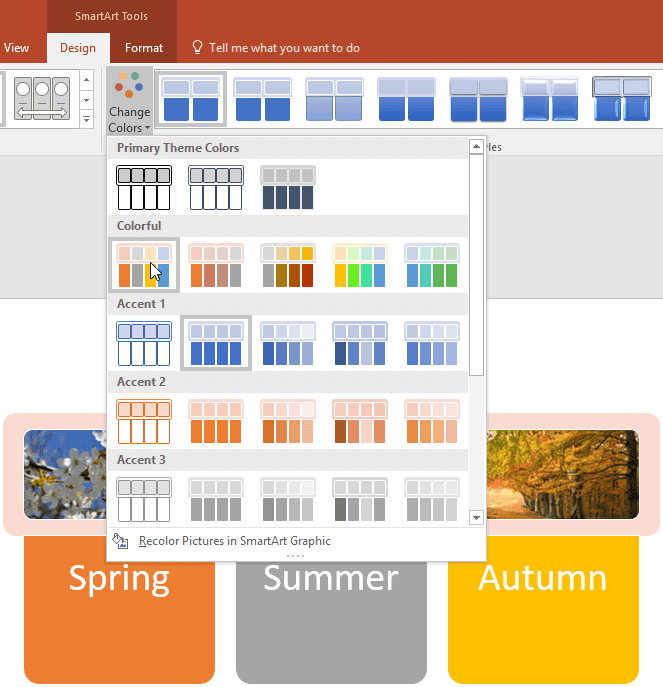
In the Tutorials section, PowerPoint 2016 users can explore changing colors in SmartArt graphics, AutoRecover and AutoSave options, add proofing dictionaries for foreign languages, and font embedding. Finally, do not miss the press releases and templates of this week.
Stay informed about updated tutorials and happenings.
Filed Under:
Ezine
Tagged as: Ezine, Indezine, News, PowerPoint
Comments Off on PowerPoint and Presenting News: April 4, 2017
The AutoCorrect feature is dependent on a small list of words and phrases. This list contains two columns called Replace and With. For example, the Replace entry for teh will correspond to the With entry containing the word the. You can easily tailor your AutoCorrect list by adding your own commonly misspelled words. Similarly, you can make changes and delete entries from within this AutoCorrect list.

Learn how to create and edit AutoCorrect entries in PowerPoint 2016 for Windows.
Filed Under:
PowerPoint 2016
Tagged as: AutoCorrect, Microsoft Windows, Office 2016, PowerPoint 2016, Proofing, Spelling, Tutorials
Comments Off on Creating and Editing AutoCorrect Entries in PowerPoint 2016 for Windows
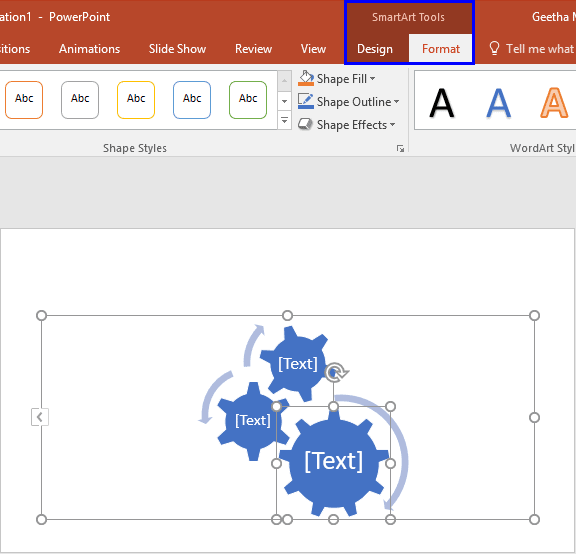
After inserting a SmartArt graphic in your slide, you can change the color for the entire SmartArt graphic. Doing so applies new colors to the entire SmartArt graphic including the various shapes it contains. However, there may be times when you want one of the shapes to be colored differently. In this tutorial, we’ll explore the fill, line, and effect options which can be applied to individual shapes within a SmartArt graphic in PowerPoint 2016.
Filed Under:
PowerPoint 2016
Tagged as: Diagrams, Effects, Fills, Infodiagram, Infographics, Lines, Microsoft Windows, Office 2016, PowerPoint 2016, SmartArt, Tutorials
Comments Off on Changing Fill, Line, and Effects for Shapes within SmartArt in PowerPoint 2016 for Windows
Microsoft and the Office logo are trademarks or registered trademarks of Microsoft Corporation in the United States and/or other countries.