
This is the print version of this page. All content is copyright Indezine.com 2000-2026.
Thoughts and impressions of happenings in the world of PowerPoint and presentations, continuously updated since 2003.
See Also:
PowerPoint and Presenting Notes
PowerPoint and Presenting Glossary
A Glow effect adds a hazed color perimeter outside the shape area, and by default, the Glow colors emanate from the active Theme. These default Glow colors work most of the time, but of course, you can change the Glow color to something entirely different. In this tutorial, you’ll learn how you can change this Glow color to any color you want.
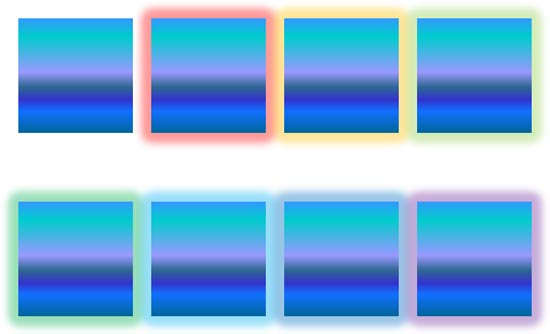
Learn how to change the color of glow effects for shapes in PowerPoint 2016 for Windows.
Filed Under:
PowerPoint 2016
Tagged as: Color, Effects, Glow, Microsoft Windows, Office 2016, PowerPoint 2016, Tutorials
Comments Off on More Glow Colors in PowerPoint 2016 for Windows
We first bring you a complete synopsis of Nancy Duarte’s amazing keynote at the Presentation Summit. Next, we feature Jon Schwabish in an interview, where he talks about his new book that’s already receiving rave reviews. The book is named Better Presentations. We then explore a fascinating service called Beamium that lets you share your PowerPoint slides in a unique way. We also explore how you can identify the file type of a font in Windows 10. This is helpful if you want to know if your font is OpenType, TrueType, or some other type.
In the Tutorials section, PowerPoint 2016 users can learn about working with Slide Numbers. You can also learn so much about Shape Effects, such as Shadows and Reflections. Finally, do not miss the new press releases and templates of this week.

Read Indezine’s PowerPoint and Presenting News.
Filed Under:
Ezine
Tagged as: Ezine, Indezine, News, PowerPoint
Comments Off on PowerPoint and Presenting News: January 17, 2017
As part of our series on PowerPoint effects for shapes, we will explore the Glow effect. This effect adds a hazed color perimeter outside the shape area. This effect is an Outer Glow surrounding the shape, and not an Inner Glow effect. You can choose from various glow colors such as Theme colors or even any other color of your choice to match the look of the slide content.
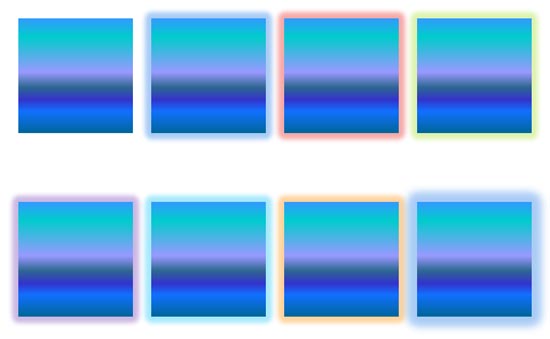
Learn how to apply glow effects to shapes in PowerPoint 2016 for Windows.
Filed Under:
PowerPoint 2016
Tagged as: Effects, Glow, Microsoft Windows, Office 2016, PowerPoint 2016, Shapes, Tutorials
Comments Off on Apply Glow Effects to Shapes in PowerPoint 2016 for Windows

Chad Jardine is Head of Marketing at GoReact. He also teaches Marketing and Finance in the business schools of Utah Valley University and University of Utah. He is the co-author of Pillars of Inflection: Seven Fundamental Strategies for Explosive Company Growth He tweets often and occasionally blogs about marketing on Medium.
In this conversation, Chad talks about GoReact.
Geetesh: Chad, please introduce us to GoReact. What motivated you to create this solution?
Chad: GoReact was the result of a terrible presentation. It all started with a public-speaking professor, bored to tears in a staff meeting. As his colleague droned on, he mused that it would be great if someone could give him feedback on how painful it was sitting through his presentation. And GoReact was born!
GoReact is like a game film for presenters. Today it’s used chiefly in university courses on public speaking and language training. But it’s great for any scenario where someone can demonstrate competency on video and receive feedback from a teacher, coach, or mentor. For agencies, freelance coaches, and trainers, GoReact makes it possible to coach remotely and offer post-training updates and competency reviews.
Geetesh: One amazing capability of GoReact is to save comments from viewers along with the video recordings of presenters. Can you tell us more about this?
Chad: Our roots in higher education are evident in the two most common workflows. The most common uses of GoReact illustrate the advantage this gives to speakers:

In addition to the core benefits, GoReact has some other surprises up its sleeve.
The views and opinions expressed in this blog post or content are those of the authors or the interviewees and do not necessarily reflect the official policy or position of any other agency, organization, employer, or company.
Filed Under:
Interviews
Tagged as: Chad Jardine, GoReact, Interviews, PowerPoint, Slides, Video
Comments Off on GoReact: Conversation with Chad Jardine
The Reflection effects that PowerPoint provides can be applied with a single click, and can indeed do wonders for your shapes. However, if you get too carried away by the swanky looking reflections, you may end up distracting your audiences. Most of PowerPoint’s reflection presets that you learned to apply in our Reflection Effects for Shapes in PowerPoint 2016 tutorial are attractive, yet somewhat distracting. Still, you can tone down the effect a little. Or if you want, you can let your creativity work and enhance the reflection effect!

Filed Under:
PowerPoint 2016
Tagged as: Effects, Microsoft Windows, Office 2016, PowerPoint 2016, Reflection, Shapes, Tutorials
Comments Off on Advanced Reflection Options in PowerPoint 2016 for Windows
Microsoft and the Office logo are trademarks or registered trademarks of Microsoft Corporation in the United States and/or other countries.