
This is the print version of this page. All content is copyright Indezine.com 2000-2026.
Thoughts and impressions of happenings in the world of PowerPoint and presentations, continuously updated since 2003.
See Also:
PowerPoint and Presenting Notes
PowerPoint and Presenting Glossary
Did you read the title of this page correctly? Are we really suggesting that you should consider using a table rather than a chart? You might have heard the reverse more often — about using charts rather than tables but like for everything else in life, there’s not one glove that fits all hands — or in this case, there’s not one solution that can work with all sorts of data.

Explore how a simple table can sometimes show data better than a chart.
Filed Under:
Charts and Diagrams
Tagged as: Charting, Design, PowerPoint, Tables, Tutorials
Comments Off on Consider Tables
After inserting an Organization Chart (org chart) in PowerPoint 2013, you might need to add more shapes to your org chart. The default org chart that PowerPoint places has a few shapes. However, you might want to add more shapes, as well as newer hierarchy levels for the new shapes you add. Fortunately, you can make these additions and edits with just a click or two. Follow these steps to start adding more shape(s) to your org chart in PowerPoint 2013.
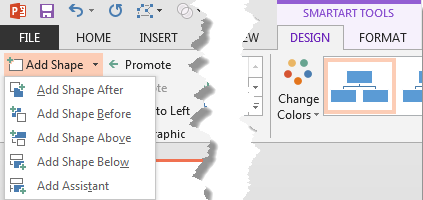
Learn how to add more shapes to an existing Organization Chart in PowerPoint 2013 for Windows.
Filed Under:
PowerPoint 2013
Tagged as: Org Chart, PowerPoint 2013, SmartArt, Tutorials
Comments Off on Learn PowerPoint 2013 for Windows: Adding New Shapes to Existing Organization Charts

Once you insert a video clip on your slide, you can do so much more to enhance its look. Probably, you may want to apply corrections, or recolor your videos. Additionally, you can also apply any of the preset Video Styles available — this is a quick and easy way to add some character to your video without spending too much time. In addition, there are small niceties that PowerPoint 2013 provides, such as adding a border to your video clip. In this tutorial, we’ll explore how to add a frame like effect to your video by using the Border option.

Learn how to add and edit borders for video clips in PowerPoint 2013.
Categories: powerpoint_2013, tutorials, video
Filed Under:
Uncategorized
Tagged as: PowerPoint 2013, Tutorials, Video
Comments Off on Learn PowerPoint 2013 for Windows: Video Borders
In all PowerPoint versions, you can either animate the entire table — apply no animation at all! There’s no easy way to animate just one column, row, or cell individually. Yet, there is one more workaround where you don’t actually apply any animation to the table components, but when you play the slide containing the table, it looks like your table components are animating!

Learn how to fake animate a table in PowerPoint 2011 for Mac.
Filed Under:
PowerPoint 2011
Tagged as: Office for Mac, PowerPoint 2013, Tables, Tutorials
Comments Off on Learn PowerPoint 2011 for Mac: Fake Animate Tables
 Afzal Amijee is an entrepreneur with strong operational experience. He is the founder of Vimodi, a novel visual discussion app. He loves technology and has increasingly become interested in how to adapt technology to human interaction and not the other way. He adores simple and beautiful things in life and always tries to bring the “discipline of non-clutter” into his work and designs. Prior to Vimodi, he enjoyed working as a leader, change agent and functional expert in both large and small tech/telco companies. He is from Tanzania and serves on the Board of Equity for Africa, a not-for-profit organization that provides finance leasing to small entrepreneurial businesses in Tanzania.
In this conversation, Afzal discusses Vimodi.
Geetesh: Tell us more about Vimodi, and what motivated you to create this product?
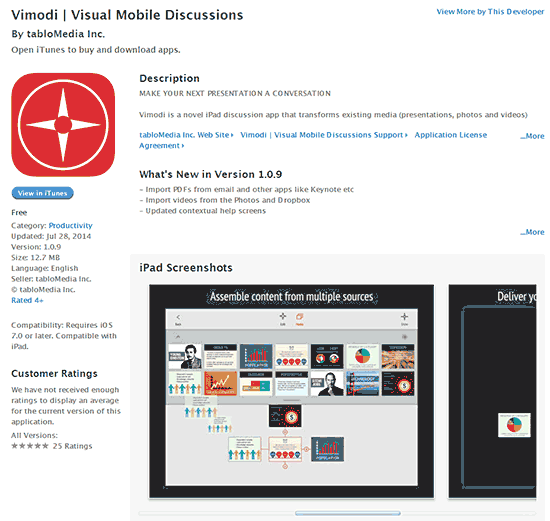
Afzal: Vimodi is a novel iPad discussion app that transforms existing media (presentations, photos and videos) into engaging and responsive visual discussions.
The idea for Vimodi was born in the classroom. As a business school professor, Michelle (co-founder of Vimodi) regularly taught using case discussions. However, existing presentation tools like PowerPoint forced discussions into linear paths, which limited the opportunities for students to develop their own insights and ideas. Instead, Michelle often reverted to the chalkboard.
I started talking to people and discovered that Michelle’s frustration was shared by salespeople, business people and creative professionals, who also needed a way to discuss content flexibly. A solution that took advantage of existing technology such as PowerPoint, Keynote etc, yet supported flexible discussions was needed.
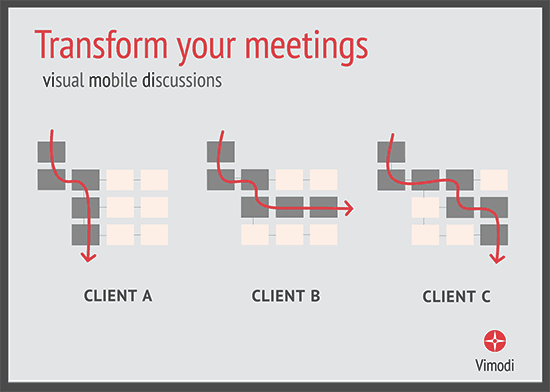
We designed Vimodi from ground-up to be a visual conversation tool so that presentation content can conform to the discussion – and not the other way around. Most small meetings are conversations, yet time and time again we see linear presentation tools being used in small meetings. So often what tends to happen in presentation meetings is that people switch off after a few minutes and start checking emails etc. But when the meeting format is a conversation or a dialog – we see a totally different meeting dynamics. First there is more engagement and second, through dialog we find out what really matters.
Geetesh: How does Vimodi complement existing PowerPoint and Keynote presentations, and what are the system requirements?
Afzal: From the start, Vimodi was designed to work with PowerPoint, Keynote and all other existing creation tools. Vimodi can assemble content very fast from multiple places on your iPad. By integrating with Dropbox and iPads “Open-in” feature we have made the links to PowerPoint and Keynote practically seamless.
For example, I create my presentation in PowerPoint and save it as PDF in my Dropbox folder. As soon as it’s in my Dropbox, I am able to access this presentation in Vimodi. We make it super easy to import, assemble, mix and re-use pages from all your existing presentation decks. Within matter of seconds you can create simple or advance multi-level nonlinear structure consisting of presentation pages, images from the web and videos from Photos/Dropbox. By purely focusing on visual conversational delivery, we were able to keep the design very clean and the app very simple to use. In any case there are so many great creation tools – it really did not make any sense to create another creation tool!
So in a nutshell, Vimodi lets you combine the best of your PowerPoint and Keynote PDFs, photos, videos and/or other documents from different apps (PowerPoint, Keynote, Pages, Email, Photos, Safari, Dropbox, Google Slide, etc.) on your iPad into one elegant, easy to navigate, flexible presentation – in only a few swipes and clicks. The presentations you build in Vimodi are saved locally so you can still access and deliver your presentations without Wi-Fi.
Vimodi is the best way to discuss and present content on the iPad! It is free to download in the iPad Appstore so please give it a try.
Filed Under:
Interviews
Tagged as: Interviews, iPad, PowerPoint, Presentation Skills
Comments Off on Vimodi: Conversation with Afzal Amijee
Microsoft and the Office logo are trademarks or registered trademarks of Microsoft Corporation in the United States and/or other countries.