
This is the print version of this page. All content is copyright Indezine.com 2000-2026.
Thoughts and impressions of happenings in the world of PowerPoint and presentations, continuously updated since 2003.
See Also:
PowerPoint and Presenting Notes
PowerPoint and Presenting Glossary
In our Update Office 2013 to Service Pack 1 tutorial, we showed you how to install the Service Pack 1 update for Office 2013. There are chances that the SP1 update can be installed automatically on your computer without notifying you — or your company’s IT department could have rolled the SP1 update for you. Whatever the case may me, it is important to first find out whether your version of Office 2013 already has the SP1 installed or not.

Learn how to find out whether your version of Office 2013 already has any Service Pack installed.
Filed Under:
PowerPoint 2013
Tagged as: Office 2013, PowerPoint 2013, Tutorials
Comments Off on Learn PowerPoint 2013 for Windows: Determine if SP1 is Installed
Tables in PowerPoint help you to make your numerical data or other content look organized. They also make it easy for your audience to quickly comprehend the data. You can make this task even more effective by selecting particular cells in the table, or the entire table, and then changing their shading and applying some effects to them so that they are highlighted.

Learn about Shading and Effects options for your tables in PowerPoint 2013 for Windows.
Filed Under:
PowerPoint 2013
Tagged as: PowerPoint 2013, Tables, Tutorials
Comments Off on Learn PowerPoint 2013 for Windows: Shading and Effects for Tables
When PowerPoint is launched, it opens with an empty presentation of just one slide. This one slide typically has placeholders for a title and a subtitle — and any text you type shows up in black over a white slide background. Why do you have to live with these defaults? Can you change this blank presentation so that you get a slide that’s part of your custom PowerPoint template or Theme? Or even any of the other templates / Themes built within PowerPoint?
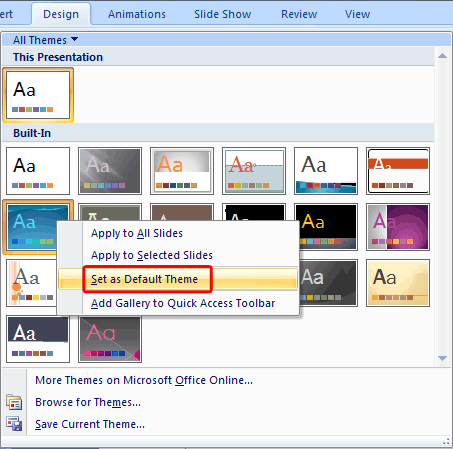
Learn how to change the default template or Theme in PowerPoint 2007 for Windows.
Filed Under:
PowerPoint 2007
Tagged as: PowerPoint 2007, Templates, Themes, Tutorials
Comments Off on Learn PowerPoint 2007 for Windows: Change the Default Template or Theme
The Plot Area for a chart is the layer or a backdrop upon which the chart itself is placed. This layer has axes on its perimeter and also, the Data Series and Gridlines are placed above this layer. By default, the Plot Area has no fill attributes, and thus it shows the slide’s background. This may look plain, and that by itself is no reason to change the fill of the Plot Area. However, there are times when the slide background itself is busy — and adding a different fill to the Plot Area can then make the chart appear more clear.

Learn how to apply fills to the Plot Area of a chart in PowerPoint 2011 for Mac.
Filed Under:
PowerPoint 2011
Tagged as: Charting, Office for Mac, PowerPoint 2011, Tutorials
Comments Off on Learn PowerPoint 2011 for Mac: Apply Fills to Plot Area of Charts

Pooja Jaisingh has worked for more than 12 years as a Teacher Trainer and eLearning Instructional Designer. Currently she is a Senior eLearning Evangelist with Adobe Systems. In her current role she conducts numerous seminars and workshops, educating training folks on the features of Adobe Systems’ eLearning products. She regularly blogs, initiating creative and thought provoking discussions on multiple opportunities in eLearning.
In this conversation, Pooja discusses Adobe Presenter 9.
Geetesh: Tell us more about Adobe Presenter, and what is your favorite feature in the new version 9?
Pooja: In simple words, Adobe Presenter 9 allows you to transform your PowerPoint presentation into interactive eLearning courses. You don’t need to learn how to use any new eLearning authoring tool. If you know how to use PowerPoint, you can become a rock-star eLearning author. This becomes possible because Adobe Presenter 9 is a Microsoft PowerPoint add-in which appears in PowerPoint as one of the Ribbon tabs and gives you the power to add narration, videos, animations, simulations, interactions, quizzes, and much more to your presentation — all this with super-simple interface and options.

Along with this functionality, Adobe Presenter 9 lets you create professional-quality videos by capturing both yourself and your screen with just a few clicks. You can turn passive content into video presentations, product demonstrations, training videos, and more, on your own, right from your desktop.


My favorite part about Adobe Presenter 9 is that it provides a complete toolset for teachers, trainers, and educators to flip their classrooms with ease. They can easily convert their classroom lectures to videos and share them with their students using Adobe Presenter Video Creator. They can also enable collaboration for their videos and self-paced learning courses to allow the learners to ask questions and take part in the class discussion. This helps the teachers to keep a tab on the class participation, even though the students are not physically present in the class.

Adobe Presenter 9 also offers the Learning Analytics dashboard which integrates the traditional quiz outcomes to create a modern and powerful solution for analyzing student learning outcomes. With this solution, teachers can detect potential learning problems and get an opportunity to intervene early — improving the chances for students to meet and even exceed their expectations. Teachers can use the analytics dashboard to combine modules to create a course, facilitate collaboration, track students’ progress within the course on various dimensions using learner analytics, identify students who need course-correction, and intervene to make them successful.

Geetesh: What can a user do quickly by using Presenter’s capabilities within PowerPoint?
Pooja: Adobe Presenter 9 is a magic tool that will allow you to take a PowerPoint presentation and convert it into an interactive, self-paced eLearning course by letting you add narration, ready-to-use learning interactions, characters, scenes, videos, simulations, and animations. It also provides you the ability to add quiz questions to test your learners’ understanding of the concepts. Moreover, you can make these courses SCORM / AICC / xAPI compliant to work seamlessly on the LMSs.
The best part about Adobe Presenter is that it is very easy to use and anybody who knows how to use PowerPoint, can create eLearning courses with ease with the help of Adobe Presenter 9. Click here to learn more about Adobe Presenter 9.
You May Also Like: About Adobe Presenter
The views and opinions expressed in this blog post or content are those of the authors or the interviewees and do not necessarily reflect the official policy or position of any other agency, organization, employer, or company.
Filed Under:
Interviews
Tagged as: Add-in, Adobe, Adobe Presenter, Interviews, Online Presentations, PowerPoint
Microsoft and the Office logo are trademarks or registered trademarks of Microsoft Corporation in the United States and/or other countries.