
This is the print version of this page. All content is copyright Indezine.com 2000-2026.
Thoughts and impressions of happenings in the world of PowerPoint and presentations, continuously updated since 2003.
See Also:
PowerPoint and Presenting Notes
PowerPoint and Presenting Glossary
So much hard work goes into creating presentation slides in PowerPoint — that’s the reason why many users want to repurpose their PowerPoint content to make elearning content, online presentations, screen savers and even ebooks. And our review product today goes a step further and lets you create page-flipping ebooks. Flip PowerPoint Professional opens your existing PowerPoint slides, and then provides you extra elements to design consulting quality documents.

Filed Under:
Add-ins
Tagged as: Add-in, PowerPoint
Comments Off on Flip PowerPoint Professional: The Indezine Review
Various Callout shapes available in PowerPoint can be impactors that convey a message, but only when used wisely. You need to attribute and position the callout properly so that your audience does not get lost. Just like any other PowerPoint shape, Callouts take default formatting attributes from the Theme applied to the presentation. You can change their fill and/or outline and also apply a shape effect to them in the same way as you would do for any PowerPoint shape.
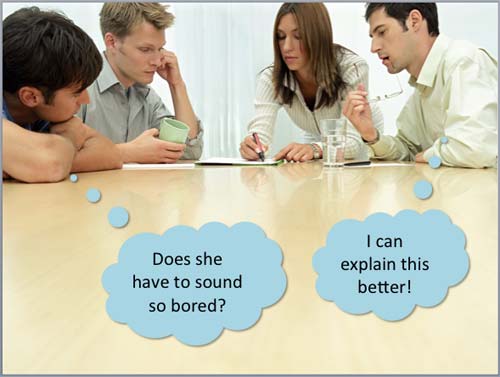
Learn about formatting Callout shapes in PowerPoint 2011 for Mac.
Filed Under:
PowerPoint 2011
Tagged as: Callouts, Office for Mac, PowerPoint 2011, Shapes, Tutorials
Comments Off on Learn PowerPoint 2011 for Mac: Formatting Callouts
Most of you are aware of mini toolbars in PowerPoint 2013 (also in Word and Excel). These show up with several options that let you alter text or shape attributes. However, if you are using Office 2013 on a touch device such as Microsoft Surface, you’ll see floaties which are quite similar to the mini toolbars — they are different too because they have fewer options, and are also equipped with larger buttons so that you can tap on them easily.

Learn how to use the touch floatie in PowerPoint 2013 for Windows.
Filed Under:
PowerPoint 2013
Tagged as: PowerPoint 2013, PowerPoint Touch, Tutorials
Comments Off on PowerPoint 2013 on Touch: Using the Touch Floatie
Text is probably the most important element on your PowerPoint slides! You may have heard the adage that a picture is worth a thousand words, but more often than not, that picture needs a caption to be understood better — and even when there are no captions, a narrative is required. And that narrative is text too. Text can be added almost everywhere within PowerPoint slides — from placeholders and text boxes to the Notes pane. Additionally, you can also add and edit text within any shapes as long as they are closed.
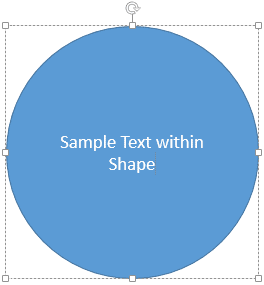
Learn how to insert and edit text within a shape in PowerPoint 2013 for Windows.
Filed Under:
PowerPoint 2013
Tagged as: PowerPoint 2013, Shapes, Text, Tutorials
Comments Off on Learn PowerPoint 2013 for Windows: Text within Shapes
 Chris Finneral is CEO and Co-Founder of SketchDeck. Previously he was a consultant at McKinsey & Company in London. During his time at McKinsey he made thousands of PowerPoint slides and felt firsthand how painful and time consuming it was to make good slides in PowerPoint. McKinsey had an outsourced slide design service where you could email sketches of slides and have perfect PowerPoint slides in your inbox the next morning. This was invaluable. SketchDeck was created to bring this service to everyone.
In this conversation, Chris discusses SketchDeck.
Geetesh: How did SketchDeck evolve – tell us more about the story behind this product.
Chris: SketchDeck was founded last year after I left the consulting firm McKinsey & Company and no longer had access to the slide production service that they offered. This service took hand drawn sketches and converted them into PowerPoint presentations – saving hours of time and creating better presentations. After having this service, going back was painful.
It then struck me. Few of my friends at other companies had access to a service like this, despite how useful it was. That was the moment when I teamed up with an old friend from university and decided to bring SketchDeck to the rest of the world.
The last year has been a roller coaster as anyone who has started a company would know. We received funding at the beginning of the year which has accelerated the development of SketchDeck. We’re excited to announce that SketchDeck is now live, and you can start using it today.
Geetesh: How can I start to use SketchDeck?
Chris: We’ve just launched the product so you can sign up on our website and start using it today. Once you’re signed up, it’s just three steps to a great presentation.

We are running a special offer for the whole of February where the service is completely free. To get started, sign up at the top of our website sketch-deck.com.
The views and opinions expressed in this blog post or content are those of the authors or the interviewees and do not necessarily reflect the official policy or position of any other agency, organization, employer, or company.
Filed Under:
Interviews
Tagged as: Design, Interviews, PowerPoint
Comments Off on SketchDeck: Conversation with Chris Finneral
Microsoft and the Office logo are trademarks or registered trademarks of Microsoft Corporation in the United States and/or other countries.