
This is the print version of this page. All content is copyright Indezine.com 2000-2026.
Thoughts and impressions of happenings in the world of PowerPoint and presentations, continuously updated since 2003.
See Also:
PowerPoint and Presenting Notes
PowerPoint and Presenting Glossary
A Bar chart maps data as a bar within a chart’s Plot area. A bar is essentially a rectangle that’s typically thin width-wise and long length-wise. In simple terms, a Bar chart is a Column chart that has been rotated 90 degrees! Data that is arranged in columns or rows on a worksheet can be plotted in a Bar chart. Bar charts illustrate comparisons among individual items. While Bar charts do not possess the utter simplicity of Column charts where a higher column indicates better results, they can be more suitable to present data in an almost timeline-like style.

Learn about Bar Charts, and how you can use them within PowerPoint.
Filed Under:
PowerPoint All Versions
Tagged as: Charting, PowerPoint
Comments Off on Bar Charts in PowerPoint
An individual cell within a PowerPoint Table acts just like any other text box as far as its content or even appearance is concerned. Therefore, all text alignment options used for text containers work with Table cells too with a few exceptions. Text alignment options for Table cell content can be found within the Table Layout tab of the Ribbon; look for them in the Alignment group.
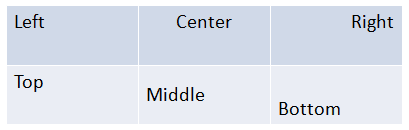
Learn about text alignment in Table cells in PowerPoint 2011 for Mac.
You May Also Like: Distribute Table Rows and Columns in PowerPoint 2011 for Mac | Merge and Split Table Cells in PowerPoint 2011 for Mac | Table Options in PowerPoint 2011 for Mac
Filed Under:
PowerPoint 2011
Tagged as: Office for Mac, PowerPoint 2011, Tables, Tutorials
Comments Off on Text Alignment for Table Cells in PowerPoint 2011 for Mac
In this issue, we explore another callout style that you can use within your PowerPoint slides. We then show you how you can edit PowerPoint files on SkyDrive using a foreign language interface. Allison Wahl of Brainshark discusses the 2014 Sharkie Awards, and how you can participate and possibly win by uploading your slide deck. We also bring you animated slides on Sankranti, an Indian harvest festival. PowerPoint 2013 for Windows users can learn about some of the Merge Shapes commands including Subtract, and how they can convert their text into shapes. PowerPoint 2011 for Mac users can learn about Table Styles, distributing rows and columns in tables, and selecting them. And finally, do not miss the new discussions and templates of this week!

Read Indezine’s PowerPoint and Presenting News.
Filed Under:
Ezine
Tagged as: Ezine, Indezine, News, PowerPoint
Comments Off on PowerPoint and Presenting News: January 14, 2014
PowerPoint 2013 enables you to use its repertoire of Shapes to create some amazing artwork. Its Merge Shape commands allow you to create complex shapes by merging several simple shapes. Additionally, these options also let you convert your text to shapes so that you can see the text even on a computer that does not have a particular font installed. We already showed you how you can convert an entire text box to one shape using the Intersect command. However, if you want your resultant shapes to be individual for each character, then you will need to use the Fragment option, as explained in this tutorial.

Filed Under:
PowerPoint 2013
Tagged as: Graphics, PowerPoint 2013, Shapes, Text, Tutorials
Comments Off on Convert Text to Shapes by Fragmenting in PowerPoint 2013 for Windows
There are times when you have to share your PowerPoint presentation as a PDF – mainly because you want to send a non-editable file format to someone. However any sound or music clips within your original PowerPoint file do not get included within the converted PDF. At other times, you may just want to add some sound or music to an existing PDF, even if that PDF was not created from a PowerPoint file.

Learn how to add sound/music to a PDF.
Filed Under:
PowerPoint All Versions
Tagged as: Music, PDF, PowerPoint, Sounds, Tutorials
Comments Off on Add Sound / Music to a PDF
Microsoft and the Office logo are trademarks or registered trademarks of Microsoft Corporation in the United States and/or other countries.