
This is the print version of this page. All content is copyright Indezine.com 2000-2026.
Thoughts and impressions of happenings in the world of PowerPoint and presentations, continuously updated since 2003.
See Also:
PowerPoint and Presenting Notes
PowerPoint and Presenting Glossary
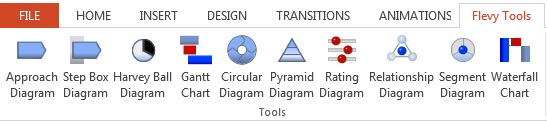
Flevy Tools lets you easily create automated diagrams such as Approach Diagrams, Step Box Diagrams, Harvey Ball Diagrams, Gantt Charts, etc. All graphics created are native PowerPoint objects that you can edit further. Even more amazing — this tool is free. All organizations from startups to large enterprises can benefit by using Flevy Tools to jumpstart projects.
Filed Under:
Reviews
Tagged as: Add-in, Diagrams, PowerPoint
Comments Off on Flevy Tools: The Indezine Review
Shape fills such as solid colors, gradients, pictures, and textures can have a transparency attribute that lets you reduce the opacity of a fill so that the slide object or background behind shows through. Transparency is calculated in percentages and you can change its value all the way from 0 to 100%. Some fill options, such as pattern and slide background have no transparency options. To set a transparency value for your shape, follow these steps.

Learn how to apply transparency to shape fills in PowerPoint 2013 for Windows.
Filed Under:
PowerPoint 2013
Tagged as: Fills, PowerPoint 2013, Shapes, Tutorials
Comments Off on Learn PowerPoint 2013 for Windows: Transparency for Shape Fills

Payman Taei is the Founder of HindSite Interactive, an award winning web design and web development company in the Washington D.C. Area and the Founder of Easy WebContent, a cloud based Do It Yourself platform that allows everyone to easily create, edit and manage professional websites, presentations, infographics, banners and animations right in their browser.
In this conversation, Payman Taei discusses Easy WebContent’s Presenter.
Geetesh: Tell us more about Easy WebContent’s Presenter, and the type of presentations that one can create within the program.
Payman: EWC Presenter (short for Easy WebContent Presenter) started as an in-house project. After some frustration with Adobe Flash’s demise as result of lack of support from Apple around 2008, it negatively affected my web consulting company’s interactive services which were solely based on Flash. At that point, we knew HTML5 was going to be the future foundation for content on web and mobile devices, so we took upon the challenge to create a cloud based application based on our own internal design experiences at HindSite Interactive. But we decide to go an extra step, to take on the extra challenge of creating one web application that allows not just designers but everyone else to create more engaging content in the form of presentations, infographics and everything else in between.
You see until recently, unless you were a designer the most common tool used to create a combination of text and visual cues into the forms of slides and short animations has been PowerPoint. So in essence Presenter is a marriage between commonly used features of PowerPoint and Flash so users can feel right at home with prior experience with any of these applications. We launched our beta back in April and have been gathering a growing user base and with the feedback we have received we have been fine tuning the system with new features and improvements. In short, users get to utilize the free system and enjoy continual upgrades and expansion on a monthly basis.
Using Presenter, users can create presentations in form of slideshows using a variety of assets including text, images, vector icons, background music and even video. And you can take each element a step further, because we give you the ability to apply special effects such as drop shadows and reflections as well as the ability to add motion to any object you desire with the comfort of knowing that your published work will be viewable on any device, be it a PC or Mac, or mobile devices such as tablets and smartphones.>

Geetesh: How easy is it for someone used to PowerPoint to create content within EWC Presenter?
Payman: It’s very easy. We created the interface with PowerPoint users in mind. Although the layout may appear a bit different at a glance to the first time user, one can feel right at home within a few moments because we use similar standard methodology present in PowerPoint and similar applications.
For example, we give you the ability to drag and drop elements right onto your stage, allow you to size and rotate visual elements in similar fashion and of course similar slide panel so one can in a single click create new slides, duplicate, delete or modify their order and apply transitions or even link to another slide or external websites and pages.
We also have a pretty awesome animation engine; it is actually available in both Basic (default) and Advanced modes. The basic mode allows a user within a couple clicks to apply motion effects to their objects and the advanced mode is for more advanced users (specially those familiar with Flash or video editing tools) to dig down and do more complex animation effects.
The other advantage is we give you Restore points; so each time you save your project you have Restore points to come back to. And since this is a cloud based App, there is no softwares or plugins to downloads or install; everything works right in your browser be it Chrome, Firefox, or any of the recent versions of Internet Explorer.
Last but not least when you publish your project, you have a link to pass through emails, websites, or social media with sharing tools within the panel. And you can easily embed your work on your own website or blog in same manner you would with YouTube videos.
Presenter is set to come out of beta early next year. The App is free to everyone and will continue to be with addition of a premium plan that will give even more capabilities to users.

The views and opinions expressed in this blog are those of the authors and do not necessarily reflect the official policy or position of any other agency, organization, employer, or company.
Filed Under:
Interviews
Tagged as: Interviews, Online Presentations
Comments Off on Easy WebContent Presenter: Conversation with Payman Taei
After learning how to add different fills for shapes in PowerPoint 2013, now its time to learn how to remove any fill from a shape so that your shape only has an outline without a fill. Whenever you insert a new shape into a PowerPoint slide, it is filled with a solid color by default (or the default fill may be different depending on the Theme applied to your presentation). Most of the time, you may leave that unaltered, but there are times you want just the outline to be visible. It is in scenarios like these where it can be useful to learn how to remove any fill.

Remove fill from shapes in PowerPoint 2013 for Windows.
Filed Under:
PowerPoint 2013
Tagged as: Fills, PowerPoint 2013, Shapes, Tutorials
Comments Off on No Fill for Shapes in PowerPoint 2013 for Windows
Horizontal and Vertical gridlines are the lines that span wide and tall within the chart’s Plot Area. These gridlines originate from one of the axes — this makes the data easier to comprehend for the viewer. Gridlines may emerge from the horizontal and vertical axes — by default you can see only Horizontal gridlines on the chart. Following are a few points to be considered when you work with Gridlines.

Learn about Chart Gridlines in PowerPoint 2011 for Mac.
Filed Under:
PowerPoint 2011
Tagged as: Charting, Office for Mac, PowerPoint 2011, Tutorials
Comments Off on Learn PowerPoint 2011 for Mac: Chart Gridlines
Microsoft and the Office logo are trademarks or registered trademarks of Microsoft Corporation in the United States and/or other countries.