
This is the print version of this page. All content is copyright Indezine.com 2000-2026.
Thoughts and impressions of happenings in the world of PowerPoint and presentations, continuously updated since 2003.
See Also:
PowerPoint and Presenting Notes
PowerPoint and Presenting Glossary
You have already learned how to add different fills for shapes. Just like the Pattern fill option, there is one more hidden shape fill option which you can’t access from the Shape fill gallery — yet this is one of those fantastic PowerPoint features that you have to use to believe! The Slide Background fill option is different from other shape fill options because instead of filling something into the selected shape, it makes the slide background area behind the shape visible into the selected shape.

Filed Under:
PowerPoint 2013
Tagged as: Fills, PowerPoint 2013, Shapes, Tutorials
Comments Off on Learn PowerPoint 2013 for Windows: Slide Background Fill
Here’s a listing of some books that will get you up to speed learning PowerPoint 2013 for Windows — all books are linked to Amazon pages where you can read book reviews and also see a few pages for each of the books so as to decide which books suits your learning style. If you actually buy something, we do get a reward from Amazon.

Explore books on PowerPoint 2013 for Windows.
Filed Under:
PowerPoint 2013
Tagged as: Books, PowerPoint 2013
Comments Off on PowerPoint 2013 Books
Pattern fills for shapes are two-color designs comprising lines, dots, dashes and checks. PowerPoint includes 48 patterns such patterns with names like Plaid, Weaves, Shingle and Zig Zag. Pattern fills for shapes are not included within the Shape fill drop-down gallery in PowerPoint 2013. But you can find this option buried within the Format Shape Task Pane. In this tutorial, we’ll show you how you can access Pattern fill options.
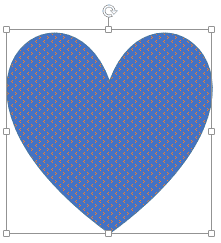
Add pattern fills to shapes in PowerPoint 2013 for Windows.
Filed Under:
PowerPoint 2013
Tagged as: Fills, PowerPoint 2013, Shapes, Tutorials
Comments Off on Add Pattern Fills to Shapes in PowerPoint 2013 for Windows
The Plot Area for a chart is the layer placed behind the actual chart. This layer typically has the axes on its perimeter. Also, the Data Series and Gridlines are placed above this layer. If the fill color for both the Plot Area and the Chart Area are the same, as they often are — then you may miss the difference between both these chart elements. This default status works well. However, you can format the Plot Area separately to make it look prominent. You can change its appearance by altering fills and effects with just a few clicks.

Learn about the Plot Area for charts in PowerPoint 2011 for Mac.
Filed Under:
PowerPoint 2011
Tagged as: Charting, Office for Mac, PowerPoint 2011, Tutorials
Comments Off on Learn PowerPoint 2011 for Mac: Plot Area for Charts
In this issue, we explore the amazing Gear Graphics set for PowerPoint announced this week. Many of you have already bought a copy of this set! We then have a guest post from the awesomely creative folks at Duarte Design. PowerPoint 2013 for Windows users can learn everything you need to know about working with gradients — we have 3 comprehensive tutorials for you. PowerPoint 2011 for Mac users can explore formatting the Chart Area. And finally, do not miss the new discussions and templates of this week!
Read Indezine’s PowerPoint and Presenting News.
Filed Under:
Ezine
Tagged as: Ezine, PowerPoint
Comments Off on PowerPoint and Presenting News: November 5, 2013
Microsoft and the Office logo are trademarks or registered trademarks of Microsoft Corporation in the United States and/or other countries.