
This is the print version of this page. All content is copyright Indezine.com 2000-2026.
Thoughts and impressions of happenings in the world of PowerPoint and presentations, continuously updated since 2003.
See Also:
PowerPoint and Presenting Notes
PowerPoint and Presenting Glossary
We have already explored how to format shape outlines and change their weight. In this tutorial, you will learn how to apply a dash style to shape outline. A dashed line in PowerPoint 2013 can have plenty of variations: from a line with fewer dashes to ones with longer or smaller dashes, or even alternating small and long dashes. So why do you add a dash style to your outline? That’s a good question and the answer is quite simple — sometimes, dash styles can add value to visual content, but use them judiciously. Many diagrams use dashed lines as a way to differentiate them from other content that have conventional, non-dashed lines.
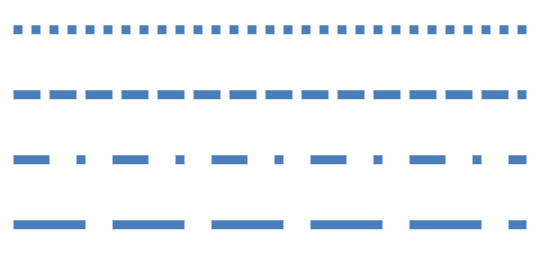
Learn how to apply the dash attribute to shape outlines in PowerPoint 2013 for Windows.
Filed Under:
PowerPoint 2013
Tagged as: Lines, PowerPoint 2013, Shapes, Tutorials
Comments Off on Learn PowerPoint 2013 for Windows: Shape Outline Dash
We have explained the basics of formatting shape outlines in PowerPoint 2013. Now we take you further ahead to explore how you can change line weight to make the outlines thinner and thicker. So why would you want to alter the weight of an outline? There are many reasons — more often than not, you may want a line that’s almost invisible or very thin — this lets your audience focus on other areas. At other times when you want the attention of your audience to focus on a particular line, then you can do so by increasing its weight. In this tutorial, we will also cover compound lines such as those that encompass double or triple lines.

Learn how to change the weight attribute of shape outlines in PowerPoint 2013 for Windows.
Filed Under:
PowerPoint 2013
Tagged as: Lines, PowerPoint 2013, Shapes, Tutorials
Comments Off on Learn PowerPoint 2013 for Windows: Shape Outline Weight
In this issue, we bring you the Indezine Thanksgiving PowerPoint Kit that contains everything you need to create Thanksgiving themed picture slides within PowerPoint. We have an exclusive interview with Gerry Praysman of SlideShark who discusses their milestone of 5 million presentations. We also bring you a listing of some PowerPoint 2013 books. And another exclusive interview with Payman Taei of Easy WebContent Presenter. PowerPoint 2013 for Windows users can learn about several fill types such as Textures, Patterns, Slide Background fill, and also the No fill option. PowerPoint 2011 for Mac users can explore more charting topics on Chart Area, Plot Area, and Gridlines. And finally, do not miss the new discussions and templates of this week!
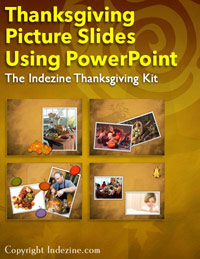
Read Indezine’s PowerPoint and Presenting News.
Filed Under:
Ezine
Tagged as: Ezine, Indezine, News, PowerPoint
Comments Off on PowerPoint and Presenting News: November 12, 2013
We have already showed you how to use fills for shapes in PowerPoint 2013. A fill is something that is contained within the confines of the shape. Similarly, shapes have another attribute known as the “line” or the “outline”. A line is the perimeter surrounding a closed shape or the line itself within an open shape. In this tutorial, we’ll explore the basics and thereafter provide links to specific, individual tutorials so that you can get acquainted with more advanced stuff.

Make changes to the appearance of shape lines in PowerPoint 2013 for Windows.
Filed Under:
PowerPoint 2013
Tagged as: Lines, PowerPoint 2013, Shapes, Tutorials
Comments Off on Formatting Lines for Shapes in PowerPoint 2013 for Windows
As we explored in our earlier Chart Gridlines in PowerPoint 2011 for Mac tutorial, PowerPoint 2011 only shows Horizontal Major Gridlines on the chart. Yes, you can enable Vertical Gridlines too — and more importantly you can format these Gridlines to appear exactly as you want them to show. In this tutorial, we will look at these format options.

Learn how to format Chart Gridlines in PowerPoint 2011 for Mac.
Filed Under:
PowerPoint 2011
Tagged as: Charting, Office for Mac, PowerPoint 2011, Tutorials
Comments Off on Learn PowerPoint 2011 for Mac: More Chart Gridline Options
Microsoft and the Office logo are trademarks or registered trademarks of Microsoft Corporation in the United States and/or other countries.