
This is the print version of this page. All content is copyright Indezine.com 2000-2026.
Thoughts and impressions of happenings in the world of PowerPoint and presentations, continuously updated since 2003.
See Also:
PowerPoint and Presenting Notes
PowerPoint and Presenting Glossary
Adding a title to your chart is always a good option since it provides your audience with an idea of what your chart is all about. Yes, PowerPoint does provide this Chart Title option — but before you go ahead and use this option, you must decide if you need a chart title or not. Here are some guidelines that will help you make that decision.

Learn how to add a Chart Title in PowerPoint 2011 for Mac.
Filed Under:
PowerPoint 2011
Tagged as: Charting, Office for Mac, PowerPoint 2011, Tutorials
Comments Off on Learn PowerPoint 2011 for Mac: Chart Title
 Chris Caruso is chief technology officer at Brainshark, Inc., a leader in cloud-based business presentations. Brainshark’s offerings include Brainshark On-Demand — for turning static content such as PowerPoint documents into online and mobile video presentations — and SlideShark, the award-winning app for showing PowerPoints from the iPad and iPhone. Thousands of companies use Brainshark to improve the reach and results of their business communications, while dramatically reducing costs.
In this conversation, Chris discusses how Brainshark has teamed up with Embedly to make social media posts more dynamic.
Geetesh: Can you tell us more about Embedly, and what its technology does for users’ Brainshark and myBrainshark content?
Chris: I’d be happy to. Embedly is a Boston-based company that lets people embed videos, images and rich media on social media sites like LinkedIn and Facebook through an API. Brainshark recently joined forces with Embedly — so our users can make their social media posts even better.
As you know, with our Brainshark On-Demand and free myBrainshark products, you can turn static content like PowerPoints into high-impact online video presentations — for viewing anytime on computers and mobile devices. You can already do cool things with your Brainshark presentations — such as add voice narration, video clips, related attachments, survey questions and polls; and track presentation viewing activity. One Brainshark on-demand presentation is viewed every 1.6 seconds in locations all over the world.
Now, through our work with Embedly, Brainshark and myBrainshark users can easily embed Brainshark video content on social media sites and corporate intranets. The Brainshark presentations play in an embedded view, directly on the social media channel to which they’re shared — without opening a separate window. This is beneficial for many users. For example, it lets marketers connect fans and followers with video content — while still keeping those fans on the brand’s social channel to watch the video. Also, since the Embedly technology plays Brainshark presentations directly on the social channel they were shared to, fans/followers can take advantage of the “comment,” “share,” and “like” mechanisms that are native to that channel — making it easier to socialize content as well.
Geetesh: How does posting on social media sites such as Facebook and LinkedIn with Embedly work differently than doing it the old way?
Chris: It’s very easy for our users now. When they share links to their presentations on LinkedIn, Facebook or intranet sites, the Embedly technology works with Brainshark behind-the-scenes to generate a thumbnail of the presentation, which will automatically appear on the page. It’s formatted, too, so Embedly automatically pulls in metadata associated with the presentation — such as the presentation title and description.
Before, when users posted a presentation link to social media sites, only the link would appear — no presentation thumbnail. And any presentation descriptors would have to be entered in manually as well.

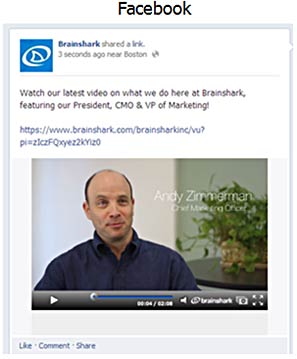
As you can see, we’re glad to be working with Embedly — helping our users make their social media posts that much more engaging and informative. Thanks very much, Geetesh, for the opportunity to discuss this news. We’ve provided some images as well, so your readers can see how this technology can help supercharge their social media posts.
The views and opinions expressed in this blog post or content are those of the authors or the interviewees and do not necessarily reflect the official policy or position of any other agency, organization, employer, or company.
Filed Under:
Interviews
Tagged as: Brainshark, Facebook, Interviews, Online Presentations
Comments Off on Embedly for Brainshark: Conversation with Chris Caruso
Although a chart may seem like a single object at first glance, look closer and you will find that each chart comprises several individual elements that we call chart elements in PowerPoint. These chart elements include Series (and this could be one or more series with values), Categories (again this can be one or more categories), Axes (horizontal, vertical, and in some cases a third axis as well), Plot area (the active chart area), Legend, Chart Title, and many more. In this tutorial we’ll learn about these individual PowerPoint chart elements and also how to select and edit them.

Learn about chart elements in PowerPoint 2013 for Windows.
Filed Under:
PowerPoint 2013
Tagged as: Charting, PowerPoint 2013, Tutorials
Comments Off on Chart Elements in PowerPoint 2013 for Windows
In this issue, we bring you the third and final series of our Sticky Tape graphics — these are textured! Jamie Garroch discusses his add-in that goes all the way back to address a need for those enterprise clients who still use PowerPoint 2003! And then we have some awesome fall leaves available for you as PowerPoint ready graphics. PowerPoint 2013 for Windows users can learn about ways to draw a perfect square. And also how you can insert charts and then play with Chart Styles. PowerPoint 2011 for Mac users can explore data tables within charts. And finally, do not miss the new discussions and templates of this week!

Read Indezine’s PowerPoint and Presenting News.
Filed Under:
Uncategorized
Tagged as: Ezine, Indezine, News, PowerPoint
Comments Off on PowerPoint and Presenting News: October 8, 2013
Did you want to move the location of the legend in your chart? Or do you always need to add a Data Table? Does PowerPoint’s default layout options for all chart elements work for you? Or perhaps it doesn’t? If you identify with any of these scenarios, you will love the way you can play with different layouts for your charts using the pre-defined Chart Quick Layouts feature. This essentially is a collection of some pre-arranged layouts containing chart elements. With just a couple of clicks you can change the entire look of your chart, as explained in this tutorial.
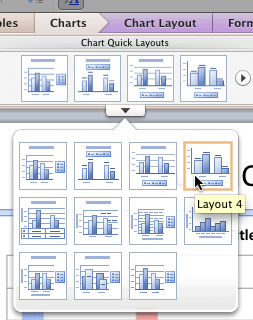
Learn how to apply preset Quick Layouts to your charts in PowerPoint 2011 for Mac.
Filed Under:
PowerPoint 2011
Tagged as: Charting, Office for Mac, PowerPoint 2011, Tutorials
Comments Off on Learn PowerPoint 2011 for Mac: Quick Layouts for Charts
Microsoft and the Office logo are trademarks or registered trademarks of Microsoft Corporation in the United States and/or other countries.