
This is the print version of this page. All content is copyright Indezine.com 2000-2026.
Thoughts and impressions of happenings in the world of PowerPoint and presentations, continuously updated since 2003.
See Also:
PowerPoint and Presenting Notes
PowerPoint and Presenting Glossary
Bing’s Image Search provides various combinations of filters using which you can narrow down your searches to acquire the exact results you are seeking. You can search by size, type, color, layout, people, and date. However, unless you are just visually browsing, or saving on Pinterest, there’s no sense in looking for pictures that you cannot use. Yes, there’s nothing stopping you from saving these pictures and using them in your presentations or elsewhere, but did you know that this simple task may not be legal? So how can you determine which picture can be used legally, and which ones cannot be used? That’s exactly the topic of this page. We will explore what we believe is Bing’s most essential filter above all other filters; yes, this is the License filter. The License filter comes in very handy when you are in need of pictures which you can use, share, or even modify for personal or commercial use.

Learn how to search images in Bing using the built in License filters.
Filed Under:
Clip Media
Tagged as: Bing, Clip Media, Graphics, Pictures, PowerPoint, Tutorials
Comments Off on Bing Images Search by License
We are great believers in creative freedom, and unrequired alignment of slide objects such as shapes is probably as bad a design decision as aligning nothing at all. In the end, every decision to align needs to stem from your creative thoughts — sometimes it works, and some other times, an unaligned bunch of shapes looks perfectly natural and organic. Also remember that alignment works with more than just shapes — and you can also combine shapes with other slide objects and align them all together.

Learn how to align shapes in PowerPoint 2013 for Windows.
Filed Under:
PowerPoint 2013
Tagged as: PowerPoint 2013, Shapes, Tutorials
Comments Off on Learn PowerPoint 2013 for Windows: Align Shapes
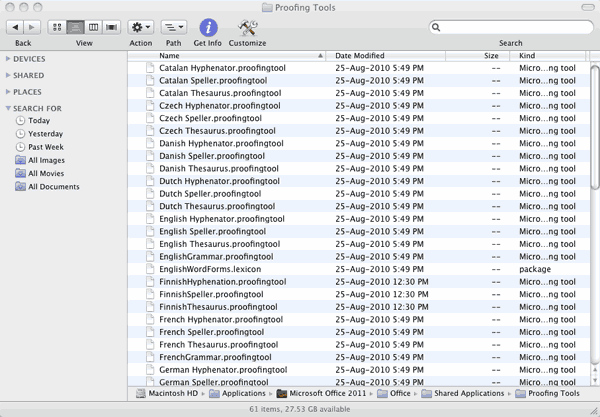
Microsoft Office programs such as PowerPoint include proofing tools (spelling dictionaries, thesauri, and grammar rules) for more than one language. Typically, if you use English as your main language, then Spanish, French, and some other dictionaries may be already installed — this enables you to spell check words in other languages.
Filed Under:
PowerPoint 2011
Tagged as: Office for Mac, PowerPoint 2011, Proofing, Text, Tutorials
Comments Off on Learn PowerPoint 2011 for Mac: Proofing Dictionaries for Foreign Languages
There are various reasons why you would want to encrypt your PowerPoint file with a password. There are two password levels you can implement within a PowerPoint file: a password to open and a password to edit. However, even if you add a password to your presentation, there may come a time when you want to remove it. Or, you may want to change the password. PowerPoint 2010 provides a very simple way to add a password. However, there is no obvious or intuitive command to remove or change the password protection.

Learn how to remove and change passwords applied to presentations in PowerPoint 2010 for Windows.
Filed Under:
PowerPoint 2010
Tagged as: PowerPoint 2010, Tutorials
Comments Off on Learn PowerPoint 2010 for Windows: Remove and Change Passwords
Sometimes you need to draw multiple shapes of the same type on a slide, maybe a hundred smiley faces on one slide, or even a hundred stars on a dark blue slide. Yes, we can do that in PowerPoint by duplicating existing shapes but when did you see a night sky where each star was the exact same size? So that leaves out the Ctrl dragging and Ctrl D duplicating tricks, since every shape that’s exactly the same in size as the other certainly does not look organic

Filed Under:
PowerPoint 2013
Tagged as: PowerPoint 2013, Shapes, Tutorials
Comments Off on Drawing Multiple Shapes Quickly in PowerPoint 2013 for Windows
Microsoft and the Office logo are trademarks or registered trademarks of Microsoft Corporation in the United States and/or other countries.