
This is the print version of this page. All content is copyright Indezine.com 2000-2026.
Thoughts and impressions of happenings in the world of PowerPoint and presentations, continuously updated since 2003.
See Also:
PowerPoint and Presenting Notes
PowerPoint and Presenting Glossary
Any custom dictionary that you create or edit within Word 2011 for Mac is used by all the other Office applications installed on your Mac. Also, if any changes are made to the list of words within a custom dictionary, it will be reflected within the proofing tools of all Office applications. You may add new dictionaries or edit them — but by default, each logged-in user has a default custom dictionary — not surprisingly, this is a file called Custom Dictionary.

Learn how to disable and enable custom dictionaries in PowerPoint 2011 for Mac.
Filed Under:
PowerPoint 2011
Tagged as: Office for Mac, PowerPoint 2011, Proofing, Text, Tutorials
Comments Off on Learn PowerPoint 2011 for Mac: Disable and Enable Custom Dictionaries
In this issue, we begin with an exclusive interview with Jeremey Donovan — read about his new book on winning a Toastmasters Championship — of course, the skills he discusses are not limited to Toastmasters sessions alone — they work in all presenting scenarios! And then do you want to search for high resolution pictures of flowers that are all orange in color? It’s easy to filter your Bing Image searches this way — we show you how. We also bring you three more amazing, handwritten fonts. Also learn how you can sign into Office Mobile on an iPhone or another iOS device. PowerPoint 2013 for Windows users can learn about rotating and resizing shapes — and about the new Smarter Guides. PowerPoint 2011 for Mac users can explore how to work with custom spelling dictionaries. And finally, do not miss the new discussions and templates of this week!

Read Indezine’s PowerPoint and Presenting News.
Filed Under:
Ezine
Tagged as: Ezine, Indezine, News, PowerPoint
Comments Off on PowerPoint and Presenting News: August 13, 2013
Your shape is perfect, it’s got the right color and it works well with your slide content — yet there’s something that could be better? There are times when most slide designers think exactly the same thoughts! And the easiest task you can do to your shape is to flip it. There are other options — and some of these options depend upon the shape in question. Let’s use the Teardrop shape as an example — you can resize and rotate this Teardrop shape — however, even with rotate you are just turning the shape in another direction without making any changes to the shape’s structure. The Flip option, on the other hand lets you mirror your shape in another direction to create a reverse image. Follow these steps to apply the Flip option.

Learn how to flip shapes in PowerPoint 2013 for Windows.
Filed Under:
PowerPoint 2013
Tagged as: PowerPoint 2013, Shapes, Tutorials
Comments Off on Flip Shapes in PowerPoint 2013 for Windows
OK – you finally bought an Office 365 subscription or used an existing one – installed Office Mobile and signed in! It’s now time to get started with this bunch of 3 programs – yes, the programs are Word, Excel, and PowerPoint. When you launch Office Mobile for the first time, you see three sample files – one each for a Word document, an Excel spreadsheet, and a PowerPoint presentation?
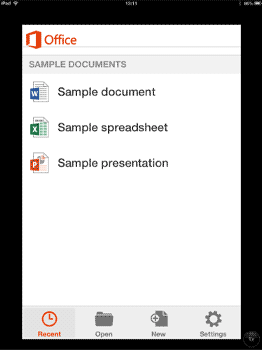
Get started with using Office Mobile on your iPhone or other iOS device.
Filed Under:
Apple Mac OS
Tagged as: iPad, iPhone, Office 365, Office Mobile, PowerPoint, Tutorials
Comments Off on Getting Started with using Office Mobile
PowerPoint provides a default spelling dictionary which contains a list of all common words. But, when you are working on a particular project that uses uncommon words not found in everyday language, PowerPoint may mark some words as misspelled, even though they are correct. To solve this issue, you could edit a custom dictionary or load a ready-made 3rd party dictionary within PowerPoint 2011. Additionally, you can also create your own dictionary that includes a set of words for a particular project. So, if you need to do a legal presentation for a client once a year, you could create a separate dictionary for just this one project.

Filed Under:
PowerPoint 2011
Tagged as: Office for Mac, PowerPoint 2011, Proofing, Text, Tutorials
Comments Off on Learn PowerPoint 2011 for Mac: Create and Edit Custom Dictionaries
Microsoft and the Office logo are trademarks or registered trademarks of Microsoft Corporation in the United States and/or other countries.