
This is the print version of this page. All content is copyright Indezine.com 2000-2026.
Thoughts and impressions of happenings in the world of PowerPoint and presentations, continuously updated since 2003.
See Also:
PowerPoint and Presenting Notes
PowerPoint and Presenting Glossary
There are so many different types of shapes that PowerPoint provides you with, and you can format these shapes by resizing, rotating, flipping, etc. Other than these basic formatting tasks, you must explore the special yellow square handles. Shapes in PowerPoint generally when selected, display eight resizing handles and a single rotation handle. In addition, some shapes also have one or more yellow square handles — these yellow square handles enables you to change some facets of the selected shape, or in some cases you can change the entire shape.

Filed Under:
PowerPoint 2013
Tagged as: PowerPoint 2013, Shapes, Tutorials
Comments Off on Manipulating Shapes by Dragging Yellow Handles in PowerPoint 2013 for Windows
Each logged-in user for Mac OS X is allotted a separate default custom dictionary in Office 2011. Not surprisingly, this is a file called Custom Dictionary located within each user’s Library folder on the Mac. In addition, as a user you can create and use many more custom dictionaries. Over time, your custom dictionaries may become a very useful resource, especially since any custom dictionary loaded is used by all the Office applications such as Word, Excel, and PowerPoint. Let us assume that you have added several words to a custom dictionary over the last few years, and now you need to move to a new computer. Or, probably you have a colleague who is going to help you with some documentation, and you obviously want him or her to use your custom dictionary.
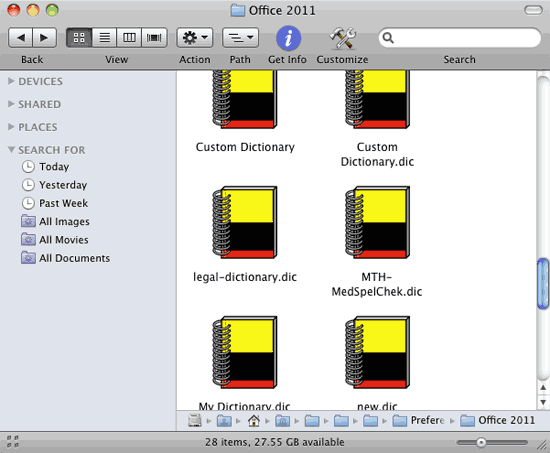
Learn how to share custom dictionaries for use in PowerPoint 2011 for Mac.
Filed Under:
PowerPoint 2011
Tagged as: Office for Mac, PowerPoint 2011, Proofing, Text, Tutorials
Comments Off on Learn PowerPoint 2011 for Mac: Sharing Custom Dictionaries
Circles created with continuously curved arrows, also known as arrow circles can be used to show processes, continuous sequences, and cycle diagrams. We bring you such arrow circles with 3, 4, 5, 6, 7, and 8 arrow segments each. Plus, you get variations that let you choose from thinner or thicker segments. You get these segments in a regular geometric style. Additionally, we have also included an organic style so that your segments appear hand-drawn! Don’t the segments shown above look hand-drawn? Yes, you get six such arrow circles as part of our Arrow Circles collection. There are four variants of each Arrow Circle, so, you end up with 24 new, unique Arrow Circles that you can use straight away in your slides!

Download and use these arrow circles in your slides.
Filed Under:
Presentation Bank
Tagged as: Design, Graphics, PowerPoint, Presentation Samples
Comments Off on Concept Slides: Arrow Circles
Some shapes are so similar — and you may work with one shape and then realize that you used the wrong one. Typically, users create a 5 pointed star when they need a start with 4 or 8 points — and that was just one example! Let’s explore another scenario: you worked on a shape and applied effects, animations, and fills to this shape. Later you realize that you used a wrong shape, or perhaps the client wants you to change the shape but retain all the effects, animations, and fills! You may want to delete and start over again, and that is a long drawn process — but you don’t have to do that for you can change any existing shape to another by using these steps in PowerPoint 2013.

Learn how to change one shape to another in PowerPoint 2013 for Windows.
Filed Under:
PowerPoint 2013
Tagged as: PowerPoint 2013, Shapes, Tutorials
Comments Off on Learn PowerPoint 2013 for Windows: Change One Shape to Another
Kiosk mode is a subset of Slide Show mode in PowerPoint – it’s been available since a very long time, and in past versions some options would behave differently than they do now – some users will no doubt complain that Kiosk mode was more useable before. So what are the options that are missing now? And is there any way to get them back? Before we explore these options, let’s answer a simple question – why do you need Kiosk mode?

Learn about Kiosk mode that lets you create unattended presentations.
Filed Under:
Add-ins
Tagged as: Add-in, Delivery, PowerPoint, Tutorials
Comments Off on Kiosk Mode and Kiosk Assistant
Microsoft and the Office logo are trademarks or registered trademarks of Microsoft Corporation in the United States and/or other countries.