
This is the print version of this page. All content is copyright Indezine.com 2000-2026.
Thoughts and impressions of happenings in the world of PowerPoint and presentations, continuously updated since 2003.
See Also:
PowerPoint and Presenting Notes
PowerPoint and Presenting Glossary
For almost every search term that you input on Bing’s Image Search, you get results with tons of pictures scoured from every nook and corner of the internet. With so many choices, finding that perfect picture can become a challenge, especially when you need a picture that’s more akin to an illustration rather than a camera-clicked photograph. Similarly, you may want to explore pictures that look like clipart. So in this tutorial, we will explore Bing’s Type filter that lets you narrow down your search results to yield exactly the “type” of pictures you need.

Learn how to search images in Bing by using the built in type filters.
Filed Under:
Clip Media
Tagged as: Bing, Graphics, Pictures, PowerPoint, Tutorials
Comments Off on Bing Images Search by Type
 David Klein is vice president of product management at Brainshark, Inc., a leading sales enablement platform provider. Brainshark’s offerings include Brainshark On-Demand — for turning static content such as PowerPoint documents into online and mobile video presentations – and SlideShark, the award-winning app for showing PowerPoints on the iPad and iPhone. Thousands of companies use Brainshark to improve the reach and results of their business communications, while dramatically reducing costs.
In this conversation, David discusses Brainshark’s VideoSync feature, a new addition — launched today — to Brainshark On-Demand.
Geetesh: Can you tell us more about your new VideoSync feature, and how this allows users to combine video and slide content together?
David: Sure. We’re excited to unveil the VideoSync feature, giving users a new, powerful way to present video content and increase audience engagement.
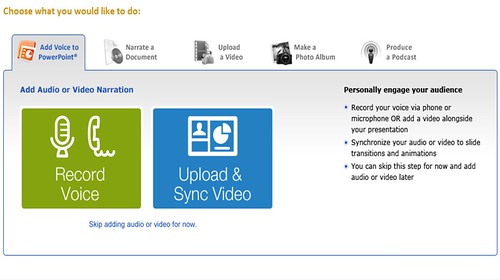
As you know, Brainshark On-Demand makes it easy to turn PowerPoint decks into dynamic video presentations that can be viewed anytime, on-demand, from desktops, laptops and mobile devices. One Brainshark presentation is viewed every 1.6 seconds in locations all over the world! Now, when creating a Brainshark presentation, users still have the option to add narration to their content via telephone or computer microphone – or they can choose to synchronize a pre-recorded video with their slides via VideoSync.
The feature is another way to bring your slides to life. VideoSync lets you display video and slides, side-by-side, to give your audience a unique and high-impact viewing experience. For example, you could have a “talking head” video clip, subject matter expert commentary, recorded product demo or executive speech play alongside and complement your slide content.
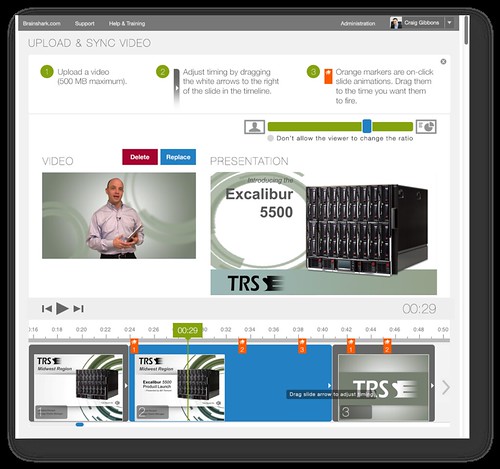
VideoSync is easy to use, and Brainshark supports more than 100 different video formats. Simple drag-and-drop markers also let you synchronize on-click animations with the video content. You can also adjust the ratio of video-to-slide content – locking it in, or leaving it unlocked for your audience to adjust themselves, based on their viewing preferences.

Geetesh: VideoSync is now part of your Brainshark On-Demand product — how does this feature synergize with other offerings in the same product?
David: VideoSync is available and compatible with all the functionality that has made Brainshark On-Demand a powerful, proven enterprise solution. For example, you can still include multiple file types in presentations; add polls, quiz and/or survey questions for greater audience interaction; set completion criteria for formal eLearning and mLearning courses; track presentation viewing activity with Brainshark’s analytics; and more. Updating presentations is still very straightforward too — you can edit and replace individual slides on your presentations as needed, without changing the accompanying video content. Of course, you’re also still able to create Brainshark presentations without VideoSync, when side-by-side video and slides aren’t the appropriate format for your content.
As always, it’s great talking with you, Geetesh. Thanks for the opportunity to discuss this new feature. We’re looking forward to seeing customers implement it to further ‘wow’ their audiences, and drive interest and engagement.
See Also: SlideShark – Box OneCloud Integration: Conversation with David Klein | Hyperlinks Support in SlideShark: Conversation with David Klein
The views and opinions expressed in this blog are those of the authors and do not necessarily reflect the official policy or position of any other agency, organization, employer, or company.
Filed Under:
Interviews
Tagged as: Brainshark, Interviews, Online Presentations, PowerPoint, Video
Comments Off on Brainshark’s VideoSync: Conversation with David Klein
In this issue, we bring you some amazing arrow circle graphics — these stand apart because most of these look hand drawn, and you can use them if you know how to copy and paste. We did not use any graphic files — all you need is within existing PowerPoint slides — just copy them and paste on your own slides! Kieran Chadha of BrightCarbon explains how you can structure and create a presentation from scratch in an exclusive interview. And then we go into a few hidden nooks and corners of PowerPoint so that you can re-discover Kiosk mode, a whole new way of viewing slides that’s off the beaten path. We also look at Office Mobile on iPhones — about how you can get started using this app. PowerPoint 2013 for Windows users can learn about flipping and changing shapes. PowerPoint 2011 for Mac users can continue exploring how to work with custom spelling dictionaries. And finally, do not miss the new discussions and templates of this week!

Read Indezine’s PowerPoint and Presenting News.
Filed Under:
Ezine
Tagged as: Ezine, Indezine, News, PowerPoint
Comments Off on PowerPoint and Presenting News: August 20, 2013
Sometimes while working in PowerPoint it may so happen that you know a particular word is misspelled, but PowerPoint’s spell check doesn’t seem to think so! This may be because your word is in all CAPS, or it may contain some numbers — in these cases, and in number of other instances, PowerPoint just ignores any misspellings. Fortunately, you can turn off the options that instruct PowerPoint to ignore these misspellings. Remember though that changing these options will apply to all Microsoft Office applications you have installed on your computer — including Word, Excel, and Outlook.

Learn how to set spell check options in PowerPoint 2011 for Mac.
Filed Under:
Uncategorized
Tagged as: Office for Mac, PowerPoint 2011, Proofing, Text, Tutorials
Comments Off on Setting Spell Check Options in PowerPoint 2011 for Mac
We already showed you how you can navigate within a PowerPoint presentation within Office Mobile for iOS – now let us explore how you can open and save presentations saved in your SkyDrive account. When you sign in using your Office 365 account credentials, you immediately get access to all the files stored on the cloud for that particular Office 365 account. However, you may have a different SkyDrive account too where you share or store your PowerPoint files. To access any of these files, you need to add what Office Mobile calls a “place”. A place is allocation, typically another SkyDrive account that Office Mobile can connect to.

Learn how to add a SkyDrive account in Office Mobile.
Filed Under:
Microsoft Office
Tagged as: iPad, iPhone, Office 365, Office Mobile, PowerPoint, Tutorials
Comments Off on Add SkyDrive Accounts to Office Mobile
Microsoft and the Office logo are trademarks or registered trademarks of Microsoft Corporation in the United States and/or other countries.