
This is the print version of this page. All content is copyright Indezine.com 2000-2026.
Thoughts and impressions of happenings in the world of PowerPoint and presentations, continuously updated since 2003.
See Also:
PowerPoint and Presenting Notes
PowerPoint and Presenting Glossary
To format any slide object in PowerPoint, you must select it. There are couple of ways with which you can select any slide object. Other than the obvious way of clicking the slide object to select, you can also use the Selection Pane. It’s always more difficult to select overlapping slide objects or objects placed behind a larger object in busy, populated slides — to select slide objects that are difficult to locate, you can use the Selection Pane.

Learn how to select Shapes using the Selection Pane in PowerPoint 2013 for Windows.
Filed Under:
PowerPoint 2013
Tagged as: PowerPoint 2013, Shapes, Tutorials
Comments Off on Select, Deselect, View, and Hide Shapes Using the Selection Pane in PowerPoint 2013 for Windows
Searching for the right picture online involves more than just entering a search term and then praying that you find a picture that works best for you! You need to do a little more, and that “little more” may be as simple a task as using a filter on the Bing Image Search site. Several common filters are available to narrow down your search results on Bing Images Search, and one of these filters is Layout. With the Layout filter, you can restrict your search to pictures which are widescreen, square, or tall in orientation.

Learn how to search images in Bing using the built-in Layout filters.
Filed Under:
Clip Media
Tagged as: Bing, Clip Media, Graphics, Pictures, PowerPoint, Tutorials
Comments Off on Bing Images Search by Layout
Imagine this situation — you created a long presentation for a particular event or concept and then realize that you used the wrong terminology throughout the presentation. Then what would you do? Of course you can manually find the problem word and replace its each occurrence. But what if you have more than a few slides? Or even then, you might miss out locating the problem word in some occurrences. The best solution is using PowerPoint’s Find and Replace option.
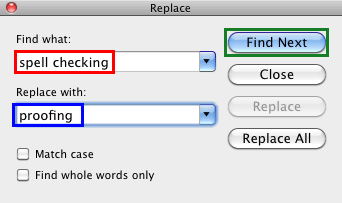
Learn how to find and replace words in PowerPoint 2011 for Mac.
Filed Under:
PowerPoint 2011
Tagged as: Office for Mac, PowerPoint 2011, Proofing, Text, Tutorials
Comments Off on Learn PowerPoint 2011 for Mac: Find and Replace Words

Kit Seeborg is a digital media consultant with over 15 years working in the online environment. From 2010 to 2013, Kit curated presentations for the SlideShare home page, wrote and edited its blog and newsletters, and represented SlideShare on its social platforms. SlideShare co-founder Rashmi Sinha refers to Kit as the “voice of SlideShare.” Formerly the web producer for WebTrends, Kit was a member of the editorial team for WorldChanging com and consults to Forture 100 companies and universities.
In this conversation, Kit discusses her new book, Present Yourself: Using SlideShare to Grow Your Business, which she co-authored with Andrea Meyer.
Filed Under:
Interviews
Tagged as: Books, Interviews, Online Presentations, PowerPoint, Presentation Skills, SlideShare
Comments Off on Present Yourself: Conversation with Kit Seeborg
You can easily duplicate stuff in PowerPoint — you can just select a shape and press the Command D key combination. However, such duplication copies everything: the shape, and its format attributes, such as all fills, outlines, and effects. Sometimes you may only want to use those fill, outline, and effect attributes for other shapes you create. Fortunately, the Format Painter command can rescue you from this monotonous task very easily. So what does the Format Painter command do?

Learn how to use the Format Painter effectively in PowerPoint 2013 for Windows.
Filed Under:
PowerPoint 2013
Tagged as: PowerPoint 2013, Shapes, Tutorials
Comments Off on Learn PowerPoint 2013 for Windows: Format Painter
Microsoft and the Office logo are trademarks or registered trademarks of Microsoft Corporation in the United States and/or other countries.