
This is the print version of this page. All content is copyright Indezine.com 2000-2026.
Thoughts and impressions of happenings in the world of PowerPoint and presentations, continuously updated since 2003.
See Also:
PowerPoint and Presenting Notes
PowerPoint and Presenting Glossary
Once you add a place such as your SkyDrive account to the Open tab within Office Mobile for iPhone, you can normally open your files off your SkyDrive account as easily as you would open any local file – but there’s a caveat – you need to be connected online all the time for this to work.

Learn how to open files in Office Mobile.
Filed Under:
Apple Mac OS
Tagged as: iPad, iPhone, Office 365, Office Mobile, PowerPoint, Tutorials
Comments Off on Open Files in Office Mobile
In this issue, we first bring you two interviews — the first one is with Kit Seeborg, author of a great, new book on using SlideShare effectively. Brainshark’s David Klein discusses how you can use their new VideoSync feature to sync your video and slides together within an online presentation. We then look at Bing’s amazing filters that let you search by picture type and layout. Also learn how you can add one or more SkyDrive accounts to your Office Mobile on an iPhone. PowerPoint 2013 for Windows users can learn about dragging yellow squares on most shapes to create new shapes, using the Format Painter to copy shape attributes, and how one can easily select slide objects using the Selection Pane. PowerPoint 2011 for Mac users can learn about setting spell check options and using the Find and Replace feature. And finally, do not miss the new discussions and templates of this week!

Read Indezine’s PowerPoint and Presenting News.
Filed Under:
Ezine
Tagged as: Ezine, Indezine, News, PowerPoint
Comments Off on PowerPoint and Presenting News: August 27, 2013
PowerPoint 2013 continues the process of selection, then action for any object on a slide. If you cannot select an object, then you cannot modify it at all. Although this tutorial explains how you can select shapes on a slide, the process works the same way for any other slide object.

Learn how to select and deselect single and multiple shapes in PowerPoint 2013 for Windows.
Filed Under:
PowerPoint 2013
Tagged as: PowerPoint 2013, Shapes, Tutorials
Comments Off on Select and Deselect Shapes in PowerPoint 2013 for Windows

Andrea Meyer is an award-winning speaker, writer and ghostwriter. Known for her practical, how-to style, she’s traveled to 40 countries speaking and writing about innovation and how to get breakthrough insights. She founded Working Knowledge in 1988 and works with CEOs, professors, and consultants to write their books, blogs, white papers, and online learning content. Her clients include IBM, Cisco, MIT, Harvard, McKinsey & Co., InnoCentive, AARP and OECD. Andrea has contributed to 35 books on business, innovation and psychology. She has an M.S. in Information Science, is a member of Mensa, and is listed in Who’s Who in America.
In this conversation, Andrea discusses her new book, Present Yourself: Using SlideShare to Grow Your Business, which she co-authored with Kit Seeborg.
Geetesh: How do you and your co-author Kit differ, and where do you both find common ground? Also, how did these differences and similarities help you both in creating this book?
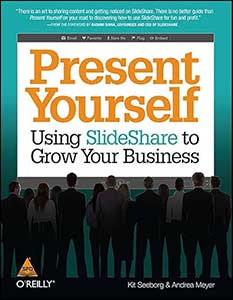 Andrea: Kit is the SlideShare expert, having served as SlideShare’s content editor and community manager for three years. She’s been on the digital frontier since 1995, and she is passionate about digital content, community and communications. I’ve been a writer and ghostwriter for 23 years and have worked on 35 commercially-published books, so I brought the book-writing expertise to our partnership. Together, we talked about each chapter, focusing on the information we wanted to share and how to get the message across. We also knew, right from the start, that we wanted to include real-world examples of how people are using SlideShare. We conducted more than 30 interviews with users, and we featured their stories in the book.
Geetesh: SlideShare by itself is a great platform to share presentations — yet your book covers so much more than just SlideShare itself — it even goes into the details about creating great content to start with. Can you share your thoughts about the content of your book?
Andrea: Our goal for the book was to write more than just a how-to technical manual. We wanted to provide insights into all the ways that SlideShare could be used by companies and individuals to grow their businesses and careers. That’s why the book opens with a chapter on visual thinking. This chapter explains how and why visual thinking is changing business. Understanding this broader trend helps you design better slides, but it also gives you an edge in understanding where business is headed.
Similarly, our chapter on events and public speaking helps not only speakers but also event organizers make the best use of SlideShare. And, as you mentioned in your question, we provide tips for how to create compelling content in your content marketing efforts. The book covers a lot of ground, describing how to use SlideShare for sales, research, collaboration, recruiting, hiring and getting hired — all with the goal of helping you grow your business or career.
The views and opinions expressed in this blog post or content are those of the authors or the interviewees and do not necessarily reflect the official policy or position of any other agency, organization, employer, or company.
Filed Under:
Interviews
Tagged as: Books, Interviews, Online Presentations, PowerPoint, Presentation Skills, SlideShare
Comments Off on Present Yourself: Conversation with Andrea Meyer
Many dedicated programs do only flowcharts, and although Microsoft creates another program called Visio for Windows users that’s more flowchart savvy than mainstream Microsoft Office programs, there’s no version of Visio available for Mac users. And it really doesn’t matter too much if all you need to do is create a basic flowchart because you can create flowcharts within your other Office programs such as Word, Excel, and PowerPoint! Why do we put forth such a recommendation? That’s because these Microsoft Office programs already have all the abilities and options you need to create almost any type of flowchart you need – what’s more, you don’t have to buy and learn yet another program to do something that really is so simple!

Filed Under:
PowerPoint 2011
Tagged as: Diagrams, Flowcharts, Office for Mac, PowerPoint 2011, Tutorials
Comments Off on Basic Flowcharts in Microsoft Office for Mac
Microsoft and the Office logo are trademarks or registered trademarks of Microsoft Corporation in the United States and/or other countries.