
This is the print version of this page. All content is copyright Indezine.com 2000-2026.
Thoughts and impressions of happenings in the world of PowerPoint and presentations, continuously updated since 2003.
See Also:
PowerPoint and Presenting Notes
PowerPoint and Presenting Glossary
It’s great to be able to customize a program according to your workflow — it’s almost like how everyone likes to organize the stuff on their desks, or even the furniture in their rooms. One of the ways that PowerPoint allows you to customize the interface is via adding custom Toolbars — this can be of great help when you use a certain set of commands repeatedly for your tasks. Once you add a new Toolbar though, it’s time to populate the Toolbar with your favorite commands. You can add, reorder, and also remove commands from a Toolbar, as explained in the following steps.

Learn how to add and/or remove Toolbar commands in PowerPoint 2011 for Mac.
Filed Under:
PowerPoint 2011
Tagged as: Office for Mac, PowerPoint 2011, Tutorials
Comments Off on Learn PowerPoint 2011 for Mac: Add and/or Remove Toolbar Commands
How do you add a “map pin” graphic on your slide so that it looks like a real one? It’s easy with this collection of map pins that are already placed in PowerPoint slides – just copy the pins and then paste within your own slides that already contain a map. Beyond maps, you can also use these map pins like regular push pins so that a picture, shape, or anything else appears as if it has been pushed onto a surface, board, or wall with a pin!
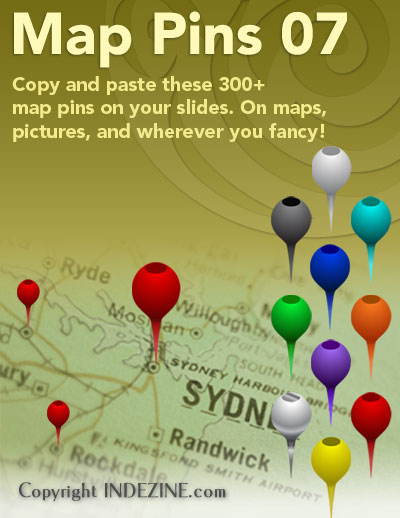
Download and use these map pins in your slides.
Filed Under:
Presentation Bank
Tagged as: Design, Graphics, PowerPoint, Presentation Samples
Comments Off on Handmade Slides: Map Pins for PowerPoint – 07
Have you created all your slides — and now you want to show it in front of an audience? Or you just want to use this slide deck in a webinar, or even see them yourself to understand how they look in full screen view? In that case, the view that plays your presentation in full screen mode is Slide Show view. To access Slide Show view, you can choose any of these options.

Learn about Slide Show view in PowerPoint 2013 for Windows.
Filed Under:
PowerPoint 2013
Tagged as: PowerPoint 2013, Tutorials
Comments Off on Learn PowerPoint 2013 for Windows: Slide Show View
OK – you are used to installing apps on your iPhones and iPads – first download, and then run the app. You may have to pay for the app – and most of the time, your money gets into the pockets of Apple’s App Store even before you actually download the app. However, things are a little different with the Office Mobile app that lets you run Word, Excel, and PowerPoint on an iPhone – you will soon realize that although the actual app was free to download, you will need to pay for an Office 365 subscription to run the program.

Find out why you need Office 365 to run Office Mobile on your iOS device.
Filed Under:
PowerPoint for iOS
Tagged as: iPad, iPhone, Office 365, Office Mobile, PowerPoint, Tutorials
Comments Off on Why do I need Office 365 to run Office Mobile?
PowerPoint 2011 on the Mac continues to still use Toolbars although the Windows versions of PowerPoint got rid of them a few years ago — that’s great since as a PowerPoint 2011 user, you have more options to perform the same tasks. Additionally, you can customize your Toolbars in PowerPoint 2011 — this will save you time since your favorite commands will be more easily accessible — thereby increasing your efficiency and productivity. Also, your new customized Toolbars are not fixed at one position. Instead, they float — they can be dragged to any screen position. You can change their length and width by clicking and dragging the lower-right corner of the Toolbar.

Learn how to add and/or remove Toolbars in PowerPoint 2011 for Mac.
Filed Under:
PowerPoint 2011
Tagged as: Office for Mac, PowerPoint 2011, Tutorials
Comments Off on Learn PowerPoint 2011 for Mac: Add and/or Remove Toolbars
Microsoft and the Office logo are trademarks or registered trademarks of Microsoft Corporation in the United States and/or other countries.