
This is the print version of this page. All content is copyright Indezine.com 2000-2026.
Thoughts and impressions of happenings in the world of PowerPoint and presentations, continuously updated since 2003.
See Also:
PowerPoint and Presenting Notes
PowerPoint and Presenting Glossary
Although this is not so obvious, the position of the bullets or numbers in a list is influenced by indent markers you see on the Horizontal Ruler within PowerPoint. There are three types of Indent Markers — the First Line Indent Marker, the Hanging Indent Marker, and the Left Indent Marker. In this tutorial, we will explore how the First Line Indent Marker influences the position of the bullets (or numbers). The First Line Indent Marker determines the left most edge of the bullet character itself. If you drag this First Line Indent Marker along the Horizontal Ruler, the bullets associated with the selected text also move accordingly.

Filed Under:
PowerPoint 2011
Tagged as: Office for Mac, PowerPoint 2011, Text, Tutorials
Comments Off on Learn PowerPoint 2011 for Mac: Tweak Bullets with First Line Indent Marker
 Yossi Pinkas is co-founder of MagPointer. MagPointer is the developer of a PowerPoint add-on for improving audience engagement during presentations, making presentations more interactive and easier to follow.
In this discussion, Yossi explains how you can use MagPointer to make your presentations more responsive and interesting.
Geetesh: Please tell us what MagPointer does, and in how many ways can presenters use it?
Yossi: MagPointer is a PowerPoint add-in that helps the audience follow the presenter and remain focused and engaged. The software allows presenters to enlarge, focus or highlight specific slide elements, on-the-fly and without any preparations in advance.
With MagPointer, the presenter can highlight text or specific table elements (cells, columns or rows), enlarge objects, create frames and zoom on slide areas. All this is done in real time, with no need for any preparations in advance.
In many cases, MagPointer relieves presenters from the tedious and time consuming task of preparing slideshow animations in advance. Beyond time savings, the real-time nature of MagPointer makes presentations more interactive, as the presenter can choose what to highlight or focus on in response to questions or comments from the audience. The application also enables a smooth navigation back-and-forth between slide objects, keeping the presentation flowing when the need arises to refer to previous or future slides and objects.
MagPointer is targeted mainly at data-rich presentations, such as those presented by university and school teachers, trainers, consultants and various other professionals.
MagPointer is extremely useful for webinars and online presentations, where the lack of eye-contact make presentations difficult to follow. It is also valuable for face-to-face presentations, and its floating smart bar makes it easy to control MagPointer operations using remote control devices or apps such as the mobile mouse application for iPhone and Android handsets.
Geetesh: Can you share how MagPointer evolved, and why you decided you create this PowerPoint add-in?
Yossi: MagPointer was developed by my co-founder, Vadim. In his role as a technical lead in a large high-tech company, he was presenting to his team or managers presentations which include rather detailed slides describing project technical details, system architectures and design requirements etc. He felt there should be a better way to focus his audience on a certain slide object than stepping to the screen and pointing it out. As he was familiar with the internals of Microsoft Office and its APIs, he decided to develop an add-on that will identify the different objects in each slide and allow real time manipulation of those objects.

I have joined Vadim after realizing how useful the MagPointer app is in my activities being part of an investor’s group. We often had Skype conference calls with startup companies seeking investment, and those included PowerPoint presentations using screen share. The presentations usually included schematics or tables such as revenue forecasts, competitive analysis, etc. that were rather difficult to follow. We found that with MagPointer we could easily follow the presenter, and even when losing attention for a moment, could always go back and find what he was referring to on the slide.
After filing a patent application, we released a beta version of MagPointer in June 2012. Following feedback we’ve received on the first beta version, we have completely redesigned the user interface and added a floating smart bar that made the use of the software highly intuitive and provided better support for using remote controls in face-to-face presentations.
The views and opinions expressed in this blog post or content are those of the authors or the interviewees and do not necessarily reflect the official policy or position of any other agency, organization, employer, or company.
Filed Under:
Interviews
Tagged as: Add-in, Interviews, PowerPoint
Comments Off on MagPointer: Conversation with Yossi Pinkas
What is it about 30 million PowerPoint presentations being created each day — is the source for that figure fact or is it fiction? Read more in the cover story of this week’s Indezine News. We’ve heard from so many of you who have loved the new Petal Circles series — this issue, we bring you a 5 petaled variation of the circle — use these in your slides! We also have the usual bunch of PowerPoint tutorials — learn about fading sounds, formatting 3D charts, and PowerPoint 2013 customization. We also explore SlideBoom, an online presentations site.3

Read all this and more in Indezine News.
Filed Under:
Ezine
Tagged as: Ezine, Indezine, News, PowerPoint
Comments Off on Indezine News: February 19, 2013
One of the very important, new abilities in PowerPoint 2010 relates to you being able to play your audio files from a certain point within the clip. To do so, you need to use the Bookmarks feature. Bookmarks in PowerPoint are similar to the conventional bookmarks you place within the pages of a book you read. In the same way that you can easily access a particular page with the help of a bookmark, the Bookmarks you add to an audio clip become indicators of the position you want to play the clip from.

Learn how to add Bookmarks to audio clips in PowerPoint 2010 for Windows.
Filed Under:
PowerPoint 2010
Tagged as: Music, PowerPoint 2010, Sounds, Tutorials
Comments Off on Learn PowerPoint 2010 for Windows: Add Bookmarks for Audio Clips
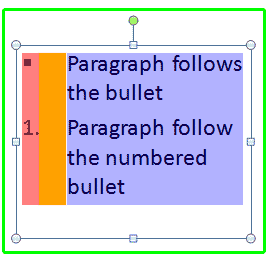
Have you pulled your hair trying to adjust spacing before and after bulleted and numbered lists in PowerPoint? And if you have been valiant enough to try, did you succeed? And even if you succeeded to some extent, were you satisfied — or did you want more control? This is at least one of those scenarios where we can tell you that PowerPoint has all the options you are looking for — but where exactly you will tweak these options is not intuitive at all! Read on to learn more — some part of this tutorial can be a little technical — but we’ll try to explain with use of plain English terms and several visuals.
Filed Under:
PowerPoint 2011
Tagged as: Office for Mac, PowerPoint 2011, Text, Tutorials
Comments Off on Learn PowerPoint 2011 for Mac: Indent Markers for Bulleted and Numbered Lists
Microsoft and the Office logo are trademarks or registered trademarks of Microsoft Corporation in the United States and/or other countries.