
This is the print version of this page. All content is copyright Indezine.com 2000-2026.
Thoughts and impressions of happenings in the world of PowerPoint and presentations, continuously updated since 2003.
See Also:
PowerPoint and Presenting Notes
PowerPoint and Presenting Glossary
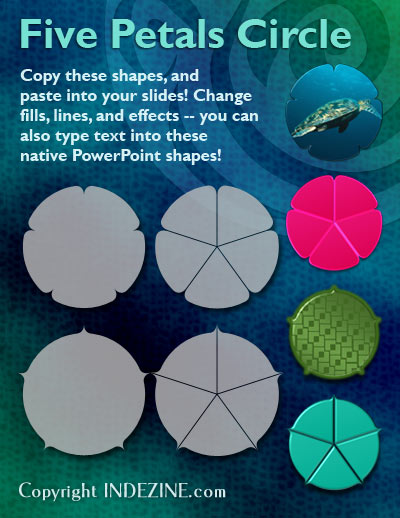
These Five Petals Circle graphics are part of our Petal Circles series that add stylized tips to your circle shapes. These two tip styles: Rounded and Pointed make your circles look different from conventional segmented circle graphics. They also break the monotony of text heavy slides, and help you explain concepts better to your audiences. Using these circle shapes also convinces your audiences that you care enough about them to make the slides look appealing and comprehensible. What’s more, these shapes are also so much fun to use!
Buy and download these slides now.
Filed Under:
Presentation Bank
Tagged as: Design, Graphics, PowerPoint, Presentation Samples
Comments Off on PowerPoint Concept Slides: Five Petals Circle
If you have a bunch of commands that you use frequently, you may want to keep them more accessible within PowerPoint 2013 by customizing your Quick Access Toolbar — you populate the QAT with commands you use often. Over a period of time, these customizations may become a valuable asset you want to save or share — let us explore these scenarios.

Learn how to reset, export, and import QAT customization in PowerPoint 2013 for Windows.
Filed Under:
PowerPoint 2013
Tagged as: PowerPoint 2013, Tutorials
Comments Off on Learn PowerPoint 2013 for Windows: Reset, Export, and Import QAT Customizations
When you place a chart on your slide that contains a Z-axis, you will notice that unlike conventional 2D charts, these charts have distinct walls and a floor. Also by default, these walls and floor show no fill or even a border (see chart in Figure 1) — the lines you see within the walls are gridlines, and not borders. If your slide background is a solid color like white or black, these defaults could work best for you — however you may want to play a bit with changing the fill or line attributes for the wall and floor elements. Do remember though that you should leave these elements in their default state unless you have a compelling reason to change them!

Learn how to format the walls and floor of a 3D chart in PowerPoint 2011 for Mac.
Filed Under:
PowerPoint 2011
Tagged as: Charting, Office for Mac, PowerPoint 2011, Tutorials
Comments Off on Learn PowerPoint 2011 for Mac: Format Walls and Floor of 3D Charts
Insert an audio file within your PowerPoint slide, and you can play it either with a click, or set it to play automatically. Whichever option you choose, some files can sound loud and unexpected! Have you not experienced the sudden scare or shock when a shrill voice interrupts an almost silent environment? Rather than shake the soul of your audiences, you can use PowerPoint’s fade options to add a gradual increase to the volume of your audio files. PowerPoint provides both Fade In and Fade Out effects that you can add to the beginning and end of your audio clips. These fade options make your audio clips sound smoother and more subtle.

Learn to fade your audio clips in PowerPoint 2010 for Windows.
Filed Under:
PowerPoint 2010
Tagged as: Music, PowerPoint 2010, Sounds, Tutorials
Comments Off on Fade Effect for Audio Clips in PowerPoint 2010 for Windows
Do you frown at 3D charts, or do you love them? Either way, the Z-axis should be your friend — let us introduce you to him in this newsletter issue! Also in this issue you will discover the 4 petal circle shape that can certainly add some pizzazz to make your everyday circles look better and more distinguished. We continue showing you how much customization PowerPoint 2013 offers — you can do some incredible stuff with your Ribbon tabs. And if you love animation, then this amazingly simple Twin Trigger animation will make you blink stuff of your slides — literally! We have two awesome interviews with Sam Thatte and Peter Zvirinsky, and an amazing guest column by Jerry Weissman. PowerPoint for Mac users can continue learning about charts — explore crossed axes and adding transparency to 3D columns this time. All put together, this is an amazingly packed issue — see you again next week.

Read all this and more in Indezine News.
Filed Under:
Ezine
Tagged as: Ezine, Indezine, News, PowerPoint
Comments Off on Indezine News: February 12, 2013
Microsoft and the Office logo are trademarks or registered trademarks of Microsoft Corporation in the United States and/or other countries.