
This is the print version of this page. All content is copyright Indezine.com 2000-2026.
Thoughts and impressions of happenings in the world of PowerPoint and presentations, continuously updated since 2003.
See Also:
PowerPoint and Presenting Notes
PowerPoint and Presenting Glossary
All Ribbon tabs in PowerPoint 2013 may have any number of buttons that represent commands but they are not scattered all over the tab area. In fact all of them are neatly arranged together in Groups. Each of these Groups has a name that describes what the commands within that Group do — for example, the Slide Show tab in the Ribbon has a group named Set Up — this contains all commands that help you set up your slide show, such as changing show settings, hiding slides, rehearsing and recording slide shows, etc. It is only sensible to imagine that you should use this Group concept while creating custom Ribbon tabs. In fact, PowerPoint will not let you add any command anywhere else other than within a Group.

Explore working with Custom Groups within Ribbon Tabs in PowerPoint 2013 for Windows.
Filed Under:
PowerPoint 2013
Tagged as: PowerPoint 2013, Tutorials
Comments Off on Working with Custom Groups in Ribbon Tabs in PowerPoint 2013 for Windows
In today’s environment, it is important that you are confident and comfortable in front of your audience. And while many speakers believe that being confident is difficult, it needs to be!

Image: Yay Images
In fact, here are a dozen ways to be a confident speaker:
Filed Under:
Guest Posts
Tagged as: Guest Post, Presentation Skills, Public Speaking, Sandra Schrift
Comments Off on A Dozen Ways to Be a Confident Speaker
We already showed you how you can add a new Slide Master to your presentation — and yes, you can make that task even easier by possibly duplicating the existing Slide Master. You can then format it to change its look by applying a Background Style, add a custom background, add new Slide Layouts, etc. But why would you do all these tasks in the first place? There needs to be a compelling reason to do so. This reason leads us to the next logical step — that is to apply the new Slide Master to selected slides in your presentation.
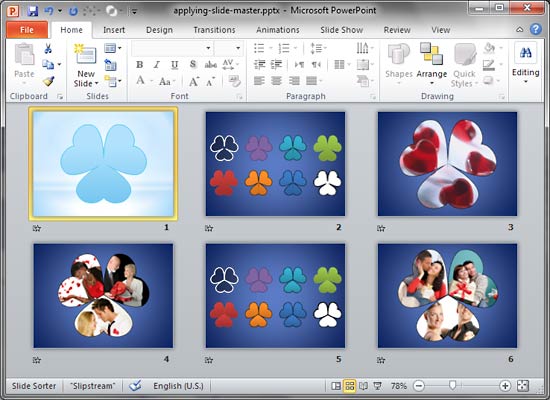
Learn how to apply Slide Masters to individual slides in PowerPoint 2010 for Windows.
Filed Under:
PowerPoint 2010
Tagged as: Masters, PowerPoint 2010, Templates, Tutorials
Comments Off on Learn PowerPoint 2010 for Windows: Applying Slide Masters to Individual Slides
Do you like the default locations where PowerPoint places your axes’ labels? Yes, we do believe that the defaults do work best most of the time because audiences expect these labels to exist at these familiar locations. However, there may be times when you probably don’t even need labels for your axes — or you may want them placed in another location so that your charts look cleaner. Whatever your motive may be, it is indeed possible to change the position of axis labels vis-à-vis the axis.

Learn how to hide the axis labels and also how to reposition them in PowerPoint 2011 for Mac.
Filed Under:
PowerPoint 2011
Tagged as: Charting, Office for Mac, PowerPoint 2011, Tutorials
Comments Off on Learn PowerPoint 2011 for Mac: Reposition and Hide Axis Labels
In this issue, we have Heart Circles for you to download — use these in your slides that need to depict relationships and segments. Each of the shapes can be filled with a picture, or just used as a text container. Adam Noar of Presentation Panda talks about his book, Slides Made Simple. We also provide you with a simple two petal graphic that’s so versatile — use it to create info-graphics on your slides. Finally, we have several tutorials covering techniques in PowerPoint 2013, 2011, and 2010.

Read all this and more in Indezine News.
Filed Under:
Ezine
Tagged as: Ezine, Indezine, News, PowerPoint
Comments Off on Indezine News: January 29, 2013
Microsoft and the Office logo are trademarks or registered trademarks of Microsoft Corporation in the United States and/or other countries.