
This is the print version of this page. All content is copyright Indezine.com 2000-2026.
Thoughts and impressions of happenings in the world of PowerPoint and presentations, continuously updated since 2003.
See Also:
PowerPoint and Presenting Notes
PowerPoint and Presenting Glossary

Echo Swinford is a Microsoft PowerPoint MVP (Most Valuable Professional). When she’s not adding tutorials and information to her Echo’s Voice site, she is busy creating PowerPoint templates or conducting training sessions for a variety of clients. Echo is also the author of Building PowerPoint Templates Step by Step with the Experts, published by Que.
In this conversation, Echo discusses this new book she co-authored with Julie Terberg.
Geetesh: Your book, Building PowerPoint Templates has so much information that has been rarely documented elsewhere, and certainly never explained in plain English. What motivated you to author a book on this topic?
 Echo: Well, we kept seeing very poorly built templates cross our desks, which was frustrating because a properly built template can actually save users a ton of time. There are millions of templates being used every day and we can’t build them all (although we’d sure like to!), so we did the next best thing — we wrote a book.
PowerPoint templates changed dramatically between PowerPoint 2003 and 2007. The intricacies (and bugs) aren’t really documented anywhere, which meant there was a steep learning curve. We hope that by putting the information together in one place, people will begin to understand the value of a well-constructed template. The ROI is huge, especially on a corporate level.
Geetesh: There’s so much confusion about how templates differ from themes. Can you explain in a few words if these concepts are nearly similar or entirely different, and how will your book help readers understand the world of PowerPoint templates better?
Echo: Themes and templates are very similar, which is probably why they’re so confusing. An Office Theme (.THMX file) is a set of colors, fonts, and effects that can be applied to any Office file. A template is for a specific program (Word, Excel, or PowerPoint). A template is always based on a theme, so colors, fonts, and effects are built right in. But a template can also have content – like sample slides or prepopulated footers – so you could actually think of a template as being a theme + sample content.
If you have no need for sample content, you could distribute just the theme file (*.THMX). Unfortunately, most users won’t know what to do with a theme, so you’re probably better off giving them a template!
You May Also Like: Building PowerPoint Templates: Conversation with Julie Terberg | Medicine Presentations: Conversation with Echo Swinford | PowerPoint 2007 Complete Makeover Kit: Conversation with Echo Swinford
The views and opinions expressed in this blog are those of the authors and do not necessarily reflect the official policy or position of any other agency, organization, employer or company.
Filed Under:
Interviews
Tagged as: Books, Echo Swinford, PowerPoint, Templates, Themes
Comments Off on Building PowerPoint Templates: Conversation with Echo Swinford
A picture needs to be corrected when it is too dark or too bright — and this can happen if the lighting was not proper when you clicked the original picture with your camera. Additionally, you may also want to make some tonal changes to a picture so that it stands apart. In this tutorial you will learn how to make corrections to inserted pictures in terms of their brightness, sharpness, softness, and contrast values — all from within PowerPoint without having to use an external program!

Learn about the Correction option for pictures in PowerPoint 2010 for Windows.
Filed Under:
PowerPoint 2010
Tagged as: Pictures, PowerPoint 2010, Tutorials
Comments Off on Learn PowerPoint 2010 for Windows: Picture Corrections
Here are some ready-made frame corners to make pictures on your slide ‘arty’. These frame corners are contained within PowerPoint presentation that you download — you will see them in both black and white colors, and also filled with some solid colors, textures and gradients. Just copy and paste them as individual frame corners over your inserted pictures (or other slide objects). First place them on the top-left corner of your pictures. For the remaining three corners, duplicate the existing frame corner, and place the duplicates on the other three corners, and rotate them as required.


Download and use these frame corners in your slides.
Filed Under:
Presentation Bank
Tagged as: Design, Graphics, PowerPoint, Presentation Samples
Comments Off on Handmade Slides: Frame Corners for PowerPoint – 03
PowerPoint 2013’s Presenter View is one of its most revamped features — but first let us discuss what Presenter View actually is. It’s a special view that accompanies Slide Show view and is typically used in a two display environment such as a laptop and a projector. The projector then shows the actual slides — that’s what we commonly call Slide Show view. While Presenter view in PowerPoint 2010 and earlier versions had to be turned on, PowerPoint 2013 automatically detects if you have two displays and turns on Presenter view.
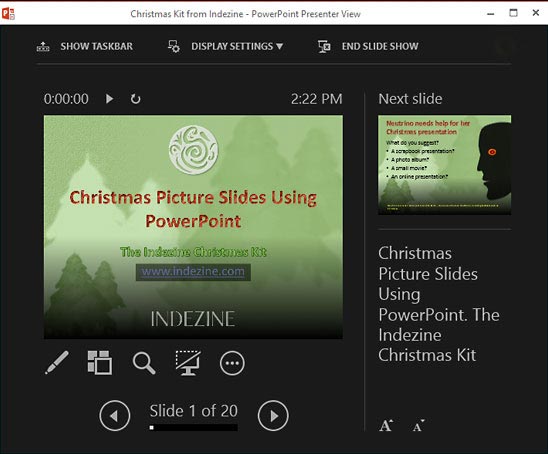
Learn about PowerPoint 2013’s enhanced presenter view.
Filed Under:
PowerPoint 2013
Tagged as: PowerPoint 2013, Tutorials
Comments Off on Learn PowerPoint 2013 for Windows: Enhanced Presenter View
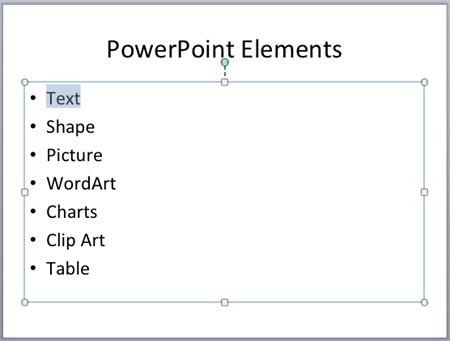
Adding pictures, SmartArt, charts, sounds, and even video clips on your slides can make your presentation interesting. Still, it is difficult to even imagine a presentation with no text at all. Nothing conveys a message easier than text, and even pictures do need captions in the form of text. In PowerPoint, several slide objects can include text such as text placeholders, text boxes, shapes, tables, SmartArt, charts, etc. In this tutorial though, we are exploring only selecting and changing the text within text placeholders, text boxes, and shapes.
Filed Under:
PowerPoint 2011
Tagged as: Office for Mac, PowerPoint 2011, Text, Tutorials
Comments Off on Learn PowerPoint 2011 for Mac: Selecting and Changing Text
Microsoft and the Office logo are trademarks or registered trademarks of Microsoft Corporation in the United States and/or other countries.