
This is the print version of this page. All content is copyright Indezine.com 2000-2026.
Thoughts and impressions of happenings in the world of PowerPoint and presentations, continuously updated since 2003.
See Also:
PowerPoint and Presenting Notes
PowerPoint and Presenting Glossary
Numbered lists use the 1, 2, 3 numerical style by default. It’s possible to change the numbered list styles to something else such as a list using alphabets or Roman numerals — just like you change bulleted list styles. You can use several numerical styles in PowerPoint — there are variations in digits, alphabets, and Roman numerical styles.

Learn how to change the numbered list style of selected text in PowerPoint 2011 for Mac.
Filed Under:
PowerPoint 2011
Tagged as: Office for Mac, PowerPoint 2011, Text, Tutorials
Comments Off on Learn PowerPoint 2011 for Mac: Change Numbered List Style
These “sticky tape” graphics are ready-made segments that can be used within your PowerPoint slides to create a look that makes a picture, shape, or anything else appear as if it has been stuck on a surface, board, or wall with tape! Some color and transparency variations of these sticky tape segments are already contained within the sample presentation that you download. Just copy them and paste them on your slides.


Download these sticky tapes, and use them in your slides.
Filed Under:
Presentation Bank
Tagged as: Design, Graphics, PowerPoint, Presentation Samples
Comments Off on Handmade Slides: Sticky Tape 02
We already explored in our Super Themes tutorial how each Theme in PowerPoint 2013 can actually contain 8 Themes in all — this typically includes 4 widescreen (16:9) variations, and also 4 standard (4:3) variations. We navigated to the folder where Office Themes built-in within PowerPoint are typically stored. Note that some Theme files are quite large in size — in fact, the Retrospect Theme is more than 8 mb in size.
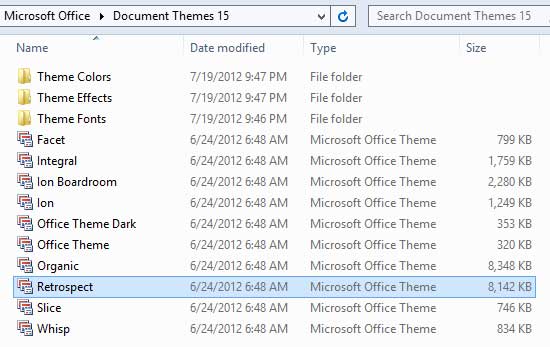
Explore how each Super Theme in fact contains 8 regular Office Themes.
Filed Under:
PowerPoint 2013
Tagged as: PowerPoint 2013, Themes, Tutorials
Comments Off on Learn PowerPoint 2013 for Windows: Editing Super Themes with XML
Creating slides that can attract attention is always a challenge — and every trick you can use to make your content more interesting is welcome. You have already learned how to apply text transform effects to your selected text. In addition to the available presets, you can go further and tweak any of the presets to make your own distinctive transform effect. In this tutorial you’ll learn how to tweak the Transform text effect in PowerPoint — follow these steps to explore more.

Filed Under:
PowerPoint 2010
Tagged as: Effects, PowerPoint 2010, Text, Tutorials
Comments Off on Learn PowerPoint 2010 for Windows: Advanced Text Transforms
These “sticky tape” graphics are already placed in PowerPoint slides — just copy them and paste within your slides to create a look that makes a picture, shape, or anything else appear as if it has been stuck on a surface, board, or wall with tape! These ready-made sticky tape segments are already within PowerPoint slides — and have been provided in white, brown, and grey colors — some colors have various transparency variations. Just copy them and paste them on your slides.


Download these sticky tapes, and use them in your slides.
Filed Under:
Presentation Bank
Tagged as: Design, Graphics, PowerPoint, Presentation Samples
Comments Off on Handmade Slides: Sticky Tape 01
Microsoft and the Office logo are trademarks or registered trademarks of Microsoft Corporation in the United States and/or other countries.