
This is the print version of this page. All content is copyright Indezine.com 2000-2026.
Thoughts and impressions of happenings in the world of PowerPoint and presentations, continuously updated since 2003.
See Also:
PowerPoint and Presenting Notes
PowerPoint and Presenting Glossary
We first look at the 10 E’s from Sandra Schrift that will help you to motivate and influence an audience. We also talk about the upcoming Outstanding Presentations Workshop 2019.
PowerPoint 2019 and 365 for Windows users can learn how to Customize the Quick Access Toolbar, and PowerPoint 365 for Mac users can explore Keyboard Shortcuts. Plus, make sure you do not miss the quotes, press releases, and templates featured in the last week.

Stay informed about updated tutorials and happenings related to PowerPoint and presenting.
Filed Under:
Ezine
Tagged as: Ezine, Indezine, News, PowerPoint
Comments Off on PowerPoint and Presenting News: October 29, 2019
When PowerPoint 365 for Mac is launched, you see Backstage view. You’ll notice the bright orange color used for the interface. If you want, you can change the bright orange to a neutral gray and end up with a different-looking PowerPoint program interface as explained in this tutorial.
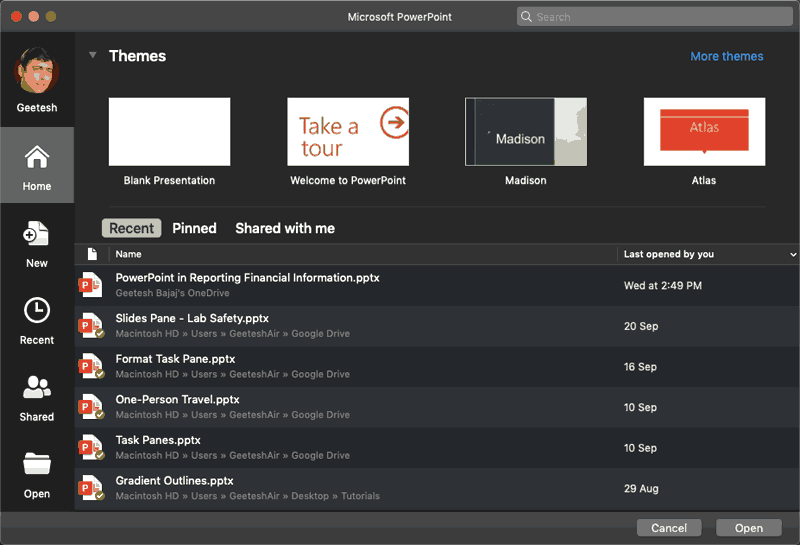
Learn about changing the interface color in PowerPoint 365 for Mac.
Filed Under:
PowerPoint 365
Tagged as: Color, Interface, Mac, Office 365, Office for Mac, PowerPoint 365, PowerPoint for Mac, Tutorials
Comments Off on Changing Interface Color in PowerPoint 365 for Mac

Tsufit is a former lawyer who has been described by the Toronto Star as “a starburst of energy― bright bubbly and upbeat” and by Publisher’s Weekly as a “coaching dynamo”. Her book, Step Into the Spotlight! has been endorsed by Tom Peters, Jay Conrad Levinson, Jack Trout, BNI founder, Ivan Misner, Les Brown, Al Ries, and many other New York Times best-selling authors and experts.
In this conversation, Tsufit talks about her upcoming webinar, which is part of the Outstanding Presentations Workshop 2019 series.
Filed Under:
Events
Tagged as: Events, Interviews, Outstanding Presentations Workshop, Tsufit, Webinar
Comments Off on Outstanding Presentations Workshop 2019: Conversation with Tsufit
The Ribbon that you see within the PowerPoint 2019 for Windows user interface was designed to make all options easily accessible. To make more options available on the Ribbon, you can add more tabs, rename them, and populate them with even more commands, as we will explore within this tutorial.

Learn to add and rename Ribbon tabs in PowerPoint 2019 for Windows.
Filed Under:
PowerPoint 2019
Tagged as: Interface, Microsoft Windows, Office 2019, PowerPoint 2019, Ribbon, Tutorials
Comments Off on Add and Rename Ribbon Tabs in PowerPoint 2019 for Windows
Here’s the most comprehensive list of PowerPoint 365 for Mac keyboard shortcuts that we know about. How many of these do you presently use? If you discover a shortcut key not listed here, please get in touch with us through our feedback form.

Explore keyboard shortcuts in PowerPoint 365 for Mac.
Filed Under:
PowerPoint 365
Tagged as: Keyboard Shortcuts, Mac, Office 365, Office for Mac, PowerPoint 365, PowerPoint for Mac, Tutorials
Comments Off on Keyboard Shortcuts for PowerPoint 365 for Mac
Microsoft and the Office logo are trademarks or registered trademarks of Microsoft Corporation in the United States and/or other countries.