
This is the print version of this page. All content is copyright Indezine.com 2000-2026.
Thoughts and impressions of happenings in the world of PowerPoint and presentations, continuously updated since 2003.
See Also:
PowerPoint and Presenting Notes
PowerPoint and Presenting Glossary

Matthew Pierce, Learning & Video Ambassador from TechSmith Corporation, has created videos for learning and marketing for over a decade. He is the lead behind TechSmith Academy and Camtasia Certification programs. Matthew has been a speaker at multiple learning and development focused and marketing conferences. He is a regular contributor to various training publications. Matthew has an MS in Instructional Systems Technology from Indiana University.
In this conversation, Matthew talks about the Presentation Summit, being held in San Antonio, TX this year from October 6 to 9, 2019.
Filed Under:
Events
Tagged as: Events, Interviews, Matthew Pierce, Presentation Summit, San Antonio, Techsmith
Comments Off on Presentation Summit 2019: Conversation with Matthew Pierce
Typically, there are three common ways in which you can create slides in PowerPoint. The first of these three ways is to create an outline, but all these three ways can be combined with each other. Having said so, it is best to start by creating an outline for your presentation in another program. Mac users can create outlines in TextEdit. You can also use Microsoft Word. In this tutorial, we’ll show how you can use Word 365 for Mac to create an outline for a PowerPoint presentation.
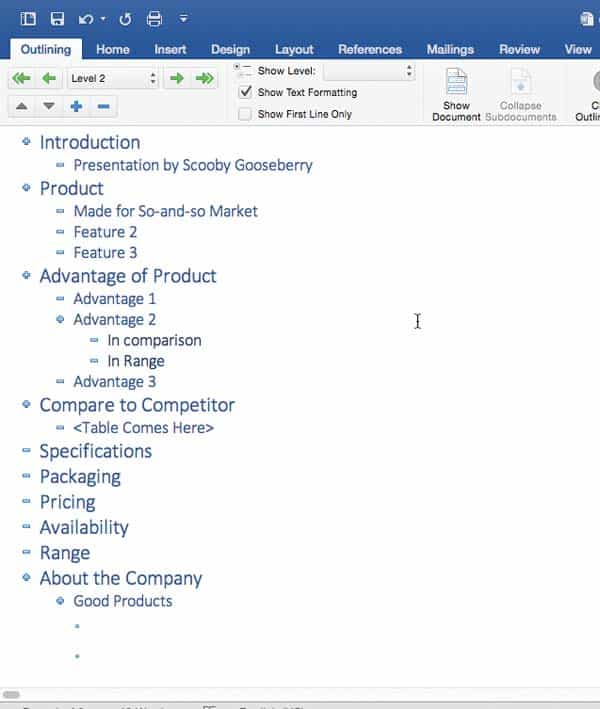
Learn how to create outlines for presentations in Microsoft Word 365 for Mac.
Filed Under:
PowerPoint 365
Tagged as: Mac, Office 2016, Office 365, Office for Mac, PowerPoint 2016, PowerPoint 2019, PowerPoint 365, PowerPoint for Mac, Tutorials
Comments Off on Creating PowerPoint Outlines in Microsoft Word 365 for Mac
By Kevin Lerner
This is part 2 of a series that looks at Presentation procrastinators. Read the first part here.

As terrific as this managed “presentation polyana” sounds, the reality is that there will inevitably be last-minute edits, high-stress crises, and countless long hours as the clock counts down to showtime. Managers changing the whole deck around. Executives calling on you to update tables, graphs, and text. Presenters who are finally giving you the time, attention, and respect you had been begging for weeks earlier.
Filed Under:
Guest Posts
Tagged as: Guest Post, Kevin Lerner, Opinion, PowerPoint, Presentation Skills, Procrastination
Comments Off on Presentation Procrastinators 02
PowerPoint has three types of text containers: Text placeholders, Text boxes, and Shapes. We explain Shapes in our comprehensive section on Shape tutorials. Let us now look at the other two text container types. Aren’t Text Placeholders and Text Boxes the same? Are they really different? And why should we bother even if they are different?
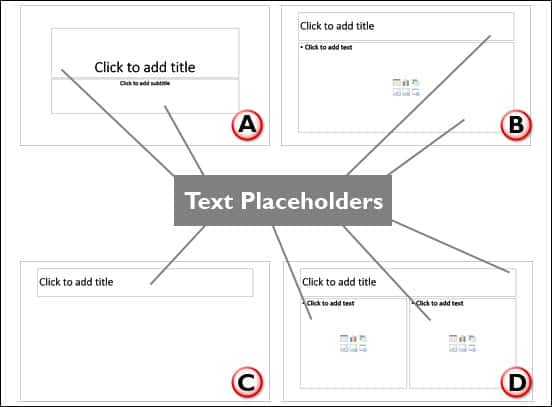
Learn about the differences between text placeholders and text boxes in PowerPoint 365 for Windows.
Filed Under:
PowerPoint 365
Tagged as: Office 2016, Office 2019, Office 365, PowerPoint 2016, PowerPoint 2019, PowerPoint 365, Text, Text Boxes, Text Placeholders, Tutorials
Comments Off on Text Placeholders vs. Text Boxes in PowerPoint 365 for Windows
An outline encompasses the text content within your presentation slides. In many ways, this text is the story or the structure of your presentation and forms an ideal starting point for a bunch of slides. PowerPoint can import outlines created in many applications, and we have already shown you how you can create outlines for PowerPoint presentations in several versions of Microsoft Word.

Learn how to create outlines for presentations in Microsoft Word 365 for Windows.
Filed Under:
PowerPoint 365
Tagged as: Microsoft Windows, Office 2016, Office 2019, Office 365, Outline, PowerPoint 2016, PowerPoint 2019, PowerPoint 365, Tutorials, Word
Comments Off on Creating PowerPoint Outlines in Microsoft Word 365 for Windows
Microsoft and the Office logo are trademarks or registered trademarks of Microsoft Corporation in the United States and/or other countries.