
This is the print version of this page. All content is copyright Indezine.com 2000-2026.
Thoughts and impressions of happenings in the world of PowerPoint and presentations, continuously updated since 2003.
See Also:
PowerPoint and Presenting Notes
PowerPoint and Presenting Glossary
While it is a great option to change the placement of your bullet character and the paragraph following the bullet, it’s not always the best option to make both these changes individually — especially if you want to retain the spacing between the bullet and the succeeding paragraph. It’s in times like this that you will appreciate the availability of the Left Indent Marker.

Filed Under:
PowerPoint 2011
Tagged as: Office for Mac, PowerPoint 2011, Text, Tutorials
Comments Off on Learn PowerPoint 2011 for Mac: Tweak Bullets with Left Indent Marker
You have a 100 slide presentation that you are working on — it’s past midnight and your eyes feel glassy. In a state of semi-consciousness, you save your slides and shut down the presentation. You were probably working on slide number 60 when you called it a day. Now it’s another day — and you want to complete where you stopped. The only problem is that you have no clue about where you need to resume! And then up comes a small message that says: Slide 60 Pick up where you left off!

Filed Under:
PowerPoint 2013
Tagged as: PowerPoint 2013, Tutorials
Comments Off on Learn PowerPoint 2013 for Windows: Resume Reading
Ninety nine times of a hundred, you will end up drawing a triangle that has lines which are not too straight or angled – and yet it really does not matter because your drawn triangle still looks like well, a triangle! Additionally, your triangle actually looks more human, more personal, and yet different – and yes, these qualities are considered good. A triangle created using PowerPoint’s shape tools on the other hand looks too geometric and not organic at all. You will love these organic triangle shapes we have created for you.


Buy and download these slides now.
Filed Under:
Presentation Bank
Tagged as: Design, Graphics, PowerPoint, Presentation Samples
Comments Off on PowerPoint Concept Slides: Organic Triangles
Usually, most folks are quite happy with how PowerPoint positions your bullets within a paragraph, or even where the paragraph that follows the bullet character is placed. Yet, you need not just accept the defaults — especially if you like that extra bit of control! You essentially control these nuances with the three Indent Markers on the Horizontal Ruler — these Indent Markers decide how your bulleted and numbered lists are positioned within PowerPoint’s text placeholders.

Filed Under:
PowerPoint 2011
Tagged as: Office for Mac, PowerPoint 2011, Text, Tutorials
Comments Off on Learn PowerPoint 2011 for Mac: Tweak Bulleted List with Hanging Indent Marker
 Reena Cruz is from Investintech.com, Inc., leading developer of PDF converter solutions for the desktop, server and mobile platforms. She writes for the Investintech blog, where she shares tips about PDF converter technology, productivity in the workplace and software in general.
In this conversation, Reena discusses their Able2Extract product and its PDF to PowerPoint conversion technology.
Geetesh: Tell us about Able2Extract 8 – also can you share some scenarios in which people may want to convert their PDFs to Microsoft Office formats such as PowerPoint, Excel, and Word?
Reena: Anyone who works with digital formats knows that editing and working with PDF content is next to impossible. Our flagship PDF converter, Able2Extract 8, was developed to help you convert those PDF files to other digital formats, including Microsoft PowerPoint, Word, Excel, and Publisher, as well as non-Microsoft formats such as AutoCAD, HTML, image and open source formats.
Combining built-in PDF viewing technology and an intuitive user-friendly interface, Able2Extract 8 aims to make converting PDF files as easy as possible. The process is simple — open your file, select your content and click to convert. In three steps, you’re left with content you can edit, analyze and reuse.
In contrast, the day to day issues users face with the PDF format are anything but simple. For instance, PowerPoint presentations can be easily shared and exported to PDF. Yet, the presentation content inside them will often need to be edited or reused in some other capacity.
Also, consider how you work with other formats. Performing Excel calculations on PDF data becomes impractical if you need to manually re-enter those details into different spreadsheets.
There are even cases where no digital source file exists. With paper copies of statements and reports being scanned directly into PDF files, how do you work with the information contained in them?
In each case, you struggle to work with that PDF content, copying and pasting, retyping or taking screenshots of PDF pages. Able2Extract 8 reduces the need for makeshift solutions and lets you directly convert PDF text and graphics faithfully into other formats.
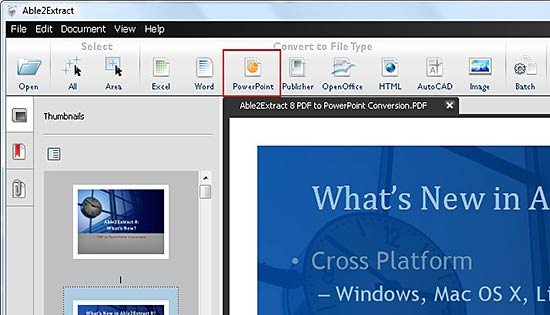

Geetesh: How much more improved and refined is Able2Extract compared to other PDF conversion options including the new PDF to Word converter built inside Word 2013?
Reena: Able2Extract’s development was largely due to feedback from our users. As a result, we were able to really hone down Able2Extract’s features and get it to accommodate the ways in which you really need to work with PDF conversions, letting you fine-tune them as needed.
For instance, a big part of Able2Extract is about conversion control, which some PDF conversion options can easily miss out on. If you need to deal with only portions of text or complex data tables, Able2Extract can help get the job done. You can work with your conversions on the paragraph level and convert anywhere from a single line to the entire file. Its custom conversion options will go so far as to let you select the rows and columns for PDF to Excel conversions.
We know that PDF converter users can range anywhere from business professionals to students. Thus, we included conversion options and settings that anyone can take advantage of: batch conversion, AutoCAD settings, image DPI resolution, and Excel and Word output options. As a standalone application, Able2Extract can fit into any workflow.
And this is where Able2Extract 8 can really offer more than Microsoft Word’s PDF to Word built-in converter. Where its conversion function requires that you are in Microsoft Word 2013 to use the feature, Able2Extract doesn’t. It isn’t a plug-in limited to other applications. Able2Extract is specifically designed for PDF conversions alone. Moreover, you aren’t tied down to a specific platform either. This latest version is also cross-platform. You can work on Windows, Mac or Linux.
Listening to users’ needs and suggestions is what really brought our PDF solutions to the point they are at now. Making Able2Extract available and useful for everyone, even on the mobile platform, is what compels us to keep improving the technology. We wanted to bring a different, more elegant PDF solution to the market and Able2Extract 8 is it.
The views and opinions expressed in this blog are those of the authors and do not necessarily reflect the official policy or position of any other agency, organization, employer, or company.
Filed Under:
Interviews
Tagged as: Interviews, PDF, PowerPoint
Comments Off on Able2Extract 8: Conversation with Reena Cruz
Microsoft and the Office logo are trademarks or registered trademarks of Microsoft Corporation in the United States and/or other countries.