
This is the print version of this page. All content is copyright Indezine.com 2000-2026.
Thoughts and impressions of happenings in the world of PowerPoint and presentations, continuously updated since 2003.
See Also:
PowerPoint and Presenting Notes
PowerPoint and Presenting Glossary
Here’s a quick walkthrough of the PowerPoint 2013 interface — the PowerPoint 2013 interface is quite similar, yet somewhat different than the interface of PowerPoint 2010. The biggest change is that PowerPoint 2013’s interface is primed for use also on tablets, touch-screens, and phones (other than conventional desktops). Thus, you can swipe and tap your way through a presentation — and also make several edits without the need of a cursor.

Explore a quick walkthrough of the PowerPoint 2013 interface that reveals some new features.
Filed Under:
PowerPoint 2013
Tagged as: PowerPoint 2013, Tutorials
Comments Off on PowerPoint 2013 Interface
Transition effects show a visual change when you move from one slide to another. Before you add any transition effect, your slides advance rather abruptly — adding a transition effect like Fade, Wipe, or any of the other effects makes the flow between slides smoother to the eye and easier to the slide content. Although the purpose of transitions is to remove the abruptness of moving from one slide to another, you can actually do a slide transition without any effect — in this case you will only add the transition so that you can add a transition time so that slides advance at determined timings. Finally, you can also add transition sounds.

Learn how to add transition effects to the slides in PowerPoint 2011 for Mac.
Filed Under:
PowerPoint 2011
Tagged as: Office for Mac, PowerPoint 2011, Transitions, Tutorials
Comments Off on Learn PowerPoint 2011 for Mac: Slide Transitions
Although PowerPoint (and Microsoft Office ) includes several Theme Fonts sets, you can take this concept further by creating your own custom Theme Fonts sets. When you create a custom Theme Fonts set, the new set will appear within the Custom section of the Fonts drop-down gallery. However, what do you do when you want to delete a Theme Fonts set because you made a mistake — or if you have too many of these sets that you no longer use? Or let us assume that you have created several custom Theme Fonts sets, and you now need to copy them to a new computer, or even a friend’s or colleague’s system.

Learn how to share, edit, and delete the custom Theme Fonts in PowerPoint 2010 for Windows.
Filed Under:
PowerPoint 2010
Tagged as: Fonts, PowerPoint 2007, PowerPoint 2010, Themes, Tutorials
Comments Off on Learn PowerPoint 2010 for Windows: Sharing, Editing, and Deleting Custom Theme Fonts

Art Holden has been in the animation and presentation industry since 1996. He helped start Animation Factory in 1997, where he served as general manager for thirteen years. He currently lives in Sioux Falls, South Dakota, USA, and works with PresenterMedia, a media content creating company.
In this conversation, Art discusses the new PowerPoint add-in from PresenterMedia that lets you search and insert visual content from within PowerPoint.
Geetesh: PresenterMedia’s new PowerPoint add-in lets you search and insert clip media right from inside PowerPoint — what motivated you to create this add-in?
Art: Creating a presentation can be time-consuming and is often accompanied by stressful deadlines. We realized we could develop a tool that allows people to use PresenterMedia’s unique content to create stunning presentations even faster and easier.
The PresenterMedia add-in for PowerPoint provides convenient access to our templates, animations, and clipart directly from PowerPoint. This allows you to spend more time honing your message and less time worrying about the design.
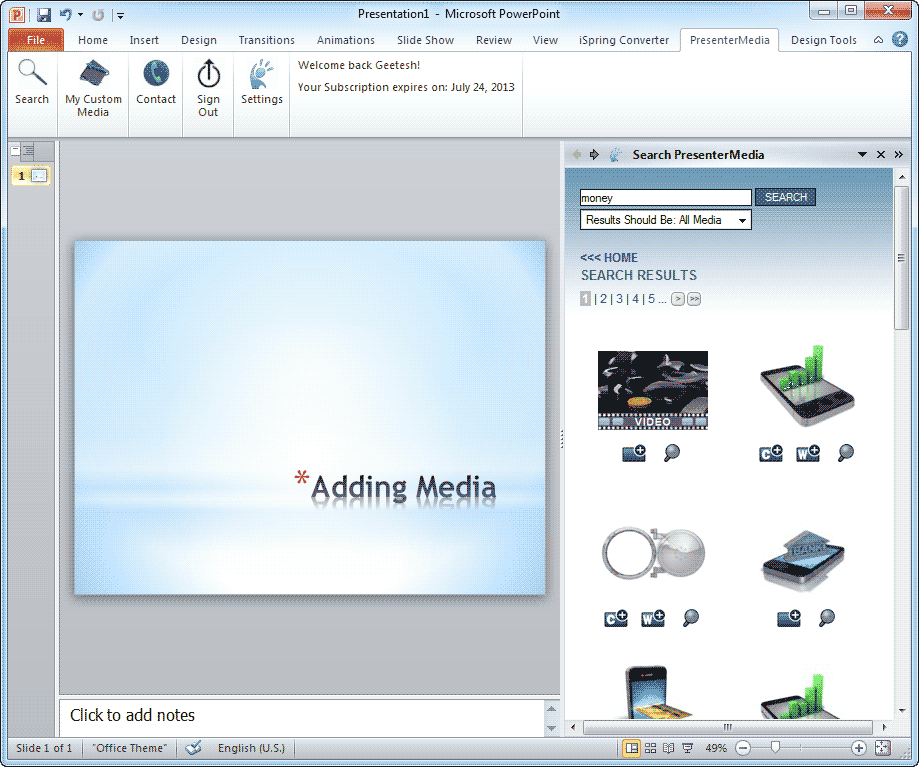
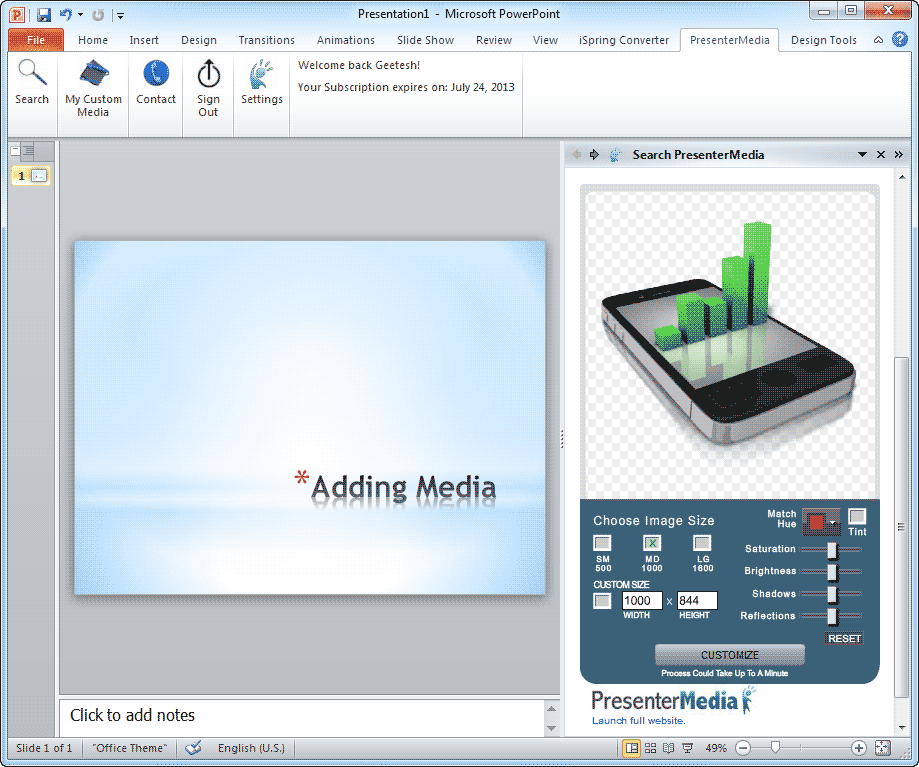
Geetesh: The add-in also allows you to change hues, sizes, and even turn off shadows on graphics — much like the abilities available on your site. Tell us about some user experiences based on these capabilities.
Art: Often times, presentation designers are limited in the choice of color combinations they are able to use in a presentation, or they are striving to convey a particular mood. The ability to change and customize our animations, videos, and clip art allows you to match your company colors or fit the image into your existing design theme.
Using our customization tools in the PowerPoint add-in allows our users to modify our images directly inside their presentation. It gives presentation designers more control at their fingertips, and it has been very popular with our current users.
See Also: PresenterMedia: Conversation with Art Holden | PresenterMedia Content: Conversation with Art Holden
The views and opinions expressed in this blog are those of the authors and do not necessarily reflect the official policy or position of any other agency, organization, employer, or company.
Filed Under:
Interviews
Tagged as: Add-in, Clip Media, Interviews, PowerPoint
Comments Off on PresenterMedia PowerPoint Add-in: Conversation with Art Holden
The main purpose of adding animation to any slide object is to draw the attention of the audience to some concept. After adding animation, you can set the animation event, and also the speed of the animation. To make it more interesting, you may also want some sound to play along with the animation. One aspect that you should always remember is that although you can add sound to an animation, it is not always necessary to do so — we suggest you only add sound sparingly — and even then, you must make sure that the sound adds some value to the animation. In addition, it is important that you use the perfect sound type for any animation — using clapping or roaring sounds is very cliché. Now that we have made you aware about the caveats, let us go ahead and explore the actual procedure.

Learn how to add sound effects that accompany animations in PowerPoint 2011 for Mac.
Filed Under:
PowerPoint 2011
Tagged as: Animation, Office for Mac, PowerPoint 2011, Sounds, Tutorials
Comments Off on Learn PowerPoint 2011 for Mac: Add Sound to Animation
Microsoft and the Office logo are trademarks or registered trademarks of Microsoft Corporation in the United States and/or other countries.